Introduction
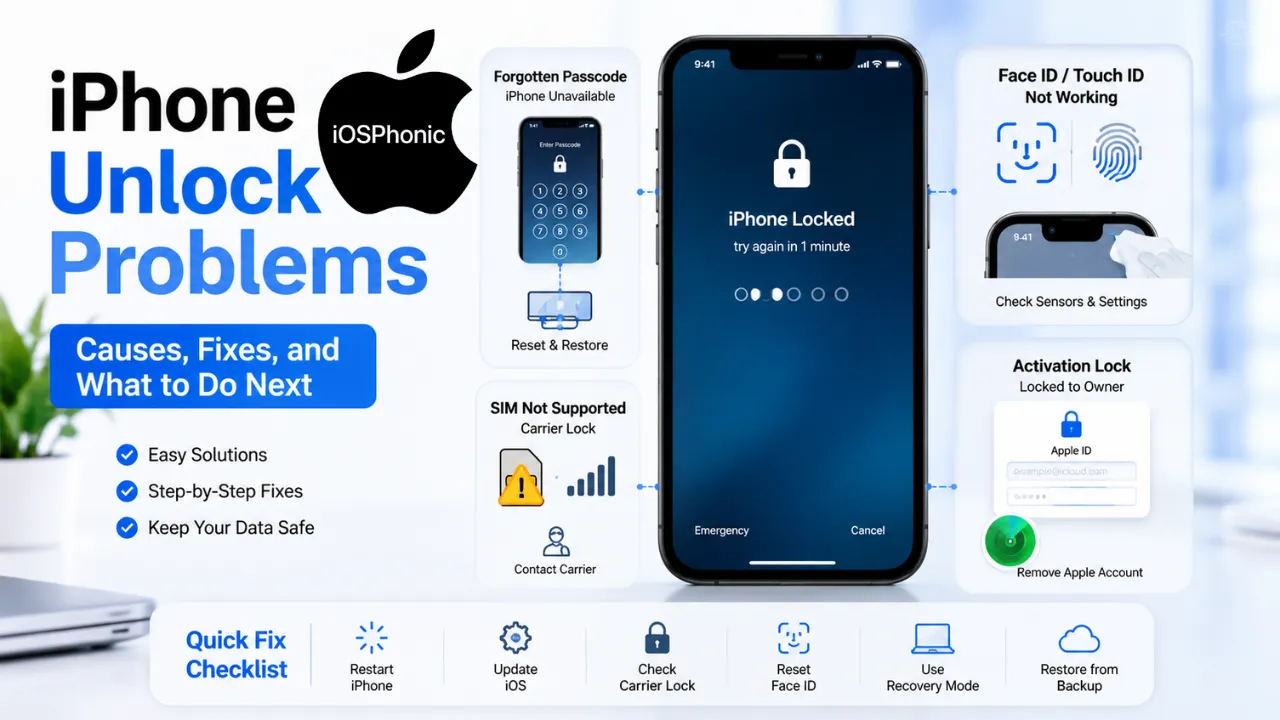
iPhone Unlock Problems can feel urgent because they stop everything at once: calls, messages, photos, apps, payments, and even basic access to the phone. The frustrating part is that the word “unlock” can mean several different things on an iPhone. You might be locked out by a forgotten passcode, Face ID might not recognize you, Touch ID might fail, your phone might be carrier-locked, or setup may stop at Activation Lock. Apple handles each of these with a different fix, so the smartest first step is diagnosis, not guessing.
This guide breaks the problem into clear parts and shows the safest way forward for each one. You will see what the issue means, how to check it, what Apple recommends, and when a restore, carrier call, or service visit is the right next move. The goal is simple: help you get back into your iPhone with the least confusion and the least risk to your data.
What is the “iPhone unlock problems” issue?
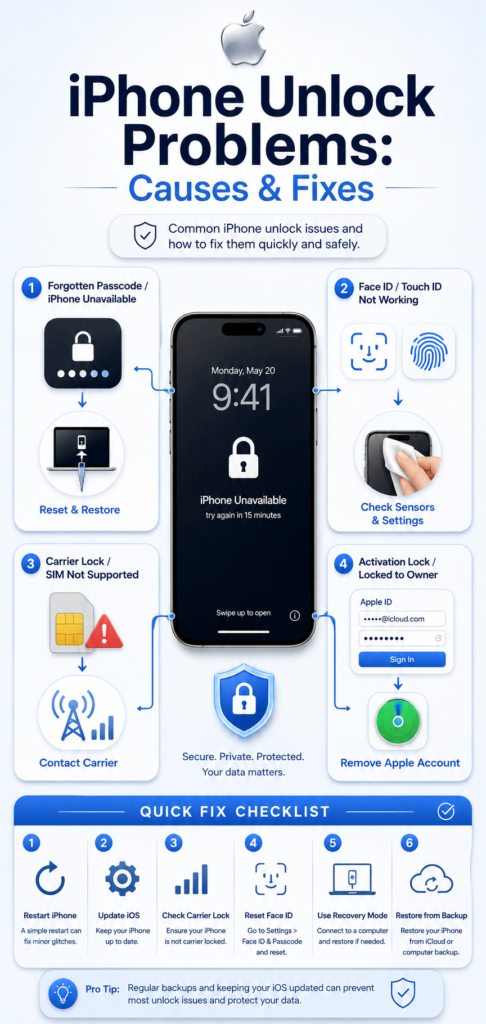
This keyword is really a bundle of four different problems:
- Passcode lock — you forgot the screen passcode, or the device says unavailable/disabled.
- Biometric lock — Face ID or Touch ID is not working properly.
- Carrier lock — the iPhone cannot use another network’s SIM or eSIM.
- Activation Lock — the device asks for the Apple Account used to set it up.
That distinction matters because the fix for one can do nothing for the others. A passcode problem is handled by resetting or restoring. A carrier lock can only be removed by the current carrier. Activation Lock requires the Apple Account that is tied to the device or proof of purchase support.
How to tell which unlock issue you have
Use this quick diagnosis table before trying any fix.
| What you see | Most likely issue | Best first action | Who can remove it |
| “iPhone Unavailable,” “Security Lockout,” disabled screen, or forgotten passcode | Passcode problem | Try the on-device reset path or recovery mode | You, with Apple’s reset steps |
| Face ID will not recognize you, or Touch ID fails/grays out | Biometric problem | Clean sensors, update iOS, restart, then reset Face ID or Touch ID | You, or the service if hardware is failing |
| “SIM not supported,” “Invalid SIM,” or Carrier Lock shows restrictions | Carrier lock problem | Check Settings > General > About | Current carrier only |
| Setup asks for an Apple Account after erasing or on a used device | Activation Lock problem | Sign in with the Apple Account used on the device or contact Apple with proof of purchase | Apple Account owner or Apple Support request |
Why does this problem happen
Here are the most common real-world causes behind iPhone unlock problems:
- Too many wrong passcode attempts trigger an unavailable or security lockout screen.
- A recent passcode change created a short recovery window that many users do not realize exists.
- Face ID sensors are blocked, the camera system has trouble, or Face ID needs to be reset.
- Touch ID is not clean, not enabled, or is affected by moisture, gloves, or a damaged sensor.
- The iPhone is carrier-locked, so another SIM or eSIM will not activate.
- Activation Lock is still tied to the Apple Account used on the device.
- The Apple Account itself is locked or disabled, which can block the Activation Lock sign-in step.
- A cable, recovery, or restore process failed partway through, especially during a passcode reset.
How to fix iPhone unlock problems step by step
Fix 1: Try the 72-hour previous-passcode reset
If you recently changed your passcode and then forgot the new one, Apple provides a built-in recovery path on iOS 17 and later. For 72 hours after the change, you may be able to unlock the device with the previous passcode and then set a new one immediately.
Steps:
- On the Lock Screen, enter the wrong passcode until the iPhone Unavailable or Security Lockout screen appears.
- Tap Forgot Passcode?.
- Tap Enter Previous Passcode.
- Enter your old passcode and follow the prompts to create a new one.
Use this fix when: you changed your passcode recently and still remember the old one.
Fix 2: Use Apple’s on-device erase and reset path
If you forgot the passcode and your device is on iOS 15.2 or later, Apple allows you to erase and reset the device without a computer in many cases. This requires Find My to have been enabled previously, an active Wi-Fi or cellular connection, and your Apple Account password. The process erases the data on the device.
Steps:
- Enter the wrong passcode until you see iPhone Unavailable.
- Tap Forgot Passcode?.
- On the Security Lockout screen, tap Start [Device] Reset.
- Enter your Apple Account password.
- Tap Erase [Device]. If you use eSIM on iOS 17 or later, you can choose to keep or delete the eSIM during erase.
- Set up the iPhone again and restore from a backup if you have one.
Use this fix when: the passcode is forgotten, and the device supports the on-device reset path.
Fix 3: Restore with a computer in recovery mode
If the device cannot use the on-device reset flow, Apple says to reset it with a Mac or Windows PC. This is also the correct path for older iPhone software that does not offer the newer on-device reset option. Apple’s guidance says the download and restore process can take more than 15 minutes, and if the device exits recovery mode during that time, you may need to start recovery mode again.
Steps on Mac:
- Connect the iPhone to the Mac.
- Open Finder and select your iPhone in the sidebar.
- Choose Restore when prompted.
Steps on Windows:
- Connect the iPhone to the PC.
- Open the Apple Devices app.
- Select your iPhone and choose Restore.
Use this fix when: the on-device reset option is missing, the phone is disabled, or Apple tells you to restore with a computer.
Fix 4: Troubleshoot Face ID unlock problems
If Face ID is not unlocking your iPhone, Apple recommends a simple sequence: restart, check appearance settings, reset Face ID, and get service if the camera still cannot work properly.
Steps:
- Restart your iPhone and enter your passcode once it comes back on.
- Make sure the TrueDepth camera area is not blocked by a case, dirt, or anything covering the sensors. Apple’s Face ID support also notes that if the camera is not working, service may be needed.
- Go to Settings > Face ID & Passcode > Reset Face ID.
- Set up Face ID again.
- If your face tends to look very different in some situations, add an alternate appearance.
Use this fix when: Face ID recognizes you sometimes, fails often, or stops working after a change in lighting, angle, or device state.
Fix 5: Troubleshoot Touch ID unlock problems
If Touch ID fails, Apple suggests checking the sensor, your finger, the setting that allows iPhone Unlock, and the enrolled fingerprints. Apple also notes that moisture, skin condition, or activity can affect recognition.
Steps:
- Update iPhone to the latest iOS version.
- Clean and dry your finger and the Touch ID sensor.
- Make sure your finger covers the sensor fully and is not moving too quickly.
- Check that a case or screen protector is not blocking the sensor.
- Go to Settings > Touch ID & Passcode and confirm iPhone Unlock is enabled.
- Enroll a different finger.
- If Touch ID is dimmed, grayed out, or keeps failing, service may be required.
Use this fix when: Touch ID is inconsistent, disabled, or failing after a small hardware or skin-related change.
Fix 6: Check whether the problem is actually a carrier lock
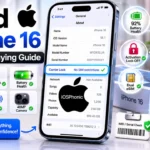
A carrier-locked iPhone is not the same thing as a passcode-locked iPhone. Apple says to check Settings > General > About and look for Carrier Lock. If it shows No SIM restrictions, the iPhone is unlocked. If not, only the current carrier can unlock it. Apple also says it may take the carrier a few days to finish the request.
Steps:
- Open Settings > General > About.
- Check the line next to Carrier Lock. If it says No SIM restrictions, your phone is unlocked.
- If it does not say that, contact the current carrier. Apple cannot unlock it for you.
- After the carrier confirms the unlock, insert the new SIM or set up the new eSIM.
- If you do not have another SIM, Apple recommends backing up, erasing, and restoring the iPhone after the unlock is confirmed.
Use this fix when: the phone shows SIM not supported, Invalid SIM, or it will not accept another carrier’s SIM or eSIM.
Fix 7: Resolve Activation Lock the right way
Activation Lock is Apple’s anti-theft protection. It turns on automatically when Find My is enabled, and the device will ask for the Apple Account and password used to set it up before it can be turned off, erased, or reactivated.
Steps:
- Enter the Apple Account and password tied to the device.
- If you do not remember the Apple Account, try the email address or phone number you usually use with Apple services.
- If you are using a used device, confirm that the previous owner removed it from their account before taking ownership. Apple warns not to take ownership until the device has been erased and is ready to set up.
- If you have proof of purchase and cannot access the original Apple Account, submit an Activation Lock support request.
Use this fix when: the device says Locked To Owner, asks for the previous Apple Account, or gets stuck at activation after a reset.
Fix 8: Solve Apple Account lockouts before they block the unlock process
Sometimes the real blocker is not the iPhone itself but the Apple Account. If the account is locked, not active, or disabled, Apple says you may need to reset the password or request access. If you cannot regain access, Apple says you can create a new Apple Account or start an Activation Lock support request with proof of purchase.
Steps:
- Try resetting the password on a trusted device first.
- If needed, start account recovery. Apple says it can take several days or longer, and support cannot shorten the wait.
- If the account is only locked, use the Request Access path shown by Apple.
- Once the Apple Account is working again, return to the iPhone unlock process.
Use this fix when: Activation Lock is blocking setup, and the Apple Account cannot be accessed.
Quick fix checklist
Before doing anything deeper, run through this list:
- Restart the iPhone.
- Check whether it is a passcode, Face ID, Touch ID, carrier lock, or Activation Lock.
- Look for Forgot Passcode? or Security Lockout if the passcode is the issue.
- Check Settings > General > About for Carrier Lock.
- Clean the Face ID / Touch ID hardware area.
- Confirm you know the Apple Account tied to the device.
- Use a backup before any erase or restore. Apple’s reset paths can permanently delete the data on the device.
Advanced fixes and deeper troubleshooting
1) Recover with the right computer method
If the restore process takes too long, Apple says the phone may leave recovery mode, and you may need to repeat the steps. That is normal and not a sign that the phone is ruined.
2) Move slowly with eSIM users
Apple says eSIM users on older iOS versions should contact the carrier before trying the reset steps and ask for a QR code to set up the eSIM again. On iOS 17 and later, Apple also lets you choose whether to keep or delete the eSIM during a reset.
3) Use the service when the hardware is failing
If Face ID camera hardware fails or Touch ID stays gray, dimmed, or unavailable after all software fixes, Apple says the device may need service.
4) Do not confuse “unlock” with “bypass.”
Official Apple support only describes legitimate recovery paths: password reset, restore, carrier unlock, or Activation Lock removal, all requiring the correct Apple Account or proof of purchase. It does not offer a universal “bypass” for these locks.
Comparison table: which fixes which problem?
| Problem type | Best fix | Data loss risk | Need an Apple Account? | Needs a carrier? |
| Forgotten passcode | On-device reset or recovery mode restore | Yes, usually erase and restore | Often yes | No |
| Face ID failure | Restart, reset Face ID, service if needed | No | No | No |
| Touch ID failure | Clean sensor, re-enroll fingerprint, service if needed | No | No | No |
| Carrier lock | Contact current carrier | No, but may need backup and restore after unlock | No | Yes |
| Activation Lock | Sign in with the linked Apple Account or use proof of purchase support | No, if the owner signs in; otherwise depends on the support path | Yes | No |
Pro tips and hidden tricks
- Check Carrier Lock before changing SIMs. It saves time when the problem is really a network restriction.
- Do not wait for recovery mode forever. Apple says long downloads can push the phone out of recovery mode, and you may need to repeat the process.
- Use a backup habit before any reset. Apple’s passcode-reset and recovery flow can erase the device.
- Check for a recent Passcode change. The 72-hour old-passcode feature may save the day.
- Use an alternate appearance for Face ID. It helps when your look changes a lot.
- Re-enroll Touch ID with a different finger. Apple specifically recommends trying another fingerprint.
- For used iPhones, verify Find My status before paying. Activation Lock stays tied to the original Apple Account until it is removed.
Common mistakes to avoid
- Trying random “unlock” tools before identifying the real lock type.
- Assuming carrier lock and passcode lock are the same thing. They are not.
- Forgetting that a passcode reset can erase the device.
- Forgetting that only the current carrier can unlock a carrier-locked iPhone.
- Buying a used iPhone without checking for Activation Lock first.
Privacy and data safety notes
When the fix involves a reset or restore, treat it like a data-loss event unless you already have a backup. Apple’s official reset paths can erase the iPhone, and account recovery can take several days or longer if the Apple Account itself is locked. That is why a recent backup and the correct Apple Account details matter so much before you begin.
FAQs
A1. No. Apple says only the current carrier can unlock it.
A2. Yes. Apple’s reset and restore process permanently deletes the data on the device.
A3. Go to Settings > General > About and check Carrier Lock. If it says No SIM restrictions, the phone is unlocked.
A4. Reset Face ID, set it up again, and if the camera still fails, Apple says the device may need service.
A5. That is Activation Lock. The previous owner must remove the device from their account, or you need Apple Account access/proof of purchase support.
Conclusion
The fastest way to solve iPhone unlock problems is to identify the lock type first. A forgotten passcode, Face ID failure, Touch ID issue, carrier lock, and Activation Lock all look similar at a glance, but each one has a different fix. Use Apple’s official path, back up before any erase, and only contact the carrier or Apple Account recovery when the diagnosis points there.