Introduction
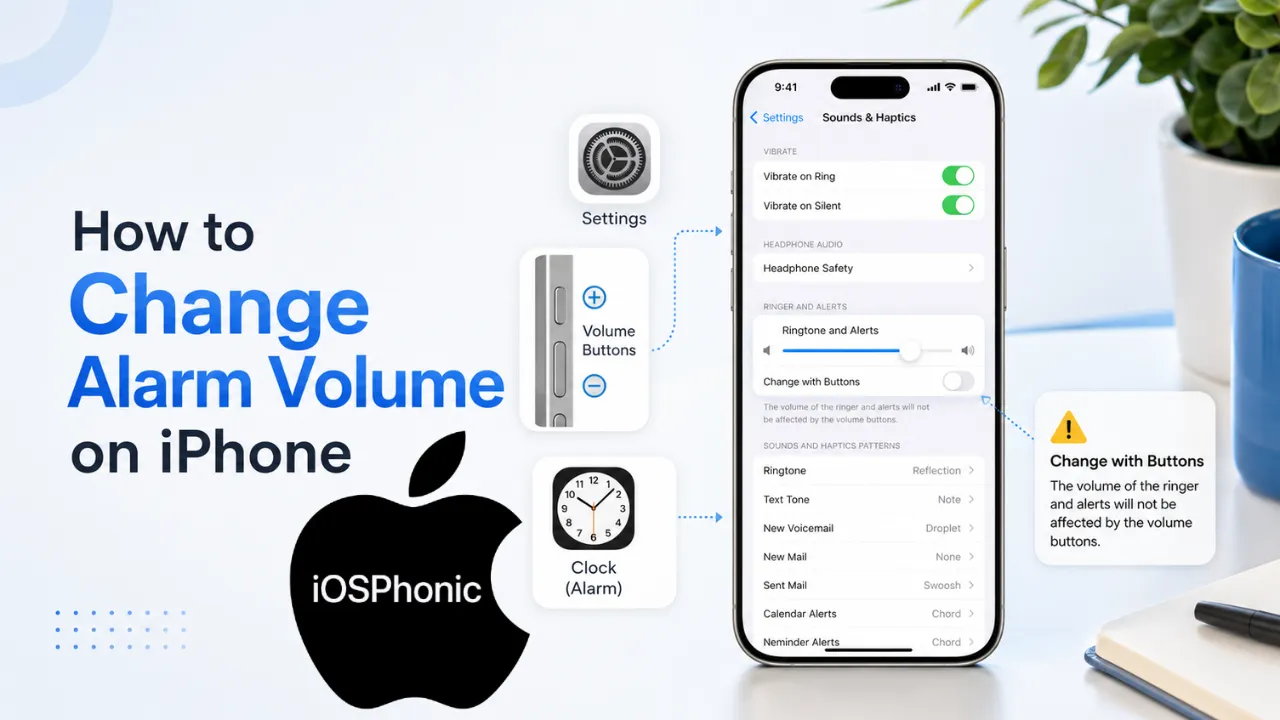
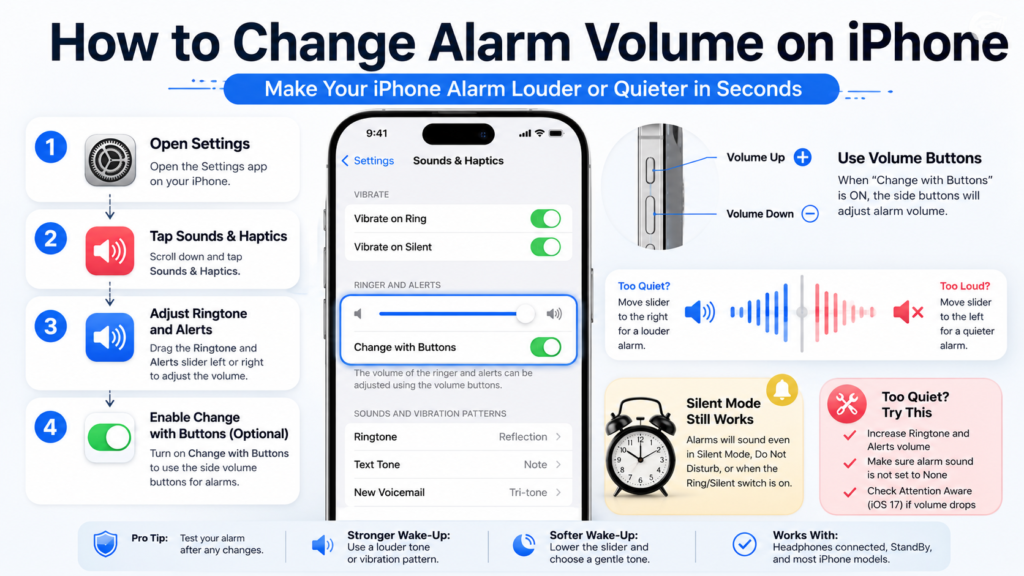
If you are trying to figure out How to Change The Alarm Volume On An iPhone, the first thing to know is this: Apple does not give alarms a separate alarm-only slider. Instead, the alarm volume is controlled through Settings > Sounds & Haptics > Ringtone and Alerts, and you can also use Change with Buttons if you want the side buttons to adjust that same alert volume. Apple’s current support pages still describe this exact setup.
That is why this issue confuses so many people. They expect one alarm setting inside the Clock app, but the real control lives in system sound settings. If your alarm is too loud, too quiet, or seems to change by itself, the problem is usually the same one: the ringer and alert volume was changed somewhere in Settings, Control Center, or with the hardware buttons. Apple also confirms that Silent mode and Do Not Disturb do not stop Clock alarms from sounding, which clears up another common myth.
In this guide, you will learn the exact steps to change alarm volume, how to make your iPhone alarm louder or quieter, what to check when the alarm only vibrates, and which settings can make the alarm seem broken even when it is working normally.
What is the “change alarm volume on iPhone” issue?
This issue is not really about the Clock app itself. It is about the fact that the iPhone alarm uses the same sound system as the ringer and alerts. Apple’s official instructions point you to Sounds & Haptics, not Clock, for volume control. That means most alarm-volume problems are actually system sound problems in disguise.
In simple terms, the real user problem is usually one of these:
- The alarm is too quiet to wake you.
- The alarm is too loud and needs to be reduced.
- The side buttons are changing the alarm volume without you realizing it.
- The alarm is set to None and vibrates only.
- A feature such as Attention Aware, headphones, or StandBy makes the behavior seem strange.
Why does this problem happen
Here are the most common reasons your iPhone alarm volume feels wrong:
- Ringtones and Alerts are set too low. Apple says this slider controls alarm volume.
- Change with Buttons is on. That means the side volume buttons can change the same alert volume used for alarms.
- The alarm sound is set to None. In that case, you may get vibration only.
- Attention Aware Features lowers alerts when you are looking at the device. Apple says it can lower alert volume on Face ID devices.
- Headphones are connected. Apple says the alarm plays through the built-in speaker and headphones at a set volume.
- You are using StandBy. Apple says alarm haptics are disabled there.
- You changed the volume somewhere else. The side buttons and Control Center can affect system audio behavior depending on your settings.
- The alarm tone itself is too soft. A weak tone can feel like a volume problem even when the slider is correct. This is a practical troubleshooting inference from Apple’s sound-selection guidance.
How to change alarm volume on iPhone step by step
Fix 1: Use the Ringtone and Alerts slider
This is the main setting you need.
- Open Settings.
- Tap Sounds & Haptics.
- Under Ringtone and Alerts, drag the slider left to lower the alarm volume or right to raise it.
- Listen to the preview as you move the slider so you can hear the change. Apple says an alert plays while you adjust it.
When to use this fix:
Use this when the alarm is too loud, too quiet, or you want a precise volume level that stays consistent.
Fix 2: Turn on Change with Buttons if you want quick control
If you want the physical volume buttons to adjust alarm volume:
- Go to Settings.
- Tap Sounds & Haptics.
- Turn on Change with Buttons.
After that, the side buttons can change the same ringer and alert volume used by alarms. Apple explains that the buttons normally control media while you are listening to songs, movies, or other media, but otherwise they affect ringer and alerts unless the setting is locked in Settings.
When to use this fix:
Use this if you want a fast bedtime adjustment without opening Settings every time.
Fix 3: Check the alarm sound in the Clock app
A quiet or missing sound can make the alarm feel broken even when the volume is fine.
- Open the Clock app.
- Tap Alarms.
- Tap Edit.
- Choose the alarm you want to change.
- Tap Sound.
- Pick a sound that is None.
- Save the alarm.
Apple specifically says that if an alarm only vibrates, you should make sure the sound is not set to None.
When to use this fix:
Use this if the alarm vibrates but does not ring, or if the sound seems too soft to hear.
Fix 4: Turn off Change with Buttons if your volume keeps changing by accident
If your alarm volume keeps shifting on its own, the side buttons may be the reason.
- Open Settings.
- Tap Sounds & Haptics.
- Turn Change with Buttons off.
When this is off, the side buttons stop changing the alert volume. That helps prevent accidental late-night volume changes. Apple’s volume guide specifically calls this locking behavior out.
When to use this fix:
Use this if you often press the volume buttons for videos, games, or music and later wonder why your alarm changed.
Fix 5: Test whether Silent mode or Do Not Disturb is the issue
This is a common fear, but Apple is clear here: alarms still sound.
Apple says that Silent mode, the Ring/Silent switch, and Do Not Disturb do not affect the Clock alarm sound. The alarm still sounds even if those modes are on.
So if your alarm is not ringing, Silent mode is usually not the cause. That is useful because it lets you stop blaming the wrong setting and focus on actual causes like volume, sound selection, or Attention Aware.
When to use this fix:
Use this when you suspect Focus modes are blocking the alarm.
Fix 6: Check Attention Aware Features
On Face ID iPhones, Apple says Attention Aware Features can lower the volume of some alerts when the device thinks you are looking at it.
To check it:
- Open Settings.
- Tap Face ID & Passcode.
- Turn Attention Aware Features off if you do not want that behavior.
This does not mean your alarm is “broken.” It means a Face ID behavior may be making the sound feel less forceful in certain situations. This is one of the more useful advanced troubleshooting steps for iPhone alarm complaints.
When to use this fix:
Use this if your alarm seems strangely quiet even though the slider looks high.
Fix 7: Disconnect headphones and test again
Apple says that if headphones are connected, the alarm plays at a set volume through both the built-in speakers and wired or wireless headphones.
That means Bluetooth earbuds, wired headphones, or AirPods can make the alarm behavior feel confusing. A safe test is to disconnect the headphones, then run a test alarm and listen again.
When to use this fix:
Use this when you use AirPods, Bluetooth headphones, or sleep with audio connected.
Fix 8: Avoid StandBy if you rely on haptics
Apple says that when you use StandBy, haptics for alarms are disabled.
That matters for users who assume an alarm “failed” when the actual issue is that vibration feedback is not available in that mode. If you depend on vibration, test the alarm outside StandBy first.
When to use this fix:
Use this if you charge your iPhone overnight in Standby and expect a strong vibration.
Fix 9: Try a louder alarm tone
Sometimes the slider is fine, but the chosen tone is too soft or too easy to ignore. Apple lets you choose an alarm sound inside the Clock app, so the tone itself is part of the fix.
Try a more noticeable tone, then test it at the same slider level. This is a practical way to make the alarm feel stronger without changing the whole sound system. It is also the kind of fix that many shorter articles mention, but they often fail to tie it clearly back to Apple’s actual sound settings.
When to use this fix:
Use this when the alarm volume is technically correct but still not waking you.
Fix 10: Restart and retest after making changes
After you change alarm sound settings, it is smart to restart the iPhone and then test the alarm again. This is a standard troubleshooting step, especially if the volume seemed to switch unexpectedly after an update or a settings change. While Apple’s alarm-specific page focuses on the core settings, a restart is a reasonable expert troubleshooting step when the device seems stuck.
When to use this fix:
Use this after making several changes and still not getting the behavior you expect.
Quick fix checklist
Use this checklist when you want the fastest possible solution:
- Go to Settings > Sounds & Haptics
- Adjust Ringtone and Alerts
- Turn Change with Buttons on or off, depending on your preference
- Make sure the alarm sound is None
- Test with Attention Aware Features off if needed
- Disconnect headphones
- Avoid relying on StandBy vibration
- Try a louder alarm tone
- Restart and test again
Best settings for a loud wake-up
If you want the loudest, most dependable alarm, use this setup:
| Setting | Recommended choice | Why |
| Ringtone and Alerts | Near maximum | This is the main alarm volume control. |
| Change with Buttons | On or off by preference | On gives quick adjustment; off prevents accidental changes. |
| Alarm sound | A loud, noticeable tone | A stronger tone is easier to wake to. |
| Attention Aware Features | Off if volume seems reduced | Apple says it can lower alert volume. |
| Headphones | Disconnected overnight | Avoids confusing output routes. |
Expert tip: test the alarm once while awake after changing it. That one habit catches most problems before they matter.
Best settings for a quiet wake-up
If you need a softer alarm, use this setup:
| Setting | Recommended choice | Why |
| Ringtone and Alerts | Lower level | This is the correct place to reduce the alarm volume. |
| Change with Buttons | Off if you want stability | Prevents accidental volume changes. |
| Alarm sound | Calm but clear tone | Easier to control than a harsh tone. |
| Attention Aware Features | Leave as desired | Only change it if you notice volume reduction. |
Pros and cons of using Change with Buttons
| Pros | Cons |
| Fast to adjust at bedtime | Easy to lower volume by accident |
| No need to open Settings | Can affect your alarm without warning |
| Helpful for frequent testing | Makes the setting less predictable |
Apple’s own volume documentation makes it clear that the buttons can control alert volume when the setting is enabled, which is why this feature is useful but also easy to misuse.
Pro tips and hidden tricks
- Set a test alarm for two minutes from now. This is the fastest way to confirm the volume really changed.
- Listen while you drag the slider. Apple says an alert plays as you adjust it, which makes testing simple.
- Use a different sound before changing more settings. A tone change can solve the problem without deeper troubleshooting.
- Keep an eye on Change with Buttons. It is convenient, but it can also explain “Mystery” volume changes.
- Check Attention Aware if you use Face ID. Apple says it can lower alert volume when you are looking at the device.
- Don’t blame the silent mode first. Apple says alarms still sound even when Silent mode or Do Not Disturb is on.
- Test without headphones. Apple says alarms still play through speakers and headphones, but removing them makes troubleshooting simpler.
Common mistakes to avoid
- Looking for a separate alarm-only slider inside the Clock.
- Lowering the side volume buttons and forgetting that Change with Buttons is on.
- Leaving the alarm sound set to None.
- Thinking Silent mode blocks the alarm.
- Ignoring Attention Aware on Face ID devices.
- Testing only once and assuming the problem is fixed.
Privacy and data safety notes
This issue does not usually involve privacy risk, but it can involve accessibility and safety. If you use alarms for medication, work, or caregiving, always test your settings before depending on them. Apple’s support pages are the best source for the exact behavior of alarms, Silent mode, headphones, and Attention Aware features.
FAQs
No. Apple routes alarm volume through Settings > Sounds & Haptics > Ringtone and Alerts, not through a separate alarm-only slider.
Raise Ringtone and Alerts in Sounds & Haptics, pick a louder alarm tone, and check whether Attention Aware Features or headphones are affecting the result.
Lower the Ringtone and Alerts slider in Sounds & Haptics. Apple identifies this as the correct control.
The most common reason is Change with Buttons being turned on, which lets the side buttons change the same alert volume used for alarms.
No. Apple says Clock alarms still sound in Silent mode and Do Not Disturb.
Conclusion
The real answer to how to change alarm volume on an iPhone is simple: Open Settings > Sounds & Haptics, adjust Ringtone and Alerts, and use Change with Buttons only if you want the side buttons to control the same volume. Apple also confirms that alarms still sound in Silent mode and Do Not Disturb, so those are usually not the problem. If the alarm still feels wrong, check the sound setting, Attention Aware Features, headphones, and StandBy.