Introduction Of Find Blocked Numbers on an iPhone
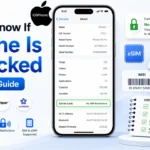
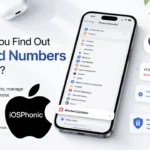
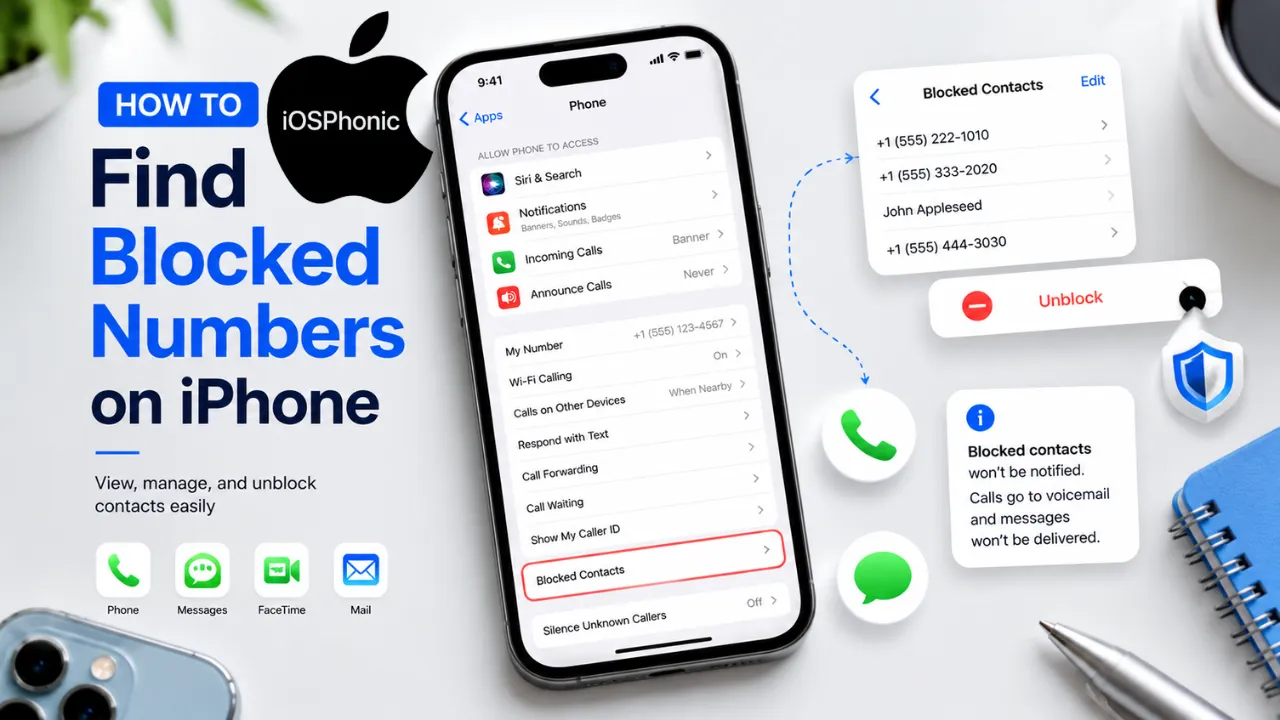
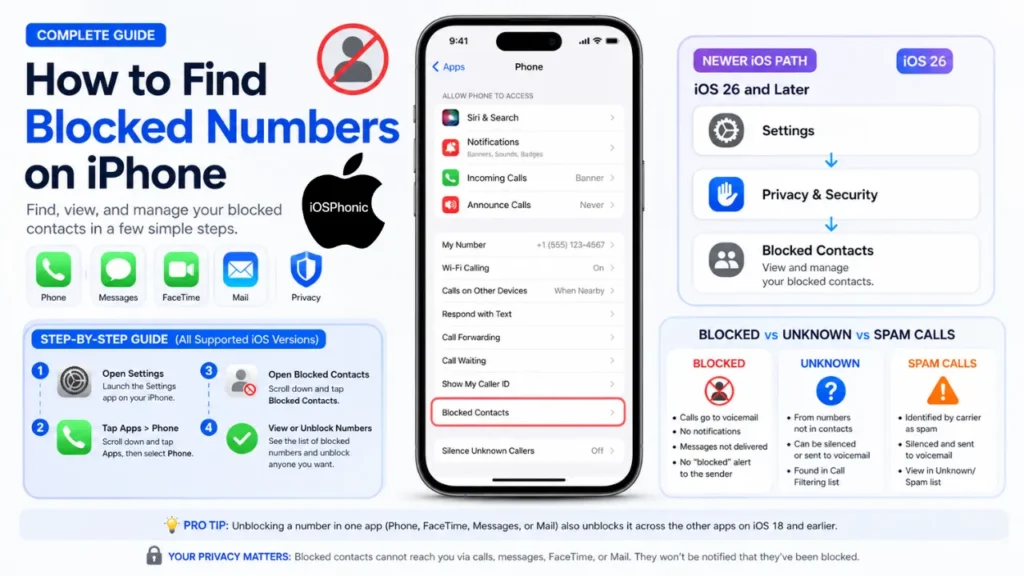
If you are trying to Find Blocked Numbers On An iPhone, the first thing to know is that Apple does not use one single menu path across every iOS version. On current iPhone help pages, the blocked list is under Settings > Apps > Phone > Blocked Contacts. On Apple’s iOS 26 support page, the path changed to Settings > Privacy & Security > Blocked Contacts. Apple also says that on older iPhone versions, blocking can be managed from Phone, Face time, Messages, and Mail.
That is why many people think their blocked number “disappeared” when, in reality, it is just stored in a different place depending on the iOS version. In this guide, you will learn exactly where to look, how to unblock a contact, how blocked numbers differ from unknown callers and spam calls, and what to do when someone still seems to get through. Apple’s own docs also confirm that blocked callers can still leave a voicemail, but you will not get a notification, messages are not delivered, and the blocked person is not notified.
Featured-snippet answer
To find blocked numbers on iPhone, open Settings, then go to Apps > Phone > Blocked Contacts. If you are on iOS 26, Apple’s support shows Privacy & Security > Blocked Contacts instead.
What is the “Blocked Numbers” issue on the iPhone?
This problem is usually not a bug. It is a navigation problem. The blocked list exists, but Apple has moved or expanded the menu path over time, so users often search in the wrong place. Current Apple guidance shows blocked contacts in the Phone settings, while iOS 26 places them under Privacy & Security. Apple also keeps app-based blocking options in Phone, FaceTime, Messages, and Mail, which makes the system feel scattered if you are expecting one universal screen.
In simple terms, blocked numbers on iPhone are just saved entries in a system list. You are not hunting through call logs or hidden folders. You are checking Apple’s block list, then deciding whether to keep the block or remove it. On iOS 26, Apple also shows an “Unknown contacts” option inside the blocked contacts screen, which can make the menu look a little different from older versions.
Where iPhone stores blocked numbers
Blocked numbers are stored in Apple’s Blocked Contacts list. Depending on your iPhone and iOS version, that list may be reached from different settings areas. Apple’s current iPhone user guide shows Settings > Apps > Phone > Blocked Contacts for unblocking, while Apple’s iOS 26 support page shows Settings > Privacy & Security > Blocked Contacts for managing the list. Apple’s broader blocking page also shows that you can block from Phone, FaceTime, Messages, and Mail.
Here is the easiest way to think about it: the blocked number is not “in Phone only.” It can be a shared communication block tied to Apple’s privacy system, which is why the location changed in newer software and why older versions exposed it through several apps. Apple’s Messages guidance says that when you block a contact in Messages, that contact is also blocked in Mail, Phone, FaceTime, Calendar, and other apps.
iPhone blocked-number locations by version
| iPhone / iOS version | Where to look | What Apple says |
| Current iPhone guidance | Settings > Apps > Phone > Blocked Contacts | Use the blocked list to edit or remove contacts. |
| iOS 26 | Settings > Privacy & Security > Blocked Contacts | Add, edit, or unblock contacts from this screen. |
| Older iOS layouts | Phone, FaceTime, Messages, and Mail settings | Apple says blocked contacts can be managed from those app areas. |
How to find blocked numbers on iPhone
Fix 1: Check the current iPhone path first
Start here if your iPhone is on a modern iOS version:
- Open Settings.
- Tap Apps.
- Tap Phone.
- Tap Blocked Contacts.
- Review the list of blocked numbers and contacts.
This is the most direct path in Apple’s current iPhone help. If you only want to check one number, open the list and look for it manually. If you want to unblock someone, Apple shows an Edit option on this screen.
Fix 2: Check the iOS 26 location if the first path is missing
If your menu looks different, Apple’s iOS 26 support uses this path:
- Open Settings.
- Tap Privacy & Security.
- Tap Blocked Contacts.
- Tap Edit if needed.
- Remove the contact and tap Unblock.
This is important because many users keep searching in Phone settings even after updating to iOS 26. Apple’s support now shows that the blocked list can live under Privacy & Security instead.
Fix 3: Check app-specific blocking on older iPhones
If you are using an older iPhone layout, Apple says blocked contacts can be managed from these places:
- Phone
- FaceTime
- Messages
That means if you cannot find the number in one app, it may still appear in another app’s blocking settings. Apple’s support is explicit that blocking can be tied across communication apps, especially on older versions.
Fix 4: Check whether the number is actually an unknown caller instead of a blocked contact
A lot of people mix these up. Apple separates blocked contacts from unknown callers and spam callers. Unknown callers are unsaved numbers; spam callers are numbers your carrier identifies as spam or fraud. These do not live in the blocked list in the same way.
If a call is missing, it may have gone to the Unknown Callers list or the Spam list rather than being blocked manually. Apple says unknown callers can be removed from Recents and sent to an Unknown Callers list, while spam calls can be silenced and moved to the Spam list.
How to unblock a number on iPhone
If you found the blocked contact and want to restore calls and messages, Apple’s current instructions are simple:
- Open Settings.
- Tap Apps.
- Tap Phone.
- Tap Blocked Contacts.
- Tap Edit.
- Tap the remove button next to the number.
- Tap Unblock.
On iOS 26, Apple shows the same basic idea under Settings > Privacy & Security > Blocked Contacts, then removes the entry and confirms Unblock.
When to use this fix
Use this when:
- You accidentally blocked someone.
- A client, family member, or delivery contact is not reaching you.
- You want to restore normal call and text delivery from that person.
What happens when you block someone on iPhone
Apple says a blocked phone number or contact can still leave a voicemail, but you will not get a notification. Messages sent or received will not be delivered, and the blocked person will not be notified that their call or message was blocked. Apple also says email blocking sends that email to the trash folder and works across your Apple devices.
That is the key privacy detail many readers want. Blocking is quiet, and the other person is not told directly. Apple also states in Messages support that the sender does not know their messages are blocked.
Blocked numbers vs unknown callers vs spam calls
This comparison matters because a lot of users think they blocked someone when they actually just filtered them.
| Type | What it means | What happens on iPhone |
| Blocked contact | You manually blocked a number, contact, or email | Calls/messages are blocked; voicemail may still go through; sender is not notified. |
| Unknown caller | A number not saved in Contacts | Apple can send it to an Unknown Callers list or silence it, depending on settings. |
| Spam / fraud caller | Carrier-identified spam | Apple can silence it, send it to voicemail, and move it to the Spam list. |
Why this matters
If you cannot find a number in your blocked list, it may not be blocked at all. It may simply be filtered as an unknown caller or spam caller. Apple lets you view these lists from the Phone app’s filter menu, depending on whether your device uses the Unified or Classic layout.
Step-by-step: How to check if a number is blocked
Method 1: Search the blocked list manually
Open the blocked contacts list using the correct path for your iPhone version, then scroll through the entries. On current devices, that is Settings > Apps > Phone > Blocked Contacts. On iOS 26, it is Settings > Privacy & Security > Blocked Contacts.
Method 2: Open the app where the person last contacted you
If the person contacted you by text or FaceTime, Apple’s docs say you can block from those apps too. That means the fastest way to confirm the block may be to open the original conversation or call entry and check the contact card.
Method 3: Look for the number in Messages unknown sender filters
If the number is texting you but you cannot see it in the main thread list, Apple says to check Messages’ unknown sender filters. Apple’s newer guidance explains that unknown-sender messages can be filtered into other folders and may not notify you unless you allow them.
Why a blocked number may still seem to reach you
There are a few common reasons:
- The person is calling or texting from a different number.
- They are using a different email address.
- The message is actually coming through as an unknown sender or spam item instead of a blocked contact.
- You blocked one channel but are checking another path on an older iOS version.
Apple specifically notes that blocking is tied to the contact or address you blocked. If someone uses another number or email, that new address has to be added to the blocked information as well.
Quick fix checklist
Use this list when you need the answer fast:
- Check Settings > Apps > Phone > Blocked Contacts.
- If you are on iOS 26, check Settings > Privacy & Security > Blocked Contacts.
- Open Messages and check the Unknown Senders filter.
- Check whether the call went to Unknown Callers or Spam instead of Blocked Contacts.
- If needed, remove the number and tap Unblock.
Advanced fixes
1) Check your call filtering settings
Apple’s Phone settings can silence or sort calls in several ways. You can turn on Unknown Callers to send unsaved numbers into a separate list, or turn on Spam so carrier-identified spam and fraud are silenced and moved to the Spam list.
2) Review Messages filtering
Apple says you can turn on Screen Unknown Senders in Messages so texts from people not in your contacts are filtered away from your main conversation list. Apple also notes you can allow notifications for selected categories, such as time-sensitive texts like verification codes.
3) Check whether Screen Time is limiting communication
If this is a child’s iPhone or a managed device, Apple’s Screen Time settings can limit calls and messages by contact group. That is a different feature from normal blocking, but it can look similar to the user.
4) Re-add the person as a contact if you only want to mark them as known
Apple says an unknown sender can be marked as known so future messages appear normally. That is useful when someone was filtered by mistake and you do not want to block them.
Pro tips and hidden tricks
- Check the correct iOS path first. Many “missing blocked number” complaints are really menu-path issues, not missing data.
- Do not confuse blocked contacts with spam lists. Apple keeps those separate.
- Check Messages if the problem is texts, not calls. Apple’s Messages app has its own unknown sender filtering.
- Remember that blocking can be shared across apps. On Apple’s support pages, blocking in Messages also affects Mail, Phone, FaceTime, Calendar, and other apps.
- Look at voicemail if you expect a blocked call. Apple says blocked callers can still leave one, but you will not be notified.
- Use the filter button in the phone if calls seem missing. Apple provides a view for Unknown Callers and Spam.
- If someone changes numbers, block the new number too. A block only covers the address or number you added.
Common mistakes to avoid
- Searching only in the Phone app when your iPhone uses the iOS 26 Privacy & Security path.
- Assuming a number is blocked when it is actually in Unknown Callers or Spam.
- Forgetting that older iPhones may show blocked controls in FaceTime, Messages, or Mail.
- Blocking one number and expecting all future numbers from that person to disappear automatically. Apple’s guidance is tied to the exact contact, number, or email you blocked.
- Thinking the other person will get a notice. Apple says they will not.
Privacy and data safety notes
Blocking is a privacy feature, not a public signal. Apple says blocked senders do not get notified that they were blocked, and blocked messages are not delivered. If you block email addresses through Mail, those messages go to the trash Folder, and email blocking works across your Apple devices.
If you are helping a child or managing a shared device, be careful not to mix up normal blocking with Screen Time communication limits or unknown-sender filters. Those features solve different problems.
FAQs
Open Settings > Apps > Phone > Blocked Contacts on the current iPhone guidance. If you are on iOS 26, Apple shows Settings > Privacy & Security > Blocked Contacts instead.
Yes. Open the blocked contacts list and review the entries there. You do not need to unblock anyone just to check the list.
No. Apple says the sender does not get a notification that their call or message was blocked.
Apple says blocked phone numbers can still leave voicemail, but you will not get a notification.
A blocked number is one you manually added to your blocked list. An unknown caller is an unsaved number that Apple can send to an Unknown Callers list or silence through call filtering.
Conclusion
The fastest way to find blocked numbers on iPhone is to start with the correct menu path for your iOS version. On current iPhone guidance, that means Settings > Apps > Phone > Blocked Contacts. On iOS 26, Apple uses Settings > Privacy & Security > Blocked Contacts. If the issue is texts or unknown callers, check Messages filters, Unknown Callers, and Spam too, because those are separate from the blocked list.