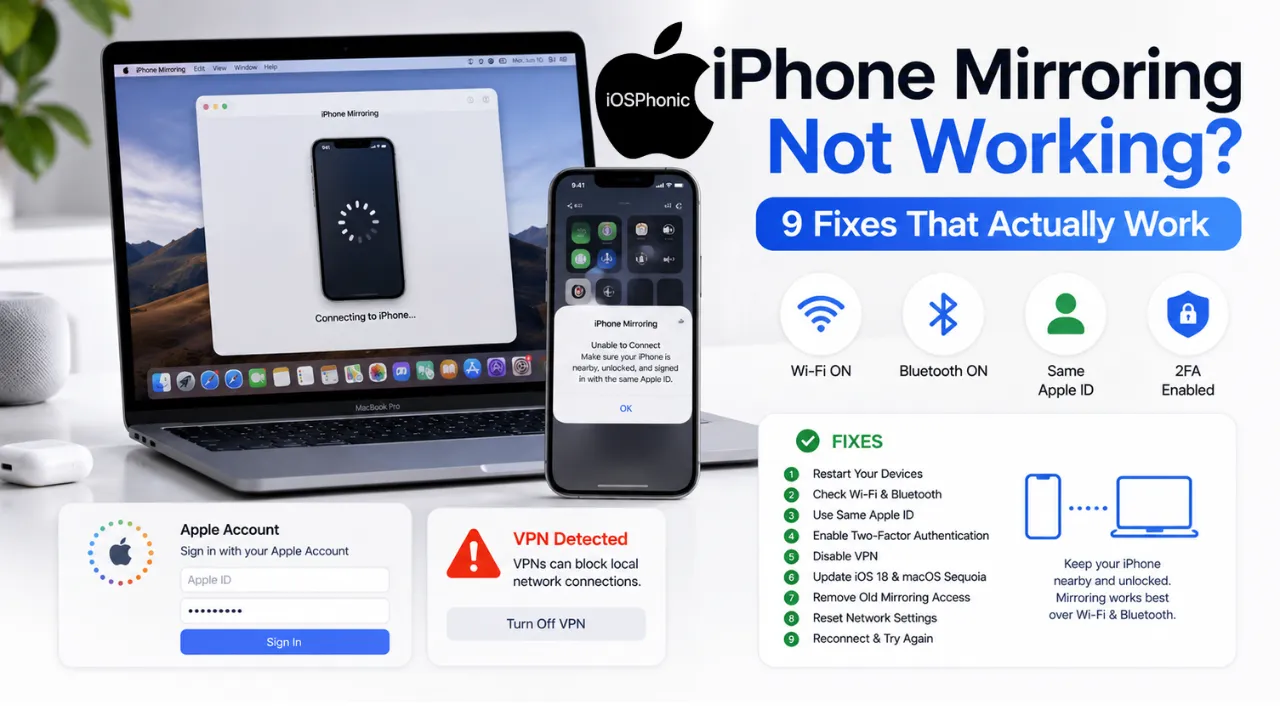
Introduction: About iPhone Mirroring Not Working
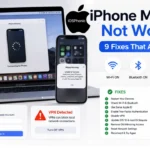
If iPhone Mirroring is Not Working and is stopping you from using your iPhone on your Mac, the issue is usually not random. In most cases, the problem comes from Apple’s built-in requirements, a stale pairing, a VPN conflict, a region restriction, or a simple connectivity mismatch between your devices. Apple says iPhone Mirroring requires iOS 18 or later, macOS Sequoia 15 or later, an Apple silicon or T2 Mac, the same Apple Account, two-factor authentication, and both Wi-Fi and Bluetooth turned on. Apple also notes that the feature is currently unavailable in the European Union.
This guide is built for people who want the problem solved fast. You will learn what iPhone Mirroring is, why it fails, how to fix connection errors step by step, and how to tell the difference between iPhone Mirroring on Mac and screen mirroring / AirPlay on TV. That distinction matters because Apple treats them as different features with different setup paths and troubleshooting steps.
What is the “iPhone Mirroring Not Working” Issue?
iPhone Mirroring is Apple’s feature that lets you wirelessly interact with your iPhone from your Mac, while your iPhone stays locked. It is meant for Mac-to-iPhone control, not TV casting. Apple’s own support documents separate iPhone Mirroring from AirPlay screen mirroring, which is the iPhone-to-TV or iPhone-to-Mac viewing workflow.
When people search for ” iPhone mirroring not working, they usually mean one of these problems:
- The iPhone Mirroring app says Unable to Connect to iPhone
- The app stays on, connecting or spinning
- The Mac does not detect the iPhone
- The feature disappears after an update
- The setup screen never appears again after pairing
- The user is actually trying to mirror to a TV, not a Mac
That mix-up is one reason many articles fail. The right fix depends on the right device path.
iPhone Mirroring vs. Screen Mirroring / AirPlay
| Feature | What it does | Main device pair | Common requirement | Fastest first check |
| iPhone Mirroring | Let’s you control your iPhone from your Mac | iPhone + Mac | Same Apple Account, 2FA, iOS 18+, macOS Sequoia 15+, Bluetooth + Wi-Fi | Check Apple ID, region, and Continuity settings |
| Screen Mirroring / AirPlay | Shows iPhone screen on TV, Mac, or AirPlay device | iPhone + TV / Mac | Same Wi-Fi, AirPlay receiving enabled | Confirm the same Wi-Fi and AirPlay settings |
If the user really wants iPhone screen mirroring not working on TV, the main checks are the same Wi-Fi network and AirPlay receiving being enabled. Apple says to keep devices near each other, update software, and allow AirPlay receiving on the relevant device settings.
Why does this problem happen
Most iPhone mirroring not working problems come from a small number of causes:
- The iPhone and Mac are not signed into the same Apple Account
- Two-factor authentication is off
- iPhone or Mac is not on a supported OS version
- The Mac is not an Apple Silicon or T2 model
- Wi-Fi or Bluetooth is off
- The Mac is sharing its internet connection
- A VPN blocks local networking
- The feature is blocked by the region/EU limitation
- An old pairing record is stuck in the system
- The iPhone is not nearby or unlocked at the wrong moment
- AirPlay / Sidecar / other Continuity features are interfering
Apple explicitly documents many of these points in its iPhone Mirroring and Continuity support pages.
iPhone Mirroring Requirements You Must Check First
Before you troubleshoot anything, confirm the basics.
| Requirement | iPhone Mirroring needs | Why it matters |
| iPhone software | iOS 18 or later | Older iOS versions cannot use the feature |
| Mac software | macOS Sequoia 15 or later | The app is tied to Sequoia and newer |
| Mac hardware | Apple Silicon or T2 Security Chip | Unsupported Macs cannot run iPhone Mirroring |
| Apple Account | Same Apple Account on both devices | Different accounts break pairing |
| Security | Two-factor authentication enabled | Apple requires 2FA for Mirroring |
| Wireless | Wi-Fi and Bluetooth on | Continuity depends on both |
| Proximity | iPhone nearby and locked | The iPhone must be closed and ready |
| Region | Available in your country/region | Apple says it is not currently available in the EU |
| Network mode | Mac is not sharing the internet connection | Internet Sharing can block the feature |
If one of these is wrong, the fix is not a deep repair. It is a requirements problem.
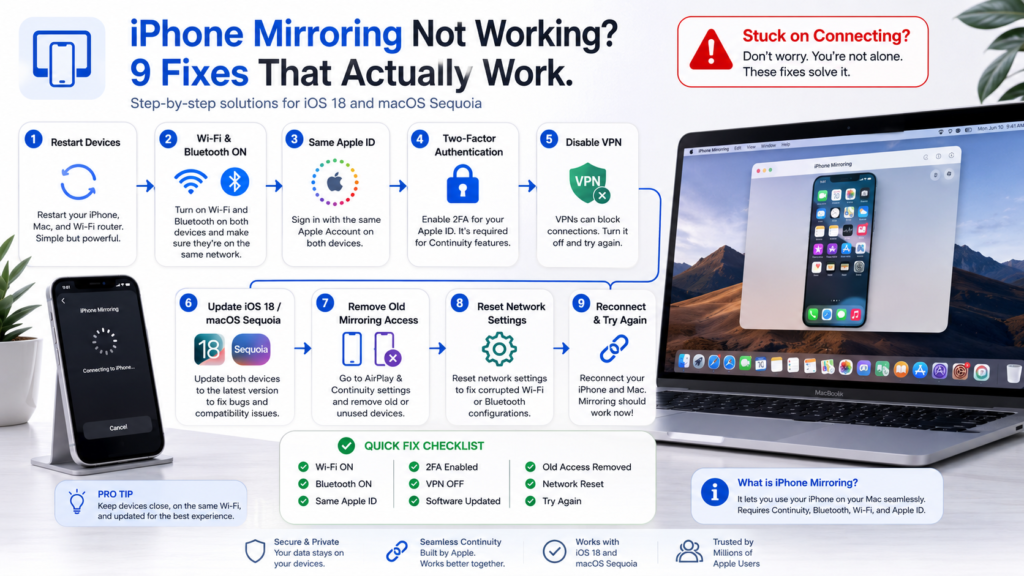
How to Fix iPhone Mirroring Not Working
Fix 1: Restart Both Devices
A restart is still the best first move because it clears temporary glitches in Bluetooth, Wi-Fi, and Continuity services. Apple’s troubleshooting advice for AirPlay and screen mirroring starts with checking device readiness and network state, and many support threads show restarts resolving temporary connection failures.
Do this:
- Restart your iPhone.
- Restart your Mac.
- Turn the router off and back on only if the network seems unstable.
- Open iPhone Mirroring again after both devices are fully booted.
Use this fix when:
The app suddenly stopped working after an update, sleep, or a failed connection attempt.
Fix 2: Confirm the Same Apple Account and Two-Factor Authentication
Apple states that iPhone Mirroring works only when both devices are signed in to the same Apple Account using two-factor authentication. If the Apple Account differs by even one sign-in, Mirroring can fail.
Check this on both devices:
- On iPhone, open Settings.
- Tap your name at the top.
- Confirm the Apple Account email is the same as the one on your Mac.
- On Mac, open System Settings and confirm the same Apple Account.
- Make sure two-factor authentication is enabled.
Use this fix when:
The Mac sees the iPhone sometimes, but the setup never completes, or a new phone replaces an old one.
Fix 3: Turn On Wi-Fi and Bluetooth on Both Devices
Apple lists Wi-Fi and Bluetooth as required for iPhone Mirroring. For AirPlay screen mirroring, Apple also emphasizes same-network connectivity. If either radio is off, continuity can fail or become unstable.
Do this:
- On iPhone, open the Control Center and verify Wi-Fi and Bluetooth are on.
- On Mac, turn Wi-Fi and Bluetooth on from the menu bar or System Settings.
- Keep both devices close together.
- Retry the connection.
Use this fix when:
The device appears for a moment and then vanishes, or the setup keeps timing out.
Fix 4: Disable VPN and Any Local-Network Blocking Configuration
Apple specifically warns that VPN settings can interfere with local networking, which can affect Continuity features. If your VPN is aggressive, split tunneling and local network permissions can matter.
Do this:
- Turn off VPN on both devices.
- Close VPN apps on the Mac.
- Retry iPhone Mirroring.
- If it works, adjust the VPN settings so local networking is not blocked.
Use this fix when:
The app hangs on connecting, works on one network but not another, or fails after installing a VPN profile.
Fix 5: Check the Region Limitation
Apple’s support docs are clear: iPhone Mirroring is currently unavailable in the European Union. If you are in the EU or your Apple Account/region setup is tied to that availability limitation, the Mac may report that it cannot connect for regional reasons.
Do this:
- Check your Mac’s region.
- Check the Apple Account region.
- Check whether the message says the feature is unavailable in your country or region.
- Use AirPlay instead if your goal is only to view the phone screen. Apple says AirPlay is the alternative for simple viewing on an AirPlay-compatible device.
Use this fix when:
The feature never appears, or you get a region-based unavailable message from the start.
Fix 6: Revoke the Old Mirroring Connection and Set It Up Again
Apple says you can revoke access to iPhone Mirroring from either device, and that revoking access resets the feature so you can set it up again. This is one of the best fixes for stale pairing, old-device confusion, and broken permissions.
On iPhone:
- Go to Settings > General > AirPlay & Continuity > iPhone Mirroring.
- Tap Edit.
- Remove the old Mac entry.
On Mac:
- Open the iPhone Mirroring app.
- Choose iPhone Mirroring > Settings from the menu bar.
- Select Revoke Access.
Then set it up again from scratch.
Use this fix when:
You bought a new iPhone, changed Macs, or the app keeps trying to use an old device.
Fix 7: Make Sure the Mac Is Not Sharing Internet or Running Conflicting Features
Apple says iPhone Mirroring will not work if the Mac is sharing its internet connection or using AirPlay or Sidecar. That matters more than many guides explain. If your Mac is acting as a hotspot-like bridge or another display feature is active, Mirroring can fail silently.
Do this:
- Turn off Internet Sharing on the Mac.
- Stop any active AirPlay session.
- Disconnect any Sidecar session.
- Retry iPhone Mirroring.
Use this fix when:
You use your Mac with multiple displays or sharing modes, especially in office or docked setups.
Fix 8: Update iPhone and Mac to the Latest Supported Versions
Apple’s documentation ties iPhone Mirroring to iOS 18+ and macOS Sequoia 15+. For AirPlay and screen mirroring problems, Apple also recommends the latest software on both devices. Updates are not just about features; they also fix continuity bugs and pairing issues.
Do this:
- On iPhone, go to Settings > General > Software Update.
- On Mac, go to System Settings > General > Software Update.
- Install any pending updates.
- Restart after updating.
Use this fix when:
The feature broke after a major OS update, or was working one day and failed after a patch.
Fix 9: Remove the Old Device and Choose the Correct iPhone
If you have more than one iPhone on the same Apple Account, Apple says you can choose which iPhone your Mac uses for mirroring. That is especially important after upgrading to a new iPhone. A stale choice can make the Mac try to connect to the wrong device.
Do this:
- Open iPhone Mirroring on the Mac.
- Go to iPhone Mirroring Settings.
- Choose Change iPhone.
- Select the correct device.
Use this fix when:
Your old iPhone is still listed, the wrong device appears, or the Mac keeps timing out on the new phone.
Quick Fix Checklist
| Check | What to do | Why it helps |
| Same Apple Account | Match the Apple Account on iPhone and Mac | Required by Apple |
| Two-factor authentication | Turn it on | Required for Mirroring |
| Wi-Fi + Bluetooth | Leave both on | Continuity depends on both |
| VPN | Turn it off temporarily | A VPN can block local networking |
| Region | Check whether the feature is available where you are | EU limitation may apply |
| Internet Sharing | Turn it off on a Mac | Apple says it blocks the feature |
| Old pairing | Revoke access and re-pair | Clears stale setup records |
| Updates | Install the latest iOS and macOS | Fixes bugs and compatibility issues |
Advanced Fixes for Stubborn Cases
1) Sign Out of Apple Account, Restart, Then Sign Back In
Apple lists this as a last-resort step when other solutions fail. If the Apple Account itself is stuck, a sign-out and sign-in cycle can rebuild the trust relationship.
Steps:
- Sign out of the Apple Account on both devices.
- Restart both devices.
- Sign back in with the same Apple Account.
- Re-enable two-factor authentication if prompted.
- Set up iPhone Mirroring again.
Use this fix when:
You have already checked every basic requirement, and the setup still fails.
2) Recreate the Mirroring Session After Revoking Access
Apple’s Own safety guide says revoking access resets iPhone Mirroring and requires a fresh setup. That makes it one of the cleanest resets you can perform without erasing the device.
Best when:
The Mac shows the old iPhone, the session freezes, or permissions seem corrupted.
3) Reset Network Settings on iPhone
Apple says resetting network settings removes saved Wi-Fi and VPN settings, and recommends it only when other solutions fail. This is a deeper repair when the wireless configuration is clearly corrupted.
Steps:
- Open Settings.
- Tap General.
- Tap Transfer or Reset iPhone.
- Tap Reset.
- Tap Reset Network Settings.
Use this fix when:
Wi-Fi is unstable, VPN profiles keep returning, or AirPlay and Mirroring both misbehave.
4) Re-check AirPlay Receiving if the Real Problem Is TV Mirroring
If your issue is actually iPhone screen mirroring not working on TV, Apple says to check that devices are on the same Wi-Fi network and that AirPlay receiving is allowed in settings. This is a different problem from iPhone Mirroring on Mac.
Use this fix when:
The goal is TV casting, not Mac control.
Community-Reported Workarounds Worth Trying
These are not Apple’s primary recommendations, but they appear repeatedly in user discussions and can help with stale sessions or weird setup bugs:
- Force-quit the iPhone Mirroring app and reopen it
- Remove the old paired Mac from the iPhone Mirroring settings
- Sign out of the Apple Account, restart, and sign back in
- Choose the correct iPhone if multiple are nearby
- Restart after changing the selected device
Apple support and Apple community threads both reflect the value of resetting the pairing state. Community reports are anecdotal, so they should be used as optional workarounds rather than guaranteed fixes.
Common Error Messages and What They Usually Mean
| Message or symptom | Likely cause | Best fix |
| Unable to Connect to iPhone | Apple Account, VPN, region, or stale pairing issue | Revoke access, confirm account, disable VPN |
| Timed out starting iPhone Mirroring | Wireless conflict or old device record | Restart, update, re-pair |
| Feature unavailable in your country or region | Regional restriction | Check region; use AirPlay if applicable |
| Keeps spinning or loading forever | Bluetooth/Wi-Fi conflict, VPN, or network instability | Turn off VPN, verify radios, restart |
| The old iPhone appears instead of the new one | Multiple devices on the same Apple Account | Change the selected iPhone and revoke the old record |
Pro Tips and Hidden Tricks
- Keep the iPhone locked and near the Mac during setup, because Apple says the phone must be nearby and locked for Mirroring to work.
- Make sure the iPhone has a passcode set. Apple lists this as a requirement.
- If you only need to view the phone on a larger screen, use AirPlay instead of iPhone Mirroring. Apple explicitly recommends AirPlay for that use case.
- Remove stale device access from Settings > General > AirPlay & Continuity > iPhone Mirroring before testing again.
- Keep the Mac out of Internet Sharing mode. Apple says the feature will not work while sharing its internet connection.
- If a VPN is necessary, check that it does not block local networking. Apple specifically warns about this.
- If you use multiple iPhones, explicitly choose the one you want in the Mac settings instead of assuming the system picked the right one.
Common Mistakes to Avoid
- Treating iPhone Mirroring and AirPlay screen mirroring as the same feature
- Forgetting that iPhone Mirroring is Mac-only
- Skipping the Apple Account and 2FA check
- Leaving VPN active during setup
- Using an unsupported Mac
- Trying to fix a region-blocked feature as if it were a wireless bug
- Leaving old mirrored devices in the settings
- Forgetting that Internet Sharing can block Mirroring
These are the exact mistakes that make troubleshooting feel random when it is actually structured.
Privacy and Data Safety Notes
iPhone Mirroring is designed so that your iPhone stays locked while you interact with it from the Mac. Apple also lets you revoke access from either device and control notification behavior from the iPhone Mirroring settings. That is useful if you are managing a shared Mac, a work setup, or a device you no longer want paired.
If you are cleaning up old pairings, use the official revoke-access flow instead of random third-party tools. Apple’s built-in settings are safer and reversible.
FAQs
The most common reasons are unsupported hardware, missing iOS or macOS versions, different Apple Accounts, disabled Bluetooth or Wi-Fi, VPN interference, or a region restriction. Apple lists all of these as core requirements or troubleshooting factors.
That usually points to a wireless issue, a VPN conflict, or a stale pairing record. Restart both devices, turn off VPN, and revoke access before trying again.
Your Mac or iPhone may not meet Apple’s requirements, or the feature may be unavailable in your country or region. Apple says it is currently unavailable in the European Union.
No. Apple says it requires a Mac with Apple silicon or the T2 Security Chip, running macOS Sequoia 15 or later.
No. Apple requires both Bluetooth and Wi-Fi to be turned.
Conclusion
When iPhone Mirroring is not working, the fix is usually not mysterious. Start with the requirements, then check Apple Account matching, Bluetooth, Wi-Fi, VPN, region availability, and stale device access. If needed, revoke the old pairing, Update Both devices, and sign out and back in as a last resort. Apple’s own support flow confirms that these are the key checkpoints.