Introduction About How Do You Find Blocked Numbers on an iPhone
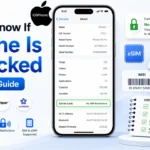
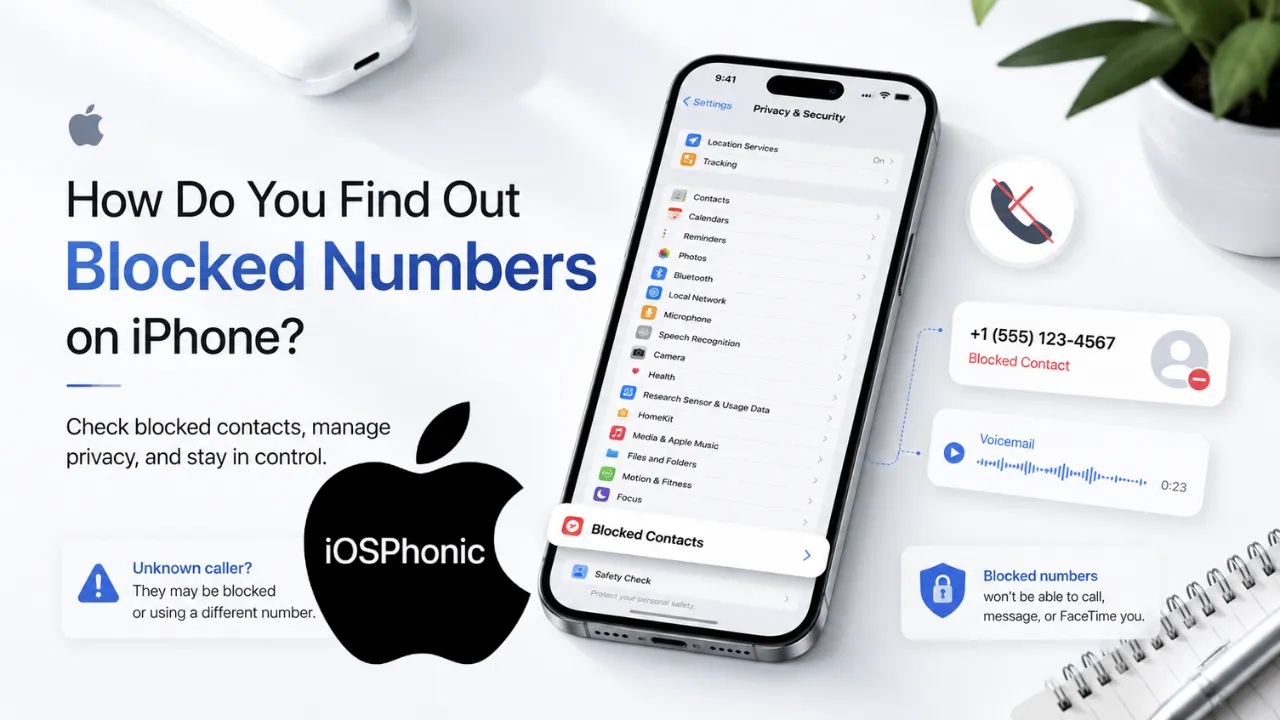
If you are trying to learn How To Find Blocked Numbers On An iPhone, the answer depends on your iOS version. On iOS 26, Apple places blocked contacts in Settings > Privacy & Security > Blocked Contacts. On iOS 18 or earlier, Apple says blocked contacts can be managed through the apps that support blocking, including Phone, Face Time, Messages, and Mail. That menu change is one reason many iPhone users think the blocked list has disappeared after an update.
This guide shows you the exact menu path, how to unblock someone, what happens after you block a person, and how to tell the difference between a true blocked contact and Apple’s unknown caller or spam filters. If your calls are not ringing or your texts look strange, this article will help you diagnose the real cause fast.
What is the blocked numbers issue on the iPhone?
The issue is usually one of two things. Either you want to view the list of numbers and contacts you already blocked, or you are trying to figure out why someone’s call or message is not getting through. Apple’s support pages show that blocked contacts, unknown callers, and spam callers are now handled through different paths, so the problem is often menu confusion rather than a broken iPhone.
In simple terms, the blocked list is your personal “do not contact me” list. It can contain phone numbers, contacts, and sometimes email addresses. A blocked person is not told they were blocked, their messages are not delivered, and they may still be able to leave voicemail without notifying you.
Why this problem happens
There are several common reasons people cannot find blocked numbers on iPhone:
- Apple moved the menu in newer iOS versions.
- Older tutorials still show the old Phone > Blocked Contacts path.
- The user is checking unknown callers or spam instead of true blocked contacts.
- A blocked contact may be managed from Phone, FaceTime, Messages, or Mail on older iPhones.
- The person has more than one Apple device and expects every menu to look identical.
- The number is not blocked at all; it is just being filtered by a carrier or call-screening feature.
- The user is looking for proof that someone blocked them, which is different from checking their own block list.
How to find blocked numbers on iPhone
Fix 1: Check the blocked list in iOS 26
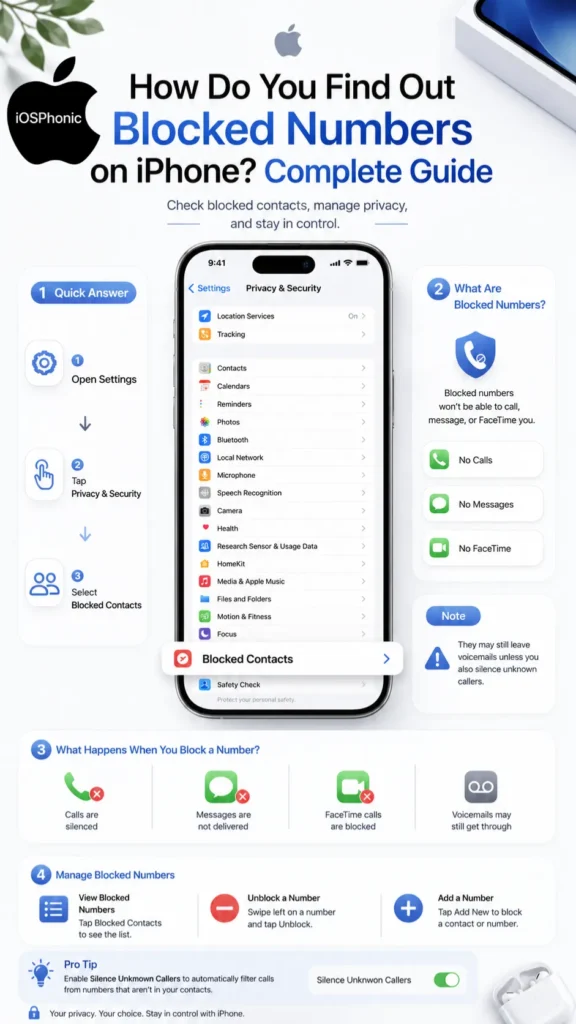
If your iPhone is running iOS 26, use Apple’s current path:
- Open Settings.
- Tap Privacy & Security.
- Tap Blocked Contacts.
- Tap Add Blocked Contact if you want to add someone.
- Tap Edit or use the delete option to remove a contact and unblock them.
This is the fastest method for newer iPhones. Apple’s support page confirms that this is the main blocked-contacts location in iOS 26.
Fix 2: Check the older path on iOS 18 and earlier
If your iPhone is on iOS 18 or earlier, Apple says blocked contacts can be managed through the apps that allow blocking: Phone, FaceTime, Messages, or Mail. Many older guides still show the Phone app path, which is why people following outdated tutorials can get confused.
The classic paths are:
- Settings > Phone > Blocked Contacts
- Settings > FaceTime > Blocked Contacts
- Settings > Messages > Blocked Contacts
Apple’s older system grouped blocking by app, but the result was still system-wide for calls and messages.
Fix 3: Use the Phone app to check blocked contacts
On newer guidance, Apple still shows that you can block or review calls inside Phone too. To check:
- Open Settings.
- Tap Apps.
- Tap Phone.
- Tap Blocked Contacts.
- Tap Edit to review or remove entries.
This is useful when you are also troubleshooting call problems, because the Phone app now includes tools for blocked contacts, unknown callers, spam, and call screening.
Fix 4: Check FaceTime blocked contacts
Face time can have its own blocking entry points, especially on older iPhones and across Apple’s ecosystem. Apple says you can Manage Blocking from Face time and also unblock a contact through the settings path.
Use this path if FaceTime calls are the issue:
- Open Settings.
- Tap FaceTime or, on newer versions, go through the relevant blocking menu.
- Open Blocked Contacts.
- Review the list and remove the contact if needed.
Fix 5: Check Messages blocked contacts
If texts are the problem, Messages is worth checking. Apple’s support material shows that blocked contacts can be managed from Messages, and older tutorials often use this route to explain blocked SMS and iMessage behavior.
Go to:
- Settings
- Messages
- Blocked Contacts
- Review the list and unblock if needed.
How to unblock a number on iPhone
Once you find the blocked list, unblocking is easy.
On iOS 26
- Open Settings.
- Tap Privacy & Security.
- Tap Blocked Contacts.
- Tap Edit.
- Tap the delete or remove button next to the contact.
- Tap Unblock.
On older iPhones
Use the app where the number is listed, such as Phone, FaceTime, or Messages, then remove the contact from Blocked Contacts. Apple’s older and third-party guides use the same general action: open the blocked list, edit it, and remove the number.
What happens when you block someone on iPhone
Blocking is quiet by design. Apple says the blocked person is not notified, their messages are not delivered, and they may still be able to leave a voicemail that does not trigger a notification for you. If you block an email address from Mail, it goes to the trash folder.
That is why blocked calls often create confusion. A call may seem to “disappear,” but it may actually be blocked, screened, silenced, or diverted to voicemail.
Blocked contacts vs unknown callers vs spam calls
This is the most important part for troubleshooting.
| Feature | What it does | Where Apple puts it |
| Blocked Contacts | Stops specific people, numbers, or emails from contacting you | Settings > Privacy & Security > Blocked Contacts on iOS 26; older versions use app-based menus |
| Unknown Callers | Handles unsaved numbers and can screen, silence, or move them to a list | Settings > Apps > Phone or FaceTime |
| Spam | Silences calls identified as spam or fraud | Settings > Apps > Phone or FaceTime |
Apple now offers several different call-handling choices. In the latest guidance, Unknown Callers can be screened, silenced, or moved to a list, while Spam calls are silenced and moved to a spam list. That means a missed call does not automatically mean a block happened.
A simple way to tell what is happening
Use this rule of thumb:
- If a specific person is blocked, check Blocked Contacts.
- If an unsaved number is not ringing, check Unknown Callers.
- If a suspected robocall is muted, check Spam.
- If the call still seems strange, review Focus, Do Not Disturb, or carrier tools. Apple’s support also notes that call screening may behave differently when roaming or after emergency calls.
Quick fix checklist
If you want the fastest answer, do this:
- Open Settings.
- Check Privacy & Security > Blocked Contacts on iOS 26.
- Check Apps > Phone for unknown/spam call settings.
- Check Face time and Messages if the issue is app-specific.
- Remove the contact if you want to unblock them.
- Restart the iPhone if menus look stale after an update.
Advanced fixes for stubborn cases
1. Check for synced Apple devices
Blocked contacts and communication settings may sync across Apple devices tied to the same Apple Account in some cases. Apple says email blocking works across all Apple devices, and it also documents cross-device behavior for some communication features.
2. Confirm you are not using call-screening instead of blocking
Apple’s newer call screening can ask an unknown caller for their reason before the phone rings. That is not the same as blocking. If a call is being screened, the caller may still get through after giving a response.
3. Check carrier spam controls
Apple notes that spam detection can rely on carrier identification. Some carriers also offer their own call-filtering tools. If a call keeps getting silenced, the carrier may be part of the reason.
4. Verify the number is actually saved
Apple says unknown callers are treated as unsaved numbers. If the caller is important, adding the number to Contacts can prevent it from being handled like an unknown caller.
5. Update iOS before troubleshooting deeper
When menus look different from a tutorial, update notes matter. Apple’s support pages show that the location of blocked contacts changed in newer iOS versions, so keeping the system current avoids following the wrong path.
Pros and cons of iPhone blocking
| Pros | Cons |
| Stops calls, messages, FaceTime, and sometimes email from specific people | The blocked person is not notified, so users may miss important context |
| Easy to manage once you know the menu path | Menu location changes across iOS versions |
| Helps reduce harassment and unwanted contact | Can be confused with unknown caller and spam filtering |
Pro tips and hidden tricks
- Save the correct number in Contacts before assuming it is blocked. Unsaved numbers are handled differently by Apple’s call tools.
- Use Privacy & Security > Blocked Contacts on iOS 26 as your first check. That is the most current official path.
- Check Unknown Callers and Spam if calls are missing, because those features can hide calls without using a true block.
- If you only want to stop one person, block the contact directly from the Phone, Messages, or FaceTime app.
- If a blocked call still reaches voicemail, that is normal behavior.
- If a tutorial looks different, check the iOS version first before trying random settings.
Common mistakes to avoid
- Looking in the wrong menu after an iOS update.
- Mixing up blocked contacts with unknown callers.
- Assuming silence means a block when it may be spam filtering.
- Searching only the Phone app when the entry may live under Messages or FaceTime on older iPhones.
- Thinking a blocked person gets an alert. Apple says they do not.
Privacy and data safety notes
Blocking is a privacy tool, not a monitoring tool. It is designed to stop contact, not to show you private information about another person’s device or account. Apple’s support also reminds users that unknown-spam and blocked-contact features are separate. That separation is helpful for privacy because it keeps blocking focused on your own communication preferences.
FAQs
Check Blocked Contacts in Settings. On iOS 26, go to Settings > Privacy & Security > Blocked Contacts. On iOS 18 or earlier, Apple says blocked contacts can be managed through the relevant app-based menus.
Apple says blocked callers can still leave a voicemail, but you will not get a notification. Their messages are not delivered.
Because Apple changed the blocked-contacts location in newer iOS versions. The old Phone > Blocked Contacts path is still seen in older guides, while iOS 26 uses Privacy & Security.
No. Unknown callers are unsaved numbers, and Apple can screen, silence, or move them to a separate list. That is different from blocking a specific contact.
Go to Settings > Privacy & Security > Blocked Contacts on iOS 26, then remove the contact and tap Unblock. On older versions, use the app where the number was blocked.
Conclusion
If you want the fastest answer to how to find blocked numbers on iPhone, open Settings and look for Blocked Contacts. On iOS 26, Apple places it under Privacy & Security. On iOS 18 and earlier, you may still find it through Phone, Face time, Messages, or Mail. Once you know the difference between blocked contacts, unknown callers, and spam, the iPhone becomes much easier to troubleshoot.