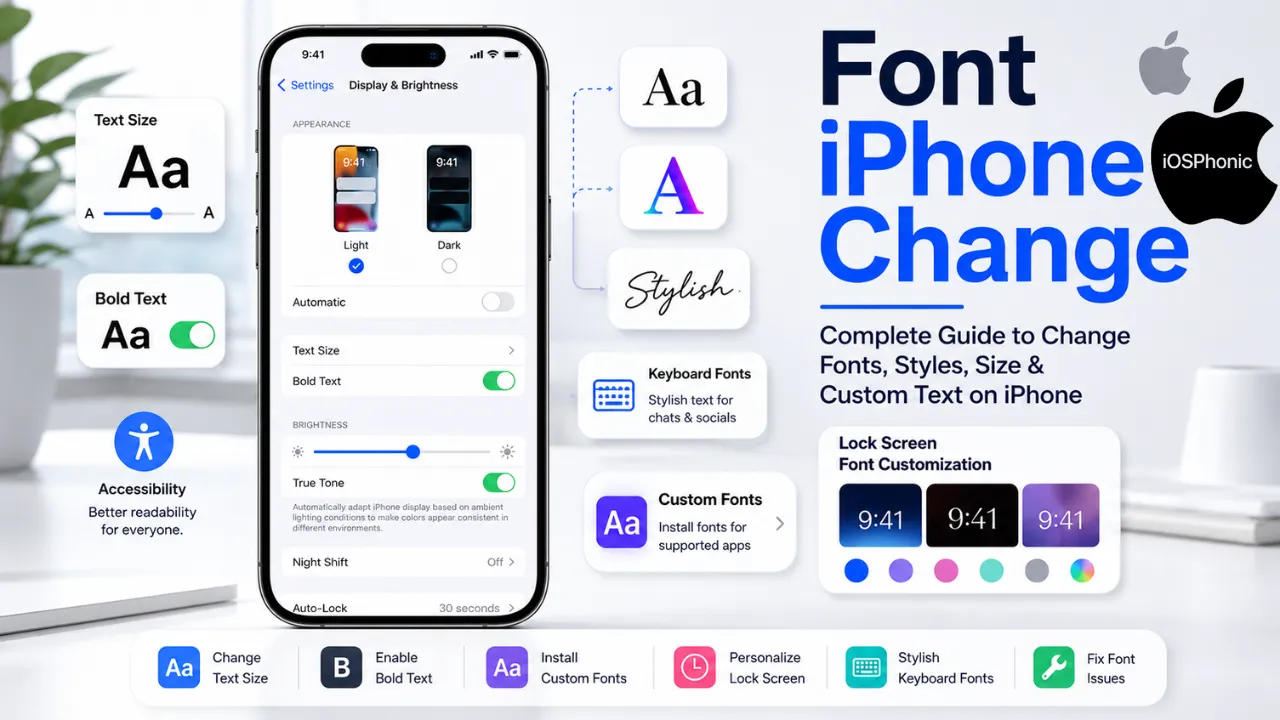
Introduction
- Trying a Font iPhone Change and wondering why there’s no simple “change font” button? You’re not the only one.
- Thousands of iPhone users search for ways to customize fonts, install stylish text, make words easier to read, or personalize the appearance of their device. Many expect iPhones to work like Android phones, where system fonts can be changed in seconds.
- Then frustration starts.
- You install a font app, and nothing changes. Tweak settings, and only text size changes. Customize the lock screen and suddenly realize only the clock changed.
- The confusion comes from how Apple handles fonts.
- Apple prioritizes consistency, accessibility, and stability. That means there are some things you can customize—and some things you simply cannot.
This guide explains everything in one place:
- How font settings actually work
- Ways to change font size
- Bold text settings
- Lock screen font customization
- Custom font installation
- Keyboard font tricks
- Why fonts sometimes change by themselves
- Troubleshooting steps that actually work
By the end, you won’t need another guide.
What is the “Font iPhone Change” Problem?
Featured Snippet Answer:
Font iPhone Change refers to changing text appearance on iPhone, including font size, bold text, custom fonts, lock screen typography, or keyboard text styles. Apple allows limited font customization but does not officially support complete system-wide font replacement.
Many users search for:
- How to change iPhone font style
- Make text bigger
- Use aesthetic fonts
- Install downloaded fonts
- Change keyboard appearance
- Change lock screen fonts
- Replace Apple’s default system font
These are different features.
Understanding this difference saves time.
Why does this problem happen
Users usually run into confusion because Apple handles typography differently.
Common causes include:
- Expecting Android-style customization
- Installing font apps incorrectly
- Confusing keyboard fonts with system fonts
- Accessibility settings changed accidentally
- iOS updates are changing the appearance
- Display Zoom enabled
- Bold Text activated
- Unsupported font apps
Understanding What You Can and Cannot Change
| Feature | Supported by Apple | System-Wide |
| Text Size | Yes | Partial |
| Bold Text | Yes | Partial |
| Accessibility Scaling | Yes | Partial |
| Lock Screen Font | Yes | No |
| Download Fonts | Yes | No |
| Keyboard Fonts | Third-party | No |
| Full iPhone Font Replacement | No | No |
This table alone clears up most confusion.
How to Fix Font iPhone Change Problems (Step-by-Step)
Fix 1: Change Text Size on iPhone
If your text feels too small or difficult to read, changing text size is the fastest fix.
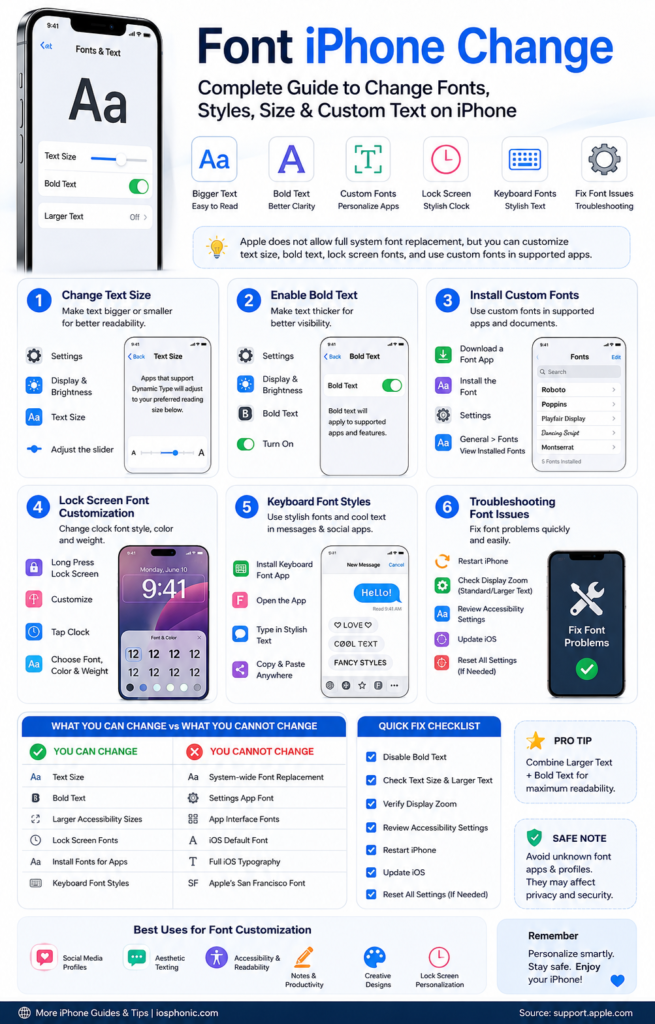
Steps:
- Open Settings
- Tap Display & Brightness
- Tap Text Size
- Move slider
You’ll instantly see text adjustments.
Best used when:
- Reading feels difficult
- Apps appear too small
- Eye strain occurs
Why it works
Apple uses Dynamic Type, which scales text across supported apps.
Fix 2: Enable Larger Accessibility Sizes
Some users need bigger text than Apple normally allows.
Steps:
- Open Settings
- Accessibility
- Display & Text Size
- Larger Text
- Enable Larger Accessibility Sizes
You’ll see additional scaling levels.
Use this when:
- Standard text remains too small
- Vision comfort matters
- You use your phone for long periods
Fix 3: Turn On Bold Text
Bold text improves readability without making the content oversized.
Steps:
- Settings
- Display & Brightness
- Bold Text
- Enable
Your iPhone briefly restarts visual elements.
Works best for:
- Older users
- Reading-heavy tasks
- Users are struggling with thin text
Fix 4: Customize Lock Screen Fonts
New iOS versions introduced lock screen font personalization.
Steps:
- Press and hold Lock Screen
- Tap Customize
- Select clock
- Choose font
- Change color
- Adjust weight
Available changes:
- Font style
- Thickness
- Color
- Visual appearance
Remember:
This only affects lock screen typography.
Fix 5: Install Custom Fonts Correctly
Many users think installing fonts changes everything instantly.
It doesn’t.
Fonts mainly work inside supported apps.
Popular font apps include:
- iFont
- AnyFont
- Font Diner
- Adobe Fonts
Installation process:
- Download app
- Install the desired font
- Open Settings
- General
- Fonts
Installed fonts appear there.
How Downloaded Fonts Actually Work
Most downloaded fonts support:
| App Type | Font Support |
| Pages | Yes |
| Document editors | Yes |
| Design apps | Yes |
| Graphic apps | Yes |
| Settings menus | No |
| Home Screen interface | No |
This misunderstanding causes major frustration.
Fix 6: Use Stylish Keyboard Fonts
Stylish keyboard apps create decorative output.
Examples include:
- Bubble text
- Script text
- Aesthetic text
- Fancy Unicode styles
These apps do not alter iOS.
Instead, they generate custom characters.
Useful for:
- Instagram bios
- TikTok profiles
- Messaging
- Social posts
Fix 7: Check Display Zoom Settings
Sometimes text suddenly appears different.
Display Zoom changes the entire interface scale.
Steps:
- Settings
- Display & Brightness
- Display Zoom
Choose:
- Standard
- Larger Text
Unexpected changes often happen here.
Fix 8: Verify Accessibility Settings
Accessibility options sometimes modify appearance accidentally.
Steps:
Settings
Accessibility
Display & Text Size
Review:
- Bold Text
- Larger Text
- Button Shapes
- Increase Contrast
Reset changes if necessary.
Fix 9: Restart After Major iOS Updates
Users frequently report font changes after updates.
Minor interface glitches happen occasionally.
Try:
- Restart iPhone
- Update apps
- Verify font settings
- Check Zoom settings
Simple restarts solve surprising issues.
Fix 10: Reset Display Preferences
If nothing looks normal:
Steps:
Settings
General
Transfer or Reset iPhone
Reset
Reset All Settings
This keeps:
✔ photos
✔ apps
✔ files
But resets:
- display preferences
- accessibility settings
- Wi-Fi settings
Use only if necessary.
Quick Fix Checklist
Try these first:
✔ Disable Bold Text
✔ Restart iPhone
✔ Check Display Zoom
✔ Verify Accessibility settings
✔ Reset Text Size
✔ Update iOS
✔ Remove unsupported font apps
✔ Check Lock Screen settings
Advanced Troubleshooting
If issues continue:
Update iOS
Older versions may create visual bugs.
Steps:
Settings → General → Software Update
Remove Font Profiles
Corrupt profiles occasionally interfere.
Settings
General
VPN & Device Management
Remove suspicious profiles.
Test Safe App Behavior
If problems occur only inside one app:
- Update app
- Reinstall app
- Clear app settings
The issue may not be system-wide.
Font Customization Comparison Table
| Customization Type | Difficulty | System Wide | Safe |
| Text Size | Easy | Partial | Yes |
| Bold Text | Easy | Partial | Yes |
| Lock Screen Fonts | Easy | No | Yes |
| Font Apps | Medium | No | Yes |
| Jailbreaking | Hard | Yes | Risky |
Can You Replace the Entire iPhone System Font?
Featured Snippet:
No. Apple does not officially allow complete system-wide font replacement on iPhone. Full replacement usually requires jailbreaking, which can create security and stability risks.
Some users attempt jailbreaking.
Potential risks:
- Voided warranties
- Security issues
- App instability
- Update failures
- Device crashes
For most users, avoiding jailbreak modifications is the smarter choice.
Pros and Cons of iPhone Font Customization
Pros
✔ Better readability
✔ Accessibility support
✔ Lock screen personalization
✔ Stylish keyboard options
✔ Cleaner Interface experience
Cons
✘ No full system replacement
✘App support varies
✘Font apps create confusion
✘Limited customization
Pro Tips & Hidden Tricks
1. Add Text Size Shortcut to Control Center
Quickly adjust text size without opening Settings.
2. Use Per-App Text Settings
Some apps allow independent text adjustments.
3. Combine Bold + Larger Text
Helps maximize readability.
4. Test Before Installing Font Apps
Many apps advertise unsupported features.
Read reviews first.
5. Use Lock Screen Widgets with Typography
Widgets can create a more customized appearance.
6. Use Display Zoom Carefully
Too much scaling affects the layout.
7. Keep Accessibility Changes Documented
Helpful if settings change accidentally.
Common Mistakes to Avoid
Avoid these errors:
- Assuming all font apps change iOS
- Installing unknown font profiles
- Jailbreaking unnecessarily
- Ignoring accessibility settings
- Confusing keyboard styles with real fonts
- Using fake customization apps
Privacy & Data Safety Notes
Some font applications request:
- Full keyboard access,
- Clipboard permissions, and
- Network permissions
Be cautious.
Review permissions before installation.
Avoid unknown apps with poor ratings.
FAQs
Not system-wide. Apple allows font customization in supported apps and on the lock screen.
Accessibility settings, updates, Display Zoom, or Bold Text may have changed.
No. Most custom fonts only work in supported apps.
Only for complete system font replacement.
Pages, design tools, and document editors commonly support them.
Conclusion
Changing the font on iPhone isn’t as straightforward as many users expect. Apple limits full font replacement but still gives several practical ways to personalize text and improve readability.
You can safely customize:
- Text size
- Bold Settings
- Lock screen fonts
- Keyboard styles
- App-specific typography
For most users, these options provide enough flexibility without risking performance or security.