Introduction
If you are trying to Change Alarm Volume On An iPhone, the confusing part is that Apple does not treat alarm loudness the way many people expect. There is no big standalone “alarm volume” slider for regular alarms. Instead, Apple ties alarm loudness to the Ringtone and Alerts volume inside Settings > Sounds & Haptics. That is why some people turn the music volume up and still wake up to a quiet alarm.
The good news is that the fix is usually simple. In most cases, you only need to adjust the right volume setting, choose a stronger alarm sound, or turn off a feature that is lowering the alert volume behind the scenes. Apple’s own help pages also show that Silent mode, Do Not Disturb, and the Ring/Silent switch do not stop alarms, so the problem is usually not what people think it is.
This guide walks you through the exact steps to make your iPhone alarm louder, quieter, or more reliable. It also explains the special case of Sleep wake-up alarms, which do have their own alarm volume control. By the end, you will know not only how to change the volume, but also how to fix the cases where the volume change does not seem to work.
What is the iPhone alarm volume issue?
The issue is simple: your alarm either rings too softly, rings too loudly, or seems to ignore the volume you changed. On iPhone, that usually happens because the user adjusted the wrong control, used the wrong alarm type, or has a setting like Attention Aware Features or a volume limit affecting the result.
For most regular alarms in the Clock app, Apple uses the Ringtone and Alerts slider in Sounds & Haptics. For a sleep schedule wake-up alarm, Apple gives you a separate Alarm volume slider inside the sleep alarm options. That distinction matters because many users think all iPhone alarms behave the same, but they do not.
Why does this problem happen
Here are the most common reasons an iPhone alarm feels wrong:
- The ringtones and Alerts volume is set too low.
- Change with Buttons is on, so the side buttons may have lowered the alert volume without you noticing.
- The alarm sound is set to a weak tone, or worse, None.
- Attention Aware Features is lowering alerts on Face ID iPhones.
- You are editing a Sleep schedule wake-up alarm, which uses a different settings path.
- Bluetooth headphones, wired headphones, or another audio route is involved.
- A speaker volume limit is capping the built-in speaker output.
- The phone needs a restart or iOS update after a settings glitch. Apple and troubleshooting guides both recommend these as later steps.
Quick fix checklist
| Check this first | Why it matters | Where to look |
| Raise Ringtone and Alerts | This controls regular alarm loudness | Settings > Sounds & Haptics |
| Turn off Change with Buttons if needed | Prevents accidental volume drops | Settings > Sounds & Haptics |
| Confirm alarm sound is None | An alarm can vibrate without sound | Clock > Alarms > Edit > Sound |
| Disable Attention Aware Features | Can lower alerts on Face ID iPhones | Settings > Face ID & Passcode |
| Check Sleep wake-up alarm settings | Sleep alarms use their own options | Clock > Alarms > Change |
| Disconnect Bluetooth/audio accessories | Helps rule out wrong audio routing | Test with accessories off |
How to fix “how to change alarm volume on iPhone” step by step
Change the alarm volume in Settings
This is the main fix for regular iPhone alarms.
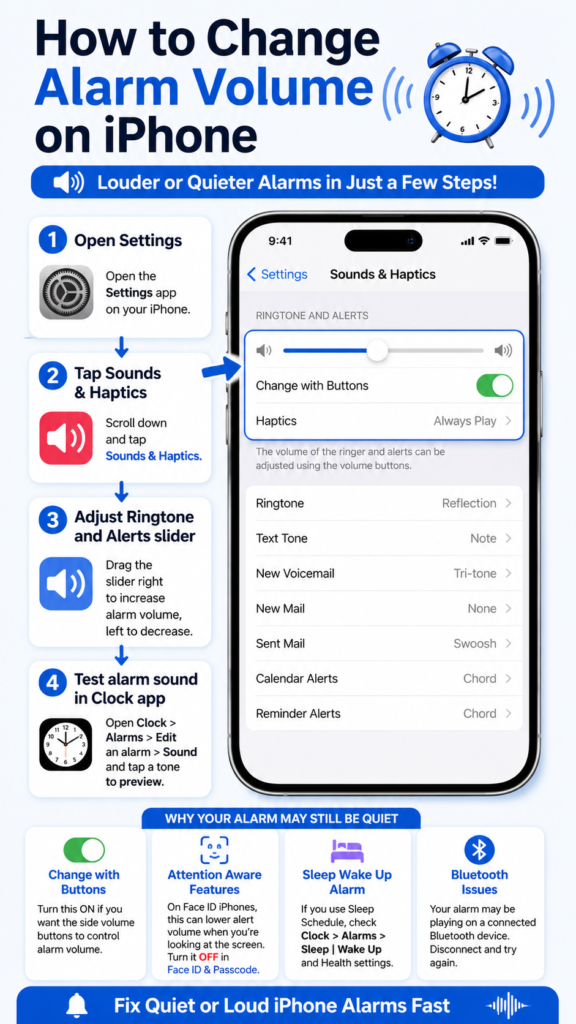
- Open Settings.
- Tap Sounds & Haptics.
- Under Ringtone and Alerts, drag the slider left or right. Apple says an alert plays while you drag, so you can hear the change in real time.
If you want a louder alarm, move the slider to the right. If you want a softer alarm, move it to the left. For most regular alarms, this is the control that matters most.
Use this fix when:
Your alarm is too quiet, too loud, or different from what you expected after changing the media volume.
Decide whether you want the volume buttons to control alarms
Apple’s documentation says the side buttons normally control ringer and alert volume when you are not using media, unless the volume is locked in Settings. You can turn that behavior off by going to Settings > Sounds & Haptics > Change with Buttons and switching it off.
That setting is useful for people who want a quick adjustment. But it also creates a common mistake: you lower the alarm volume by accident while watching a video, using an app, or pressing the buttons at the wrong time. If you keep missing alarms, locking the volume in Settings is often the safer choice.
Use this fix when:
Your alarm volume keeps changing without you intentionally changing it.
Check the alarm sound itself
A loud volume slider does not help if the alarm tone is weak or set to None. Apple specifically tells users to open the Clock app, edit the alarm, and choose a sound if the alarm only vibrates.
To check it:
- Open Clock.
- Tap Alarms.
- Tap Edit.
- Tap the alarm.
- Tap Sound.
- Choose a tone that is None.
A stronger tone can make a real difference, especially if you sleep through softer sounds. The tone matters as much as the volume.
Use this fix when:
The alarm goes off, but it feels weak, muted, or vibration-only.
Turn off Attention Aware Features on Face ID iPhones
This is one of the most overlooked fixes. Apple says that on iPhone and iPad models with Face ID, Attention Aware features can lower the volume of alerts when the device thinks you are looking at it.
To turn it off:
- Open Settings.
- Tap Face ID & Passcode.
- Turn off Attention Aware Features.
This is especially helpful if your iPhone sits on a nightstand and the alarm seems quieter than expected. Many users only notice the issue after they start sleeping near the phone with Face ID enabled.
Use this fix when:
You have a Face ID iPhone, and the alarm volume seems to dip unexpectedly.
Check your Sleep Schedule wake-up alarm separately
This part matters because Sleep wake-up alarms are not the same as a standard Clock alarm. Apple says that if you set up a sleep schedule in the Health app, you can change the wake-up alarm from the Clock app, and that screen includes its own Alarm volume slider.
To edit it:
- Open Clock.
- Tap Alarms.
- Tap Change.
- Adjust the Ringing Alarm / wake-up time if needed.
- Scroll to Alarm Options.
- Drag the Alarm volume slider.
Apple also says that if you tap Change This Schedule, you update the recurring wake-up alarm in your sleep schedule. That means a Sleep schedule alarm can behave differently from the standard alarm most people use every day.
Regular alarm vs Sleep wake-up alarm
| Alarm type | Where to change volume | What makes it different |
| Regular Clock alarm | Settings > Sounds & Haptics > Ringtone and Alerts | Uses the general alert volume. |
| Sleep wake-up alarm | Clock > Alarms > Change > Alarm Options > Alarm volume | Has its own alarm volume slider. |
Use this fix when:
You use Sleep Schedule, and the alarm volume still seems wrong after changing the normal slider.
Rule out Bluetooth, headphones, and speaker routing
Apple says that if you connect headphones to your iPhone, the alarm plays at a set volume through the built-in speakers and also through wired and wireless headphones. In practice, that means audio accessories can still affect what you hear and how you test the alarm.
A smart test is to disconnect Bluetooth devices and remove any wired headphones, then try the alarm again. If the sound becomes normal, the accessory connection was part of the problem.
This also helps when the alarm seems to go off, but the room is still silent. Sometimes the phone is fine; the sound is just not reaching the speaker path you expected.
Use this fix when:
Your alarm seems to trigger, but the sound is missing, routed oddly, or too faint.
Make sure Silent mode is not the thing you are blaming
Apple is very clear here: Do Not Disturb, the Ring/Silent switch, and Silent mode do not affect the alarm sound. If the silent mode is on, the alarm still sounds.
That means you do not need to leave your iPhone fully unmuted just to make sure your alarm works. The real issue is usually the alarm volume itself, the tone, or another setting that changes alert behavior.
Use this fix when:
You are worried Silent mode is blocking the alarm.
Check for a volume cap on the built-in speaker
Apple’s volume guide includes a lesser-known setting called Volume Limit, which can restrict the maximum volume of the built-in speaker. If this is turned on, it can cap loudness even when you think the phone is already at maximum.
Look here:
- Go to Settings.
- Tap Sounds & Haptics.
- Check Volume Limit.
This is not the first place most people check, which is why it is worth adding to a pillar guide. A hidden cap can make your alarm seem broken when it is actually being limited.
Use this fix when:
The alarm never gets loud enough, even after you raise the slider.
Restart the iPhone and update iOS
If the settings look right but the alarm still behaves badly, restart the device. GuidingTech and other troubleshooting guides include restarting as a practical next step, and Apple’s support flow also suggests checking the alarm again after verifying the basics.
After that, update iOS if an update is available. Apple has also had a documented alarm issue in recent coverage, so a software fix matters more than people sometimes expect.
Use this fix when:
The alarm used to work and then started acting inconsistently.
Quick fix checklist for loud alarm results
Use this order if you want the fastest path:
- Set Ringtone and Alerts higher.
- Choose a stronger alarm sound.
- Turn off Attention Aware Features if you have Face ID.
- Check Change with Buttons.
- Test without Bluetooth or headphones.
- Check Sleep wake-up alarm settings separately.
- Restart the iPhone and update iOS if needed.
Advanced fixes for stubborn alarm problems
Check whether another Focus mode is confusing the setup
Focus modes like Do Not Disturb can silence notifications, but Apple still says alarms sound normally. That said, many users confuse alarms with notifications, so it helps to separate the two in your troubleshooting.
If the alarm itself is fine but you are also missing reminders, messages, or app alerts, then Focus settings may be part of the broader problem. That is not an alarm-volume problem, but it can feel like one.
Reset only the parts that matter
If you are still stuck, review the following in order:
- Sounds & Haptics
- Alarm sound
- Attention Aware Features
- Bluetooth connections
- Sleep Schedule settings
- Volume Limit
This is the cleanest advanced path because it avoids random changes and focuses on the exact systems Apple says control the result.
Pros and cons of using Change with Buttons
| Option | Pros | Cons |
| On | Faster volume changes, easy adjustment with side buttons | Easy to lower alarm volume by accident |
| Off | Keeps alarm volume stable | Slower to adjust when you need a quick change |
For most people writing a pillar guide, the best advice is simple: use Change with Buttons only if you are disciplined about volume checks. If you keep missing alarms, locking the volume in Settings is safer.
Pro tips and hidden tricks
- Use the slider preview when you change Ringtone and Alerts so you can hear the level before you save it. Apple supports this directly.
- Create a backup alarm 5 to 10 minutes later with a different tone. This gives you a second chance if you sleep through the first one.
- Pick a Sharper alarm tone, not just a louder one. Some sounds cut through sleep better than others.
- Test with Bluetooth off once, even if you think it is unrelated. It is a fast way to rule out routing problems.
- Check Sleep wake-up alarms separately if you use bedtime features. Regular alarm settings do not always tell the whole story.
- Keep one alarm tone consistent for workdays. Constant tone changes make it easier to miss the sound because your brain stops recognizing it.
- Review Volume Limit if the speaker never sounds loud enough.
Common mistakes to avoid
- Changing media volume instead of ringtones and Alerts.
- Assuming Silent mode blocks alarms. It does not.
- Forgetting that the alarm sound can be set to None.
- Editing a Sleep wake-up alarm as if it were a normal Clock alarm.
- Leaving Attention Aware Features on and wondering why the alarm seems softer.
- Forgetting that the side buttons may change your alert volume if Change with Buttons is enabled.
Privacy and data safety notes
The built-in Clock app is usually the safest and simplest choice for alarms because it relies on standard iPhone settings. If you use a third-party alarm app, review its permissions, notifications, and background behavior so it only gets the access it truly needs. That keeps troubleshooting easier and reduces surprises.
FAQs about iPhone alarm volume
A1: Because Apple ties regular alarm volume to ringtones and Alerts in Sounds & Haptics. The same slider controls the alert level used by the alarm.
A2: For regular alarms, not with a separate dedicated slider. For a Sleep wake-up alarm, yes, Apple gives you an Alarm volume slider in the sleep alarm options.
A3: The most common causes are a weak alarm tone, Attention Aware Features, Bluetooth/accessory routing, a Sleep wake-up alarm setting, or a volume limit.
A4: No. Apple says Silent mode, Do Not Disturb, and the Ring/Silent switch do not affect the alarm sound.
A5: Raise Ringtone and Alerts, pick a stronger sound, and turn off Attention Aware Features if your iPhone has Face ID.
Conclusion
The fastest way to change alarm volume on iPhone is usually through Settings > Sounds & Haptics > Ringtone and Alerts. But the real win comes from understanding the full system: Change with Buttons, alarm sound, Attention Aware Features, Sleep wake-up alarms, Bluetooth routing, and any speaker limits that might be hiding in the background.