Introduction to iPhone Not Working Problems
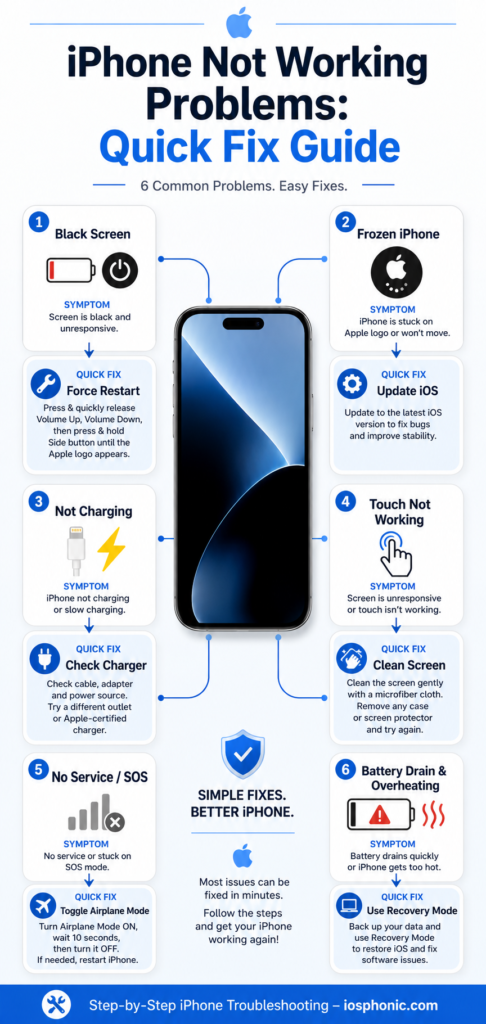
iPhone Not Working Problems can be confusing because the same phrase can mean many different things. For one person, the phone is totally dead. For another, the screen is black, but the phone still rings. For someone else, touch stops responding, the battery drains too quickly, or the phone says “No Service.” That is why the best fix is not guesswork. It is symptom-based troubleshooting. Apple’s support pages and iFixit’s troubleshooting library both show that iPhone issues are best solved by matching the symptom to the right repair path.
This guide is built to do exactly that. You will learn how to diagnose the issue quickly, apply the right fixes in the right order, and know when the problem is likely software, battery, cable, network, or hardware. The goal is simple: save time, avoid random trial and error, and get your iPhone working again with confidence. Apple’s official guidance is the foundation here, with practical troubleshooting patterns from repair-focused sources layered in for clarity.
What is the “iPhone not working” issue?
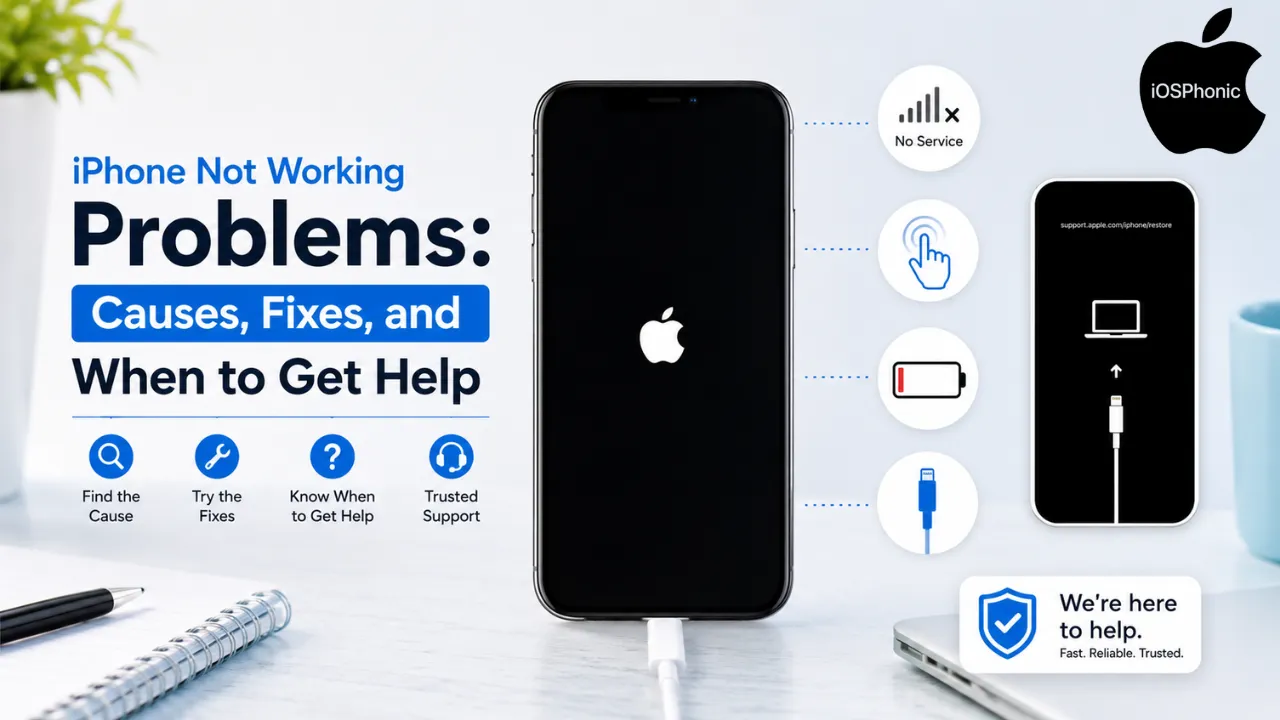
In simple terms, this is not one single problem. It is a broad term that includes power failure, screen failure, charging failure, network failure, software freeze, app crash, and hardware damage. Apple separates these by symptom because the fix for a black screen is not the same as the fix for No Service or a touch issue. iFixit does the same, listing pages for black screen, frozen screen, won’t turn on, won’t charge, no SIM, Wi-Fi, Bluetooth, camera, no sound, and more.
- For beginners, the easiest way to think about it is this:
- If the phone is dead, start with power.
- If it is on but frozen, start with a restart and software checks.
- If touch is broken, start with screen and accessory checks.
- If calls or data fail, start with network and carrier checks.
Why does this problem happen
Here are the most common real causes behind iPhone not working problems:
- The battery is fully drained or aging. Apple notes that batteries are consumables and their capacity declines over time.
- The charging cable, adapter, outlet, or port is faulty or dirty. Apple recommends checking firm connections, using a wall outlet, removing debris from the port, and charging for at least 30 minutes.
- An iOS or an app has frozen the device. Apple and Asurion both recommend a force restart as the first fix for an unresponsive or frozen iPhone.
- The screen is dirty, wet, covered by a case, or blocked by an accessory. Apple specifically lists debris, water, accessories, and screen protectors as common touch blockers.
- Cellular network, SIM/eSIM, or carrier settings are causing No Service or Searching. Apple recommends Airplane Mode, restarting, updates, and carrier checks.
- Storage pressure, background activity, or an aging battery is slowing the phone down. Apple’s battery guidance explains that battery performance and device performance are connected.
- Hardware damage from a drop, liquid, or worn-out component is present. Apple notes that some screen and restore issues may need service.
Quick diagnosis table
| Symptom | Most likely cause | Best first fix |
| Black screen / won’t turn on | Battery drained, cable issue, software freeze, or display problem | Charge for 30–60 minutes, then force restart. |
| Frozen screen | App crash, iOS glitch, low storage, or temporary software hang | Force restart. |
| Won’t charge | Faulty cable, adapter, port debris, or liquid-related issue | Try a different outlet, cable, and clean the port. |
| Touch not responding | Dirt, water, accessories, protector, or display issue | Restart, clean screen, remove accessories/protector. |
| No Service / Searching | Carrier outage, SIM/eSIM issue, network settings | Toggle Airplane Mode, restart, update, contact carrier. |
| Restore screen / Apple logo loop | Update or restore failure | Connect to the computer, update in recovery mode. |
How to fix iPhone not working problems step by step
Fix 1: Charge the iPhone the right way
If your iPhone looks dead, do not assume it is broken right away. Apple says to use a wall outlet, check the cable and adapter for firm connections, remove debris from the charging port, and let the device charge for at least 30 minutes. If the battery is deeply drained, it may take time before anything appears on the screen.
Do this:
- Plug into a wall socket, not just a laptop USB port.
- Try a different cable and adapter.
- Check the Charging Port for lint or debris.
- Leave it charging for 30 minutes or longer.
- Look for the low-battery icon or Apple logo.
Use this fix when the iPhone is black, dead, or restarting unexpectedly after a low battery. Apple also notes that charge speed and charger quality can affect the experience, and newer iOS versions may show charger-related messages in Settings.
Fix 2: Force restart the iPhone
Force restart is one of the best first moves for an unresponsive iPhone because it clears temporary software glitches without erasing data. Apple’s official button sequence for Face ID models is Volume Up, Volume Down, then hold the Side button until the Apple logo appears.
Do this on iPhone with Face ID:
- Press and quickly release Volume Up.
- Press and quickly release Volume Down.
- Press and hold the Side button.
- Release when the Apple logo appears.
Use this fix when the phone is frozen, black but still making sounds, stuck after an app crash, or not responding to touch. Asurion also recommends a force restart for frozen iPhones because it can clear the error state without deleting your apps or data.
Featured snippet answer:
A force restart is the safest first fix for a frozen iPhone. It does not erase data, and Apple recommends it when the phone is not responding.
Fix 3: Check whether the screen is actually the problem
Sometimes the phone is on, but the display is the part that is failing. Apple says to restart the device, clean the screen, disconnect Lightning or USB-C accessories, and remove cases or screen protectors if touch is too sensitive or intermittent.
Do this:
- Wipe the screen clean and dry.
- Remove the case and screen protector.
- Disconnect charging accessories and dongles.
- Restart the iPhone.
- Test touch again.
Use this fix when the screen is glitchy, partially unresponsive, or reacting on its own. iFixit treats touch failure, ghost touch, black screen, and frozen screen as separate symptom pages, which is a strong sign that readers should not lump all screen problems together.
Fix 4: Solve No Service, SOS, or Searching
If your iPhone says No Service, SOS, or Searching, the device is not connected to the cellular network. Apple recommends turning Airplane Mode on for at least 15 seconds, then off again, restarting the iPhone, updating iOS, and checking carrier settings or the network provider directly.
Do this:
- Open Settings.
- Turn on Airplane Mode for 15 seconds.
- Turn it back off.
- Restart the iPhone.
- Check for iOS updates.
- Check for a carrier settings update in Settings > General > About.
- Contact your network provider if the issue persists.
Use this fix when calls fail, mobile data disappears, or the phone shows SOS only. Apple also explains that SOS only means emergency calls may still be possible, even though normal cellular service is unavailable.
Fix 5: Handle Apple logo loops and Recovery Mode
If your iPhone gets stuck on the Apple logo, shows the Restore screen, or cannot update normally, you may need recovery mode. Apple says recovery mode is appropriate when the device shows the Apple logo for several minutes, the computer does not recognize the device, or the Connect to computer / Restore screen appears.
Do this:
- Connect the iPhone to a computer with the proper cable.
- Open Finder on Mac, Apple Devices on Windows, or iTunes on older systems.
- Put the iPhone in recovery mode using the correct button sequence.
- Choose Update first, not Restore, to reinstall iOS without erasing data when possible.
- If the update fails, follow Apple’s restore path.
Use this fix when a force restart does not work, the phone keeps looping, or the restore screen appears repeatedly. Apple notes that if the Restore screen still appears after a restart, service may be needed.
Fix 6: Reduce battery-related performance problems
Battery age can affect more than battery life. Apple says rechargeable batteries are consumables, and eventually their capacity and performance decline. That means slowdowns, shutdowns, and instability can sometimes come from battery health rather than a pure software issue.
Do this:
- Check Battery Health in Settings.
- Lower screen brightness.
- Close power-hungry apps.
- Update iOS.
- Remove heavy background activity.
- Consider battery service if the phone is older and failing often.
Use this fix when the phone is hot, shuts down randomly, or loses charge very fast. Apple’s battery guidance and service pages make it clear that aging batteries may need replacement rather than endless troubleshooting.
Fix 7: Check for app and iOS conflicts
A lot of “iPhone not working” complaints are really app or system conflicts. Asurion specifically lists low battery, low storage, Incompatible Apps, and outdated software as common causes of freezing or unresponsiveness. Apple also routes update and restore issues through official software recovery paths rather than random resets.
Do this:
- Update iOS.
- Update your apps.
- Delete any app that crashes every time it opens.
- Free storage space.
- Restart the device after updates.
Use this fix when the iPhone is slow, app-heavy, or freezing after a specific app launches. This is one of the strongest “software, not hardware” diagnostic paths in the whole guide.
Fix 8: Separate Wi-Fi and Bluetooth issues from general phone failure
Not every broken-feeling iPhone is a dead iPhone. Wi-Fi and Bluetooth problems often look like system failure because AirDrop, headphones, CarPlay, hotspot, and app connectivity all depend on them. iFixit treats Wi-Fi, Bluetooth, no SIM, no sound, and camera issues as distinct troubleshooting categories, which is a useful reminder not to diagnose too broadly.
Do this:
- Turn Wi-Fi or Bluetooth off and back on.
- Restart the iPhone.
- Forget and reconnect the network or accessory.
- Test on another network or accessory.
- Update iOS if problems are widespread.
Use this fix when AirDrop fails, Bluetooth won’t pair, the hotspot will not connect, or Wi-Fi keeps dropping. These are often connection-specific issues, not a full device failure.
Fix 9: Check the camera, speaker, microphone, Face ID, and Touch ID separately
Hardware features can fail independently. iFixit’s troubleshooting library includes dedicated pages for blurry camera, camera black screen, no sound, volume buttons, home button, and ghost touch, which shows how often users need symptom-specific repair paths.
Do this:
- Test the feature in another app.
- Remove the case or accessory.
- Restart the iPhone.
- Update iOS.
- Check for dust, liquid, or physical damage.
- If the feature still fails, service may be needed.
Use this fix when only one feature fails while the rest of the phone works. That often points to a specific component rather than a whole-device problem.
Fix 10: Know when to stop troubleshooting and get service
Apple is clear that some screen, restore, charging, and battery issues may require service. If the iPhone still will not charge, still shows the Restore screen, or still has a screen that does not respond after the standard steps, service is a reasonable next move.
Use the service when:
- The phone was dropped hard,
- There was liquid exposure,
- The charging port remains unresponsive,
- The screen remains black after charging and restarting.
- The phone cannot be restored, or
- A button is stuck or broken.
Featured snippet answer:
If force restart, charging checks, screen cleanup, and network resets do not work, the issue is more likely hardware and should be checked by Apple Support or an authorized repair provider.
Quick fix checklist
- Charge with a wall outlet for 30 minutes.
- Force restart the iPhone.
- Clean the screen and remove cases or screen protectors.
- Toggle Airplane Mode for 15 seconds.
- Check for iOS and carrier updates.
- Free storage and update apps.
- Move to recovery mode only if normal fixes fail.
Advanced fixes
If the phone still misbehaves after the basic steps, move carefully into deeper troubleshooting. Start with recovery mode and an Update attempt before using Restore, because update is the less destructive option and may keep personal data. Apple says to use the computer-based recovery flow when the restore screen appears or normal updating fails.
A sensible advanced path looks like this:
- Back up the iPhone if possible.
- Try recovery mode.
- Choose Update first.
- If that fails, consider Restore.
- If the restore fails or the buttons are broken, go to service.
Pro tips and hidden tricks
- Keep one known-good cable and charger set for testing. Apple’s guidance makes clear that bad accessories can masquerade as a phone problem.
- Clean the charging port gently and check for lint. That tiny issue causes a surprising number of charging complaints.
- Do not skip the restart after updates. Many temporary issues disappear only after the system fully reboots.
- Treat No Service and SOS Separately from Wi-Fi problems. Cellular service and internet service are not the same thing.
- If the phone gets hot often, check battery health and usage patterns before assuming the screen or board is dead.
- If touch fails after a protector or accessory is added, remove it and test again. Apple explicitly recommends this.
- If the iPhone is stuck on the Apple logo after an update, move quickly into recovery mode instead of repeating the same restart loop.
Common mistakes to avoid
- Assuming every black screen means the phone is dead. It may just need charging or a forced restart.
- Restoring before trying to update in recovery mode. Apple recommends updating first when possible.
- Using the wrong charger and blaming the battery too soon.
- Ignoring debris, water, or screen protector issues on touch failures.
- Treating No Service like a software crash instead of a carrier or network issue.
Privacy/data safety notes
Before any restore, back up your iPhone if possible. Recovery and restore steps can protect data in some cases, but a full restore can erase personal content. Apple’s guidance also notes that Medical ID and emergency contact information can be used with Emergency SOS via satellite on supported devices, which is useful to know if you are dealing with off-grid emergency scenarios.
FAQs
A1: Try a force restart first, then check for another update, update apps, and use recovery mode only if the phone still fails to start correctly. Apple and Asurion both connect freezing and unresponsiveness to software conflicts and update issues.
A2: Apple recommends restarting the iPhone, cleaning the screen, disconnecting accessories, and removing cases or screen protectors.
A3: Toggle Airplane Mode for 15 seconds, restart the phone, check for iOS and carrier updates, and contact your network provider.
A4: Try a wall outlet, another cable, another adapter, and clean the charging port. Apple says to remove debris and let the phone charge for at least 30 minutes.
A5: Force restart first. If that fails, use recovery mode and choose Update before Restore when possible.
Conclusion
Most iPhone not working problems are fixable when you diagnose the symptom correctly. Start with the simplest checks first: charge the phone, force restart it, clean the screen, disconnect accessories, and test network settings. If the Issue Turns into an Apple logo loop or restore screen, move into recovery mode. If none of that works, the problem is more likely hardware and should be handled by Apple Support or an authorized repair provider. That symptom-first method is exactly what makes this guide stronger than fragmented troubleshooting pages.