Introduction of iPhone Problems
iPhone Problems can be annoying, confusing, and sometimes expensive if you guess wrong. A phone that will not charge may have a dirty port, a bad cable, or a battery issue. A frozen screen may be caused by software, storage pressure, or a deeper hardware fault. A weak battery may be normal wear, an iOS update running background tasks, or a setting that is draining power too quickly. Apple’s current support guidance keeps pointing users toward the same core moves: restart the iPhone, update iOS, check accessories, inspect the charging port, and separate software problems from hardware damage.
This guide is built for real-life troubleshooting, not theory. You will learn what the problem likely means, what to try first, what to avoid, and when repair is the smarter choice. The goal is simple: help you fix the issue safely without wasting time or making it worse. Apple’s service pages also make it clear that battery replacement, accidental damage, charging faults, and other hardware issues may need service when basic troubleshooting does not solve them.
What Is an “iPhone Problem”?
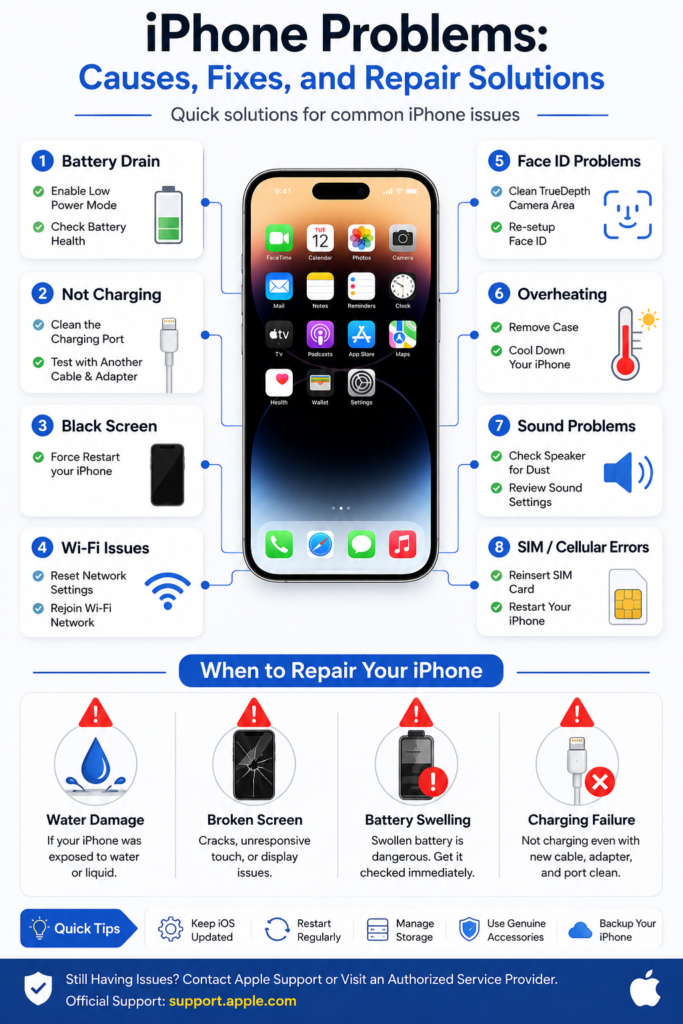
An iPhone problem is any issue that stops the phone from working the way it should. That can include battery drain, charging failure, black screen, frozen display, Wi-Fi issues, Face ID errors, speaker problems, overheating, and SIM or cellular faults. Those categories show up again and again in current troubleshooting hubs and Apple’s own support pages, which is a strong sign that they match real user intent.
The easiest way to think about iPhone problems is this: the phone is either having a software problem, a power/battery problem, a connection problem, or a hardware problem. That simple split helps you avoid random guessing. Apple’s guidance on battery, charging, Wi-Fi, Face ID, SIM alerts, and black screens all fit into those four buckets.
Why iPhone Problems Happen
Most iPhone problems fall into one of these causes:
- Software glitches after an update or app conflict.
- Battery wear as lithium-ion batteries age over time.
- Dirty, damaged, or incompatible charging accessories.
- Network or router problems, rather than iPhone damage.
- Storage pressure, where the phone struggles because it is too full. This is a common troubleshooting pattern in major repair and tech guides.
- Heat, especially during charging, heavy app use, or sunlight exposure.
- Liquid exposure, which can trigger connector or charging problems.
- Physical damage after a drop, bend, or impact.
Quick Fixes to Try First
Before going deep, try the safe basics first. Apple’s support pages repeatedly recommend restarting, updating iOS, checking accessories, and testing whether the issue is limited to one network, one cable, or one app.
| Quick fix | Why it helps |
| Force restart the iPhone | Clears temporary software freezes |
| Charge for 30 minutes | A dead battery can look like a dead phone |
| Update iOS | Fixes known bugs and stability issues |
| Test a different cable/charger | Rules out accessory failure |
| Check Wi-Fi or cellular again | Confirms whether the issue is network-based |
| Remove the case or screen protector | Helps with heat, touch, Face ID, and speaker blockage |
How to Fix iPhone Problems Step by Step
1) Force Restart the iPhone
If your iPhone is frozen, unresponsive, or stuck on a black screen, force restart it first. On iPhone models with Face ID, press and quickly release Volume Up, press and quickly release Volume Down, then press and hold the Side button until the Apple logo appears. Apple recommends this exact sequence on its current support pages.
When to use this fix:
Use it when the phone is frozen, won’t respond to taps, or appears stuck during startup.
Why it works:
A force restart clears temporary software locks without erasing your data.
2) Charge the iPhone Properly Before Assuming It Is Dead
If your iPhone will not turn on, charge it for about 30 minutes first. Apple notes that a drained battery can make the screen look dead, and if the device still will not power on, the next step is often a force restart.
What to do:
- Plug into a known-good charger.
- Wait 30 minutes.
- Try a force restart.
- If nothing changes, test another cable and power adapter.
When to use this fix:
Use it for no power, a black screen, or repeated shutdowns.
3) Update iOS
Apple says Updating iOS may fix an issue and also give you the latest features and security enhancements. That matters because many iPhone bugs are software-related, and current support pages still treat updating as a first-line fix.
What to do:
- Open Settings.
- Go to General.
- Tap Software Update.
- Install the latest version if one is available.
When to use this fix:
Use it when the issue started after a bug, app crash, update, or random slowdown.
4) Check Battery Health and Battery Usage
Fast battery drain does not always mean the battery is bad. Apple says rechargeable batteries are consumables, so capacity naturally declines over time. Apple also notes that battery and performance can be affected by usage, settings, and background activity after updates.
What to check:
- Open Settings.
- Tap Battery.
- Review battery usage by app.
- Check battery health details if your model shows them.
What to do next:
- Turn on Low Power Mode.
- Reduce brightness.
- Close power-hungry apps.
- Let post-update background tasks finish before judging battery life.
When to use this fix:
Use it when the battery percentage drops too quickly, the phone shuts off early, or the device feels older than it should.
5) Check the Charging Cable, Adapter, and Port
If your iPhone is not charging, Apple says the issue may be a dirty or damaged charging port, a defective accessory, or a charger that is not designed for the device. Apple also warns that with the current iPhone charging behavior, an incompatible charger can trigger a warning in Battery settings.
What to do:
- Try another Apple or certified cable.
- Try another power adapter.
- Inspect the charging port for lint or debris.
- Remove the case and try again.
- Restart the iPhone after testing accessories.
When to use this fix:
Use it when charging is slow, inconsistent, or stops completely.
6) Fix Wi-Fi Problems
Wi-Fi problems are often caused by the router, the network, VPN software, or a configuration conflict rather than the iPhone itself. Apple’s current Wi-Fi troubleshooting page tells users to check Wi-Fi settings, uninstall VPN/security software if needed, and test whether the problem happens on a specific network.
What to do:
- Turn Wi-Fi off and back on.
- Rejoin the network.
- Restart the router.
- Remove VPN or security apps temporarily.
- Test another Wi-Fi network.
- Reset network settings only if the issue keeps returning.
When to use this fix:
Use it when only one network fails, when speed drops badly, or when Wi-Fi keeps disconnecting.
7) Reset Network Settings When Cellular or Wi-Fi Is Stuck
If Wi-Fi, hotspot, or cellular data keeps failing, Apple allows you to reset network settings. Apple also notes that this removes stored Wi-Fi networks and passwords, plus some related settings.
What to do:
- Go to Settings.
- Tap General.
- Tap Transfer or Reset iPhone.
- Tap Reset.
- Choose Reset Network Settings.
Important:
This is useful, but it is not a first move unless the problem is clearly network-related, because it wipes saved network details.
8) Fix Face ID Problems
If Face ID stops working, Apple says to check for updates, review Face ID settings, and make sure nothing is covering the True Depth camera. Apple also says your face must be visible to the camera, and smudges, cases, or screen protectors can block recognition.
What to do:
- Clean the TrueDepth camera area gently.
- Remove the case or screen protector if it blocks sensors.
- Make sure your face is visible and not covered.
- Go to Settings > Face ID & Passcode and check the settings.
- Re-set Face ID if needed.
When to use this fix:
Use it when Face ID fails repeatedly after a clean phone restart and update.
9) Fix Touch, Screen, or Black Screen Problems
If the screen is not responding, Apple says to restart the device, make sure the screen is clean, disconnect accessories, and remove cases or protectors. Apple’s black-screen guidance also says to force restart and charge the device first.
What to do:
- Force restart the iPhone.
- Remove any accessory connected to the port.
- Clean the screen gently.
- Remove the case and screen protector.
- If the phone still boots badly, move to recovery mode.
When to use this fix:
Use it for unresponsive touch, ghost touches, dim screen, or black screen.
10) Handle Overheating the Right Way
Overheating is often caused by direct sunlight, heavy app use, a thick case, or long charging sessions. Apple’s handling guidance warns against charging wet devices and makes clear that heat and moisture are both serious factors.
What to do:
- Stop heavy apps.
- Remove the case.
- Move the phone out of sunlight.
- Pause charging for a while.
- Let the device cool naturally.
When to use this fix:
Use it when the phone feels unusually hot, dims itself, or shows a temperature warning.
11) Fix Speaker, Sound, or Microphone Problems
Apple’s sound troubleshooting page says to check Silent mode, Focus / Do Not Disturb, blocked speakers, and dirty openings. It also recommends removing cases and checking whether sound is distorted or missing in multiple apps.
What to do:
- Turn off Silent mode.
- Turn off Do Not Disturb.
- Remove the case.
- Check the speaker opening for dirt.
- Restart the phone.
- Test the sound in different apps.
When to use this fix:
Use it when calls are quiet, the speaker crackles, or voice notes fail.
12) Fix SIM, eSIM, or Cellular Errors
If you see No SIM, Invalid SIM, SOS, or Searching, Apple says to reconnect to the mobile network, restart the device, contact the carrier, update the iPhone, or test another SIM card when available. For carrier lock problems, Apple says to check Carrier Lock in Settings > General > About and contact the carrier if needed.
What to do:
- Toggle Airplane Mode on and off.
- Restart the iPhone.
- Update iOS.
- Reseat or test the SIM.
- Contact the carrier if the alert remains.
When to use this fix:
Use it when calls, texts, or mobile data are broken while Wi-Fi still works.
Quick Fix Checklist
Use this list before going deeper:
- Force restart the iPhone.
- Charge for 30 minutes.
- Update iOS.
- Try a different cable and charger.
- Check battery usage and health.
- Test another Wi-Fi network.
- Remove cases, protectors, or accessories.
- Reset network settings only when needed.
Advanced Fixes
Recovery Mode
If the phone is stuck on the Apple logo, the restore screen, or it repeatedly fails to boot, Apple says to use recovery mode and restore it through a computer. Apple also says that if the progress bar does not move for a long time, recovery mode may be necessary.
Use recovery mode when:
- The Apple logo never finishes loading.
- The phone keeps showing the restore screen.
- Basic restart and update steps fail.
Restore iPhone from a Computer
Apple says restoring through Finder, Apple Devices, or iTunes may reinstall iOS. But it can erase data if you choose a full restore, so backup matters.
Service and Repair
Apple’s repair pages are clear: if the issue is caused by accidental damage, battery failure, liquid damage, broken hardware, or a problem that survives all safe troubleshooting, service may be the right next step.
Software Issue vs Hardware Issue
| Sign | More likely software | More likely hardware |
| Fixed by restart | Yes | No |
| Fixed by iOS update | Yes | No |
| Changes with one app only | Yes | Less likely |
| Happens after drop or liquid exposure | No | Yes |
| Charging fails with known-good accessories | Less likely | Yes |
| Face ID, speaker, or camera fails every time | Less likely | Yes |
This is an inference based on Apple’s troubleshooting flow: start with restart, update, and accessory checks, then move to recovery mode or service if the problem remains.
Pros and Cons of the Main Fix Paths
| Fix path | Pros | Cons |
| Restart/update/accessory checks | Fast, safe, no data loss | May not solve hardware faults |
| Network reset | Can fix stubborn connectivity issues | Removes saved Wi-Fi and related settings |
| Recovery mode restore | Strong for boot/software failures | More technical, may affect data |
| Repair service | Best for hardware and damage | Cost and downtime |
Pro Tips and Hidden Tricks
- Do the smallest safe fix first. Restart before you reset or restore. That is Apple’s default pattern.
- Test with known-good accessories. A bad cable can look like a dead battery.
- Let a just-updated iPhone settle. Battery drain can look worse while background tasks finish.
- Check whether only one network, one app, or one SIM is failing. That narrows the cause fast.
- Remove the case during troubleshooting. Heat, Sensor Blockage, and speaker blockage can all come from the case.
- Back up before advanced repair steps. Recovery and restore can carry data risk.
- Do not ignore liquid alerts. Apple says not to charge until the device is dry.
Common Mistakes to Avoid
- Skipping the force restart and jumping straight to a restore.
- Using random cables or cheap chargers that may not be designed for the device.
- Resetting network settings too early. It wipes saved network data.
- Charging a wet iPhone. Apple warns against this.
- Assuming every battery issue means a bad battery. Some drains are temporary after updates or are caused by settings.
Privacy and Data Safety Notes
When you move into recovery mode or restore mode, think about data first. Apple’s restore guidance shows that restoring can reinstall iOS and may erase information depending on the path you choose, so a backup is the safe move before deep repair steps. Apple also says Face ID data is encrypted and does not leave the device.
FAQs
Force restart it, then check charging and update iOS. Apple places restart and update at the top of its support flow.
Apple says battery life can dip while background tasks finish after an update, and battery capacity also declines over time.
Check the cable, charger, and charging port, then try a different accessory and let the device charge for a while.
Apple says to charge it first and then force restart. If that fails, the issue may need recovery mode or service.
Usually, because something is blocking the TrueDepth camera, the face is not visible enough, or Face ID settings need to be checked.
Conclusion
Most iPhone problems are not random. They usually come from one of four places: software, battery wear, connection issues, or hardware damage. Start with the safest fixes first: force restart, update iOS, test charging accessories, check battery health, and rule out network or SIM problems. If the issue survives those steps, stop guessing and move toward recovery mode or Apple service. That is the fastest and safest way to protect your phone and your data. Apple’s current support pages consistently point in that same direction.