Introduction
When your iPhone Touch Is Not Working, it can feel like your entire phone has stopped listening. You cannot answer calls properly, open apps, type messages, or even unlock the device. The good news is that this problem is often caused by something temporary, not permanent. Apple’s current guidance says to start with the basics: restart the iPhone, make sure the screen is clean and dry, disconnect any Lightning or USB-C accessories, and remove cases or screen protectors.
In many cases, the issue comes from a software glitch, a bad accessory, a dirty or wet screen, or an iOS problem. In other cases, the screen or internal display hardware may be damaged after a fall, pressure, or liquid exposure. iFixit lists buggy software, display damage, bent ground pins on some models, and logic board issues as common causes, while Asurion and Swappie also point to dirt, moisture, physical damage, and incompatible accessories.
This guide gives you a practical, step-by-step path from the fastest fixes to the deeper ones. Start at the top and move down until the screen responds again.
Featured snippet answer:
The fastest fix for an unresponsive iPhone screen is to restart or force restart the iPhone, then clean the screen, disconnect accessories, and remove the case or screen protector. If the problem continues, update iOS or use recovery mode. Apple says restore can erase your data, so try updating first when possible.
What is the “iPhone Touch Not Working” Issue?
This issue means the screen does not respond properly when you tap, swipe, or type. Sometimes the touch screen works only in certain places. Sometimes it lags. Sometimes it freezes completely. In the worst case, the display lights up but ignores every touch. Apple groups these symptoms under screen response problems and recommends a short troubleshooting sequence before service.
The problem may affect:
- The whole screen
- One corner or strip of the screen
- Only a single app
- Only after charging
- Only after a drop or update
- Only when a specific accessory is connected
That is why diagnosis matters. A screen that fails everywhere is more likely to be hardware-related. A screen that fails in one app or after one update is more likely to be software-related. iFixit and PayetteForward both emphasize that this split between software and hardware causes.
Why This Problem Happens
Here are the most common causes of the iPhone touch not working:
- Temporary software freeze
- iOS bug or bad update
- A single app is malfunctioning
- Dirt, moisture, grease, or debris on the screen
- A damaged, loose, or poorly fitted screen protector
- A case pressing on the display edges
- Chargers or accessories interfering with touch response
- Physical damage from a drop, bend, or liquid exposure
- Internal display, digitizer, connector, or logic board failure
Quick Diagnosis Table
| Symptom | Most likely cause | Best first move |
| Touch lags or works only sometimes | Software glitch or accessory issue | Restart, remove the case, clean the screen. |
| One app is the problem | App bug | Update or reinstall the app. |
| Restart, remove the case, and clean the screen. | System freeze | Force restart the iPhone. |
| Touch stopped after a drop | Hardware damage | Test first, then seek repair. |
| Touch stopped after charging | Charger or cable interference | Unplug accessories and test again. |
How to Fix “iPhone Touch Not Working” Step by Step
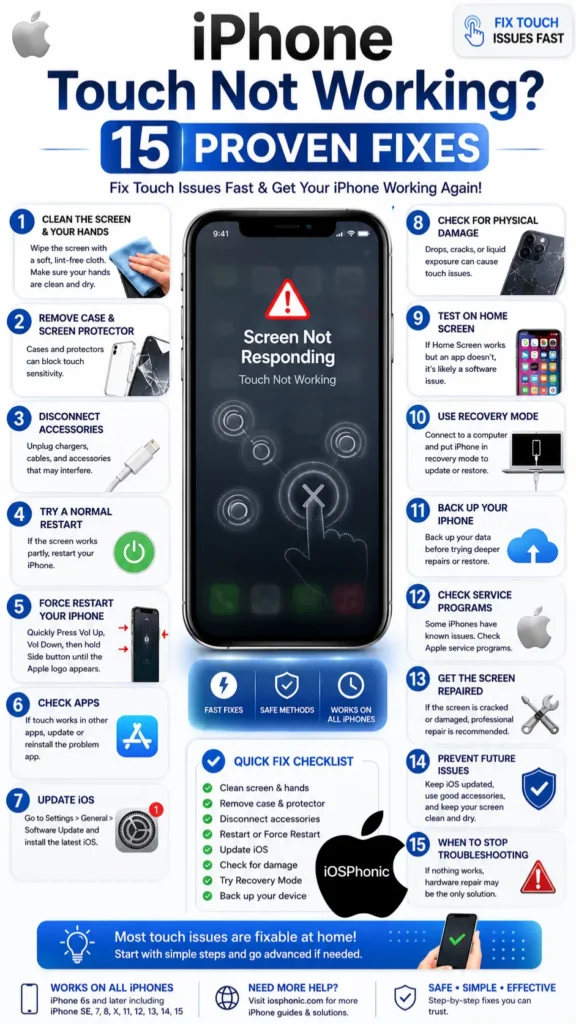
Clean the screen and dry your hands
Start with the easiest fix. Use a soft, lint-free cloth to wipe the display. Make sure the screen is free of water, grime, grease, or debris. Apple says to keep the screen clean and free of debris or water. Asurion also recommends using a microfiber cloth to remove dust, grease, or moisture that can interfere with touch.
Do this:
- Wash and dry your hands.
- Turn the phone off if possible.
- Wipe the screen gently with a lint-free cloth.
- Remove any Moisture near the edges and speaker area.
- Test touch again.
Use this fix when: the screen feels sticky, wet, grimy, or only partly responsive.
Remove the case and screen protector
A damaged or poorly fitted screen protector can block touch in certain areas. A tight case can also press on the edges of the screen. Apple recommends removing cases and screen protectors as part of the main troubleshooting flow. Swappie and Asurion also say these accessories can interfere with sensitivity.
Do this:
- Remove the case.
- Remove the screen protector.
- Check for cracks, bubbles, lifted edges, or trapped dust.
- Test the screen without any accessories.
Use this fix when: the screen is failing near the edges, after a drop, or only when a protector is installed.
Disconnect chargers and accessories
Apple says to disconnect any Lightning or USB-C accessories and test the screen again. If touch starts working after removing an accessory, try a different outlet, cable, or charger.
Do this:
- Unplug the charger.
- Disconnect wired headphones, adapters, hubs, or docks.
- Try touching again.
- If the problem disappears, change the cable or power source.
Use this fix when the issue appears while charging or while an accessory is attached.
Try a normal restart first
If the screen still responds even a little, restart the iPhone normally. Apple says to restart before trying deeper steps. Restarting can clear temporary software problems without erasing data.
For iPhone X, 11, 12, 13, 14, 15, and later:
- Press and hold either volume button and the side button.
- Wait for the power-off slider.
- Drag the slider.
- Wait 30 seconds.
- Turn the iPhone back on by holding the side button.
Use this fix when: the screen is slow, laggy, or only partly frozen.
Force restart the iPhone
If the screen is frozen and you cannot swipe, force restart it. Apple says this is the right move when the iPhone is not responding.
Force restart by model
| iPhone model | \Steps |
| iPhone 8 and later, including Face ID models and iPhone SE (2nd/3rd gen) | Press and quickly release Volume Up, press and quickly release Volume Down, then press and hold the Side button until the Apple logo appears. |
| iPhone 7 and iPhone 7 Plus | Press and hold Side button + Volume Down until the Apple logo appears. |
| iPhone 6s, SE (1st gen), and earlier | Press and hold the Side button + Volume Down until the Apple logo appears. |
Apple says the process may take longer than 10 seconds.
Use this fix when: the iPhone is completely frozen, the screen will not swipe, or the device is stuck on the Apple logo or a blank screen.
Check whether one app is causing the problem
If touch fails only inside one app, the iPhone may be fine, and the app may be the real problem. PayetteForward and Asurion both note that app-related bugs can look like a touch failure. Update the app first. If that does not help, delete and reinstall it.
Do this:
- Open the App Store.
- Update the app.
- If needed, delete and reinstall the app.
- Test the screen again.
Use this fix when: touch works everywhere except one app or one game.
Update iOS and your apps
Apple says updating iOS might fix the issue and also give you the latest features and security improvements. That is why software updates belong early in the troubleshooting chain. App updates matter too, because a bad app version can create touch-like symptoms.
If you can still navigate:
- Go to Settings.
- Tap General.
- Tap Software Update.
- Install any available update.
Also, update apps from the App Store. Asurion specifically recommends doing that when problems continue.
Use this fix when: the issue began after an update, after an app installation, or without any clear physical damage.
Test the Home Screen and compare the behavior
A simple but smart test is to compare touch response on the Home Screen with touch response inside apps. iFixit’s troubleshooting approach separates software-caused issues from display-related issues, and that same logic helps here. If the Home Screen works but a single app does not, it is probably software. If nothing responds anywhere, the chance of hardware damage rises.
Use this fix when: you need a fast way to decide whether the issue is system-wide or app-specific.
Look for signs of hardware damage
If the iPhone is dropped, bent, cracked, or exposed to moisture, hardware damage becomes much more likely. iFixit lists display and logic-board problems as likely causes, while Asurion and Swappie both say physical damage and liquid exposure can break touch response.
Warning signs include:
- A cracked screen
- Flickering display lines
- Ghost Touches
- Touch failure after a drop
- Touch failure after water exposure
- Areas of the screen that never respond
Use this fix when the problem began after impact or liquid exposure.
Use recovery mode if the screen is completely unresponsive
If the iPhone will not respond and you cannot update it normally, Apple says to use a computer and recovery mode. Apple’s current guidance says to try updating first when possible, because restoring erases all data.
Apple’s restore path works like this:
- Connect the iPhone to a Mac or PC.
- Open Finder, Apple Devices, or iTunes, depending on your computer.
- Put the iPhone into recovery mode.
- Choose Update first if available.
- If the update fails or is not possible, choose Restore. Apple says restore reinstalls iOS and erases all data.
Apple also says that if the download takes more than 15 minutes and the device exits the Connect to computer screen, you should let the download finish and then repeat the process.
Use this fix when: normal troubleshooting fails, and touch is too broken to use the iPhone.
Back up the iPhone as soon as you can
If the screen still works sometimes, back it up before trying anything risky. Apple says you can back up to iCloud or a computer, and Swappie also recommends backing up before recovery mode or restore.
Back up with:
- iCloud, if touch still works enough to navigate
- Finder or iTunes, if you can connect the iPhone to a computer
Use this fix when: the device still responds sometimes, even briefly.
Reset all settings if the software still seems suspicious
If touch improves but still acts strangely, a settings reset can help without deleting your photos and messages. Asurion recommends Reset All Settings as a non-destructive last software step before a factory reset. Apple’s reset guidance also separates settings reset from full erase.
This can help if the issue is tied to settings changes, accessibility changes, network settings, or a bad preference state. Apple says Reset All Settings removes settings but does not delete data or media.
Use this fix when: the issue is still likely software-related, and you want to avoid a full erase.
Check for model-specific or known service issues
Some older iPhone models have had device-specific touch problems in the past. PayetteForward mentions the long-running “touch disease” discussion around iPhone 6 Plus, and iFixit points to bent ground pins on some older models. If your problem matches a known model issue, software fixes may not be enough.
This matters because not every touch failure is caused by the same thing. A repair history, prior screen replacement, or repeated drops can matter a lot. iFixit notes that some of these issues show up after imperfect repairs.
Use this fix when the issue happens on an older model or after repair work.
Get service if the screen is cracked, wet, or still dead
If the display is cracked, liquid-damaged, bent, or still unresponsive after the full software path, the problem is probably hardware. Apple says you may need service if the screen is not working, and Asurion recommends professional repair when the issue appears hardware-related.
At this stage, do not keep force-restarting forever. That will not fix a broken display cable, digitizer, or internal board issue. The smarter move is service or repair.
Use this fix when: you have tried all software steps, and the screen still refuses to respond.
Prevent the problem from coming back
Once the screen works again, protect it properly. Apple, Asurion, and Swappie all point to the same basic prevention steps: keep the screen clean and dry, avoid bad accessories, and keep iOS updated.
Do this going forward:
- Use a well-fitted case
- Use a high-quality screen protector
- Avoid wet hands
- Clean the screen regularly
- Keep iOS updated
- Avoid cheap charging accessories
Quick Fix Checklist
Try these in order:
- Clean the screen and dry your hands.
- Remove the case and screen protector.
- Unplug chargers and accessories.
- Restart the iPhone normally.
- Force restart the iPhone.
- Update iOS and apps.
- Test whether one app is causing the issue.
- Use recovery mode if needed.
- Restore only after backing up.
- Seek service if hardware damage is likely.
Advanced Fixes
Recovery mode update first, restore second
Apple’s guidance is clear: try updating before restoring, because restoring erases all data. That order matters. Many users skip straight to restore too early and lose data they could have kept.
Reset all settings
This is a strong middle step when you suspect configuration trouble but do not want to wipe the phone. Apple says that resetting settings does not delete your data or media.
Repair instead of repeated software fixes
If the iPhone suffered a hard drop, water exposure, or ongoing ghost touch, software fixes often only delay the inevitable. iFixit and Asurion both point to hardware repair when the display or logic board is the real cause.
Pros and Cons of the Main Fix Paths
| Fix path | Pros | Cons |
| Update iOS/apps | Fast, safe, no data loss | May not help hardware damage. |
| May not help with hardware damage. | Can fix bugs and keep data intact | Needs enough touch access to navigate. |
| Recovery mode update | Can fix deeper software issues | More complex; restore can erase data. |
| Restart/force restart | Best for hardware failure | Costs money and may take time. |
Pro Tips and Hidden Tricks
- Test without charging. Some touch problems only show up while plugged in. Apple specifically tells users to disconnect accessories first.
- Test one app at a time. That helps separate system-wide failure from app bugs.
- Back up before any restore. Apple warns that restoring erases all data.
- Do not keep pressing the screen hard. Pressure can make hardware damage worse. This is consistent with the physical-damage causes noted by Asurion, iFixit, and Swappie.
- Try a different cable or charger. If touch works after removing an accessory, the accessory may be the problem.
- Use official Apple support paths when needed. Apple’s support page points users to service and repair options if the screen still does not work.
- Treat update-related problems as software first. Apple says updating iOS might fix an issue, so a bug should not automatically be blamed on hardware.
Common Mistakes to Avoid
- Skipping the easy fixes and going straight to restore. Apple says to try updating first when possible.
- Forgetting to remove the screen Protector or case. Apple includes this early in its guidance.
- Leaving the phone connected to a bad cable or charger while testing. Apple says to disconnect accessories and retest.
- Not backing up before a restore. Restore erases data.
- Ignoring physical damage after a fall or liquid exposure. Hardware may be the real issue.
Privacy / Data Safety Notes
If you need recovery mode or a restore, remember that a restore erases all data and settings. Apple clearly states that restore reinstalls iOS and wipes the device, so back up first whenever possible.
FAQs
The most common causes are a software freeze, an iOS bug, dirt or moisture on the screen, accessory interference, physical damage, or internal hardware failure.
Start by cleaning the screen, removing the case and protector, disconnecting accessories, restarting, and force-restarting. Then update iOS or use recovery mode if needed.
No. Apple uses force restart as a troubleshooting step for a frozen or unresponsive iPhone, not as a data-erasing step.
Update the app first. If that does not help, delete and reinstall it. App bugs can look like touch failure.
The Restore option does. Apple says restore reinstalls iOS and erases all data, so try updating first when possible.
Conclusion
When the iPhone Touch is not working, the best approach is to move from simple to advanced fixes in the right order. Clean the screen, remove the case and protector, disconnect accessories, restart, force restart, Update iOS, and only then move to recovery mode or repair if the problem continues. Apple’s current support guidance follows exactly that path, and it is still the smartest way to protect your data while fixing the issue.