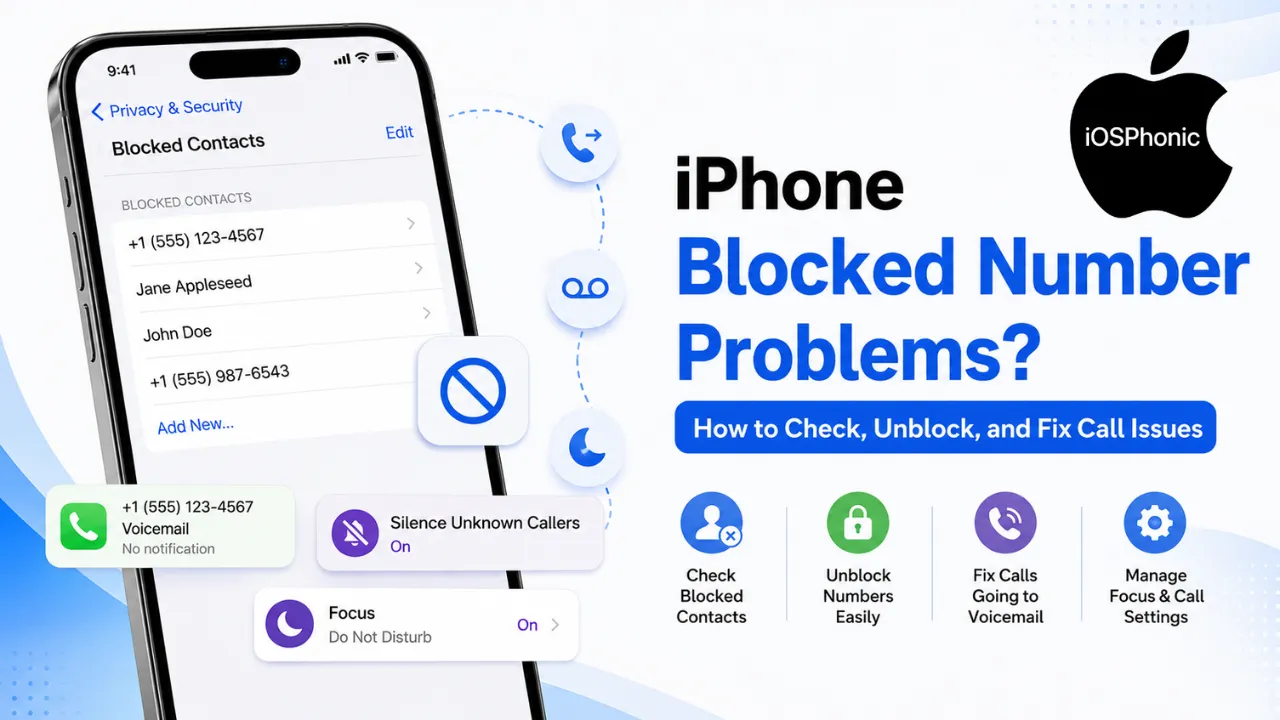
Introduction
iPhone Blocked Number Problems can be frustrating because the real cause is not always a block. A call can go straight to voicemail because a contact is blocked, but it can also happen when Silence Unknown Callers, Focus, call forwarding, a carrier filter, or even a bad network setting is active. Apple’s current guidance separates these features for a reason: each behaves differently and needs to be checked in a different place.
That means the fix is not just “unblock the number.” Sometimes the number is not blocked at all. Sometimes it is being treated as an unknown caller. The issue sits in Messages, FaceTime, Phone, or even Screen Time. In this guide, you will learn how to check the real block list, how blocked numbers behave on iPhone, how to tell the difference between blocking and screening, and how to fix call issues step by step without guessing.
What is the iPhone blocked number problem?
This problem occurs when a caller, text sender, or FaceTime contact appears blocked, hidden, or unreachable. On iPhone, that can mean a true block in Blocked Contacts, but it can also mean the number is being filtered as unknown or spam, silenced by Focus, or rerouted by call forwarding. Apple now treats these as separate controls, not one single feature.
For beginners, the easiest way to think about it is this:
- Blocked Contacts = you intentionally stopped that person from reaching you.
- Unknown Callers / Spam = iPhone is filtering numbers that are not saved, or that look suspicious.
- Focus / Do Not Disturb = iPhone may still receive the call, but it does not alert you normally.
- Call Forwarding = the call may be sent somewhere else instead of your phone.
Why does this problem happen
Most iPhone blocked number problems come from one of these causes:
- The contact is blocked in Settings > Privacy & Security > Blocked Contacts on iOS 26, or in an older app-based block list on earlier iPhone versions.
- Silence Unknown Callers or Call Screening is enabled, so unsaved numbers are silenced or screened instead of ringing.
- Spam filtering is moving calls to voicemail.
- Focus / Do Not Disturb is silencing calls.
- Call Forwarding is on, so calls are going to another number.
- The number is not saved in Contacts, so Apple may treat it as an unknown caller depending on settings.
- Carrier problems, billing blocks, outages, or SIM/network issues are interfering.
- A communication limit from Screen Time is blocking calls and messages.
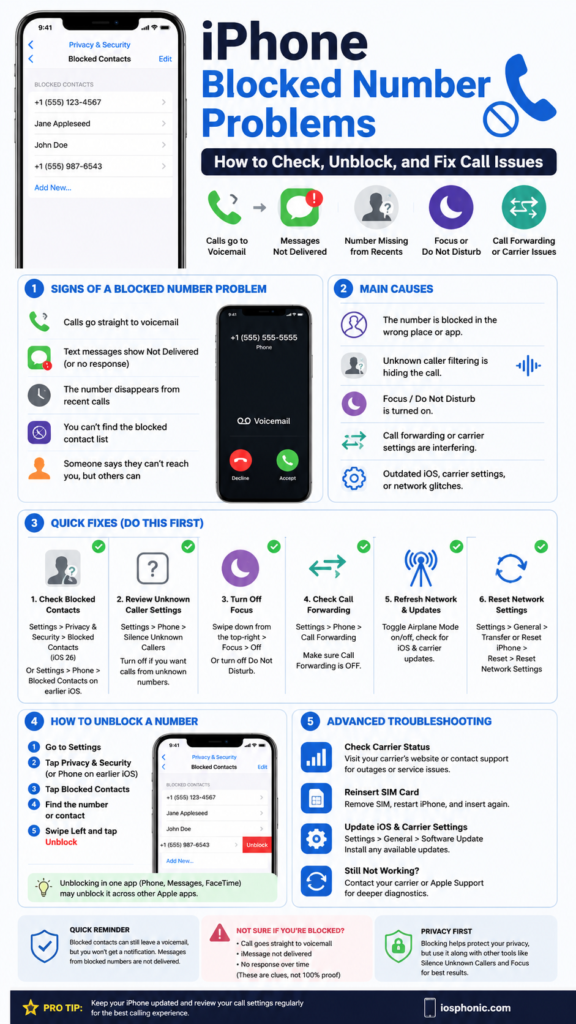
Quick comparison: what is really happening?
| Symptom | Most likely cause | What to check first |
| One person goes to voicemail, others ring normally | Blocked Contacts or unknown caller screening | Blocked Contacts, Silence Unknown Callers, Focus |
| Number is missing from Recents | Unknown Callers/call filtering | Phone app filter button, Unknown Callers list |
| Texts do not arrive | Blocked Contacts or Messages filter | Messages blocked list, Focus, Screen Time |
| The caller says they cannot reach you | Focus, forwarding, carrier issue | Focus, Call Forwarding, carrier status |
| You cannot find blocked numbers | Wrong iOS menu path | Settings > Privacy & Security > Blocked Contacts on iOS 26 |
How to fix iPhone blocked number problems
Check the actual blocked list first
On iOS 26, Apple places blocked contacts in Settings > Privacy & Security > Blocked Contacts. From there, you can add or remove blocked contacts. On the same page, you can edit the list and unblock someone. Apple also notes that older versions may still expose blocking in app-specific areas such as Phone, Messages, or FaceTime.
Do this:
- Open Settings.
- Tap Privacy & Security.
- Tap Blocked Contacts.
- Look for the number or contact.
- Tap Edit or remove the contact, then tap Unblock.
Use this fix when: you suspect a person is truly blocked, or you cannot find the contact in the Phone app block list.
Check whether the number is being treated as an unknown caller
A lot of “blocked number” complaints are actually unknown caller issues. Apple says unknown numbers can be screened, silenced, filtered out of Recents, or moved to the Unknown Callers list. A number may also ring only if it is saved in Contacts, appears in Recents, or is shared through Mail or Messages.
Do this:
- Go to Settings > Apps > Phone.
- Check Screen Unknown Callers.
- Choose Never, Ask Reason for Calling, or Silence.
- Review Unknown Callers and Spam filtering.
- Add important people to Contacts so they are not treated as unknown.
Use this fix when: only unsaved numbers are having trouble, or a caller says they are getting voicemail, but your saved contacts still ring normally.
Turn off Focus or Do Not Disturb
Apple still recommends checking Do Not Disturb when call problems happen. Focus can silence calls and notifications, so it can look like a block even when it is not. You can turn it off from Control Center or from Settings.
Do this:
- Open Control Center.
- Tap and hold Focus or Do Not Disturb.
- Turn Do Not Disturb off.
- Or go to Settings > Focus > Do Not Disturb and check the schedule and allowed people/apps.
Use this fix when calls are not ringing at certain times, during work, sleep, driving, or when a wallpaper-linked Focus is active.
Check call forwarding
Sometimes calls are not blocked at all. They are simply being forwarded. Apple says you can check this in Settings > Apps > Phone > Call Forwarding and turn it off if needed. If the slider is green, forwarding is active.
Do this:
- Open Settings.
- Tap Apps.
- Tap Phone.
- Tap Call Forwarding.
- Turn it off if it is enabled.
Use this fix when calls appear to be disappearing, going somewhere else, or not arriving at all, even though the number is not blocked.
Restart the cellular connection
Apple recommends turning Airplane Mode on and off as a quick network refresh. It also suggests checking another location if the reception is weak. This is useful when the problem is not a block, but a temporary connection issue.
Do this:
- Turn Airplane Mode on.
- Wait five to fifteen seconds.
- Turn it off again.
- Test the call again.
Use this fix when: calls fail randomly, your signal is weak, or the phone has been acting strangely after a network drop.
Check carrier status, billing blocks, and carrier settings updates
Apple says to contact your carrier and confirm that your account is set up correctly, there are no local outages, there is no billing-related block, and there are no errors on the carrier system. It also recommends checking for carrier settings updates and iOS updates.
Do this:
- Check whether your carrier has an outage.
- Confirm your line is active and in good standing.
- Install any carrier settings update.
- Install the latest iOS update.
Use this fix when: the problem affects more than one number, happens after a plan change, or you see signs of a network issue.
Reset network settings
If the problem continues, Apple includes Reset Network Settings as a troubleshooting step. This can clear saved Wi-Fi, VPN, APN, and related network settings. It is a stronger fix, so use it after the simple checks.
Do this:
- Go to Settings > General > Transfer or Reset iPhone.
- Tap Reset.
- Tap Reset Network Settings.
- Reconnect to Wi-Fi and test calling again.
Use this fix when: the same calling problem persists after checking blocks, Focus, forwarding, and carrier status.
Check Messages and FaceTime block lists, too
A contact can be blocked in more than one place. Apple says you can block people from Phone, Messages, FaceTime, and Mail, and the block can apply broadly across Apple apps on iPhone. That means unblocking in one place may not always solve every symptom if another app-based setting is still involved.
Do this:
- Open Messages and check the blocked sender list.
- Open FaceTime and check blocked contacts there, too.
- Make sure the same person is not still blocked in another Apple app.
Use this fix when: calls might work, but texts do not, or FaceTime fails while normal calls behave differently.
Check Screen Time communication limits
If the device is managed for a child or has Screen Time rules enabled, Apple allows Communication Limits to block incoming and outgoing communication with selected contacts. That can look exactly like a block problem.
Do this:
- Go to Settings > Screen Time.
- Open Communication Limits.
- Check both During Screen Time and During Downtime.
- Make sure the contact is allowed if needed.
Use this fix when: the issue happens on a family-managed phone or when calls/messages are blocked only at certain times.
Contact Apple Support or your carrier if the issue stays stuck
If none of the above works, Apple recommends getting help from your carrier and then Apple Support. That is especially important if the issue looks tied to account status, service outages, or device-level network behavior.
Fast fix checklist
Use this as your 60-second reset path
- Check Settings > Privacy & Security > Blocked Contacts.
- Check Settings > Apps > Phone > Screen Unknown Callers.
- Turn off Focus / Do Not Disturb.
- Check Call Forwarding.
- Toggle Airplane Mode off and on.
- Add the person to Contacts.
- Check carrier status and updates.
Advanced fixes
A. Check for a hidden app-based block
Third-party call management apps can also affect whether a number rings. One recent troubleshooting guide found that disabling apps like Truecaller in Settings > Apps > Phone > Call Blocking & Identification helped with number-specific call issues. This is not the same as Apple’s built-in block list, so it is worth checking if you use call screening apps.
B. Test from a second number
If you suspect someone blocked you, remember that a straight-to-voicemail result is not proof. It can also happen because the other phone is off, on Focus, out of signal, or using call screening. Apple’s own tools separate these systems for a reason.
C. Re-add the contact
If the number is already saved but still behaves strangely, delete and re-add the contact carefully. Apple says saved contacts are important for letting a caller ring when unknown caller handling is enabled.
D. Refresh the device connection after major changes
After changing carrier settings, unblocking, or disabling filters, restart the iPhone and test again. That is not Apple’s only step, but it is a practical follow-up after any deep-seated change.
Pros and cons of iPhone blocking features
| Feature | Good for | Main downside |
| Blocked Contacts | Stopping specific people completely | The caller can still leave a voicemail, which confuses users. |
| Silence Unknown Callers / Call Screening | Cutting spam and unsaved numbers | Important missed calls can get silenced if the number is not saved. |
| Spam filtering | Carrier-detected spam and fraud | False positives can send real calls to voicemail. |
| Focus / Do Not Disturb | Protecting focus and sleep | It can look like a block when it is really a silence rule. |
Pro tips and hidden tricks
- Save important numbers in Contacts. Apple explicitly says that it helps ensure the phone rings when unknown caller handling is active.
- Use the Filter button in the Phone app to view Unknown Callers or Spam instead of assuming the call disappeared.
- Check whether a custom Lock Screen or scheduled Focus mode is turning on automatically.
- Remember that a blocked number can still leave voicemail, so “voicemail only” does not always mean a failure.
- If you cannot receive one person’s calls, compare their number in Contacts, Recents, and Blocked Contacts.
- If the problem began after a software change, check for an iOS update and carrier settings update before deeper resets.
- Review Screen Time if the device is shared, managed, or used by a child.
Common mistakes to avoid
- Thinking every voicemail result means the number is blocked. It does not.
- Looking in the wrong settings menu after iOS changes. On iOS 26, Apple uses Privacy & Security > Blocked Contacts.
- Forgetting that unknown callers and blocked contacts are different systems.
- Ignoring Call Forwarding when calls seem to vanish.
- Skipping carrier troubleshooting and blaming the iPhone too early.
Privacy and data safety notes
When you block a phone number or contact, Apple says the person does not get a notification that they were blocked. Their messages are not delivered, and their calls can still go to voicemail without a notification on your side. That is useful for privacy, but it also means blocked people may not realize what happened right away.
If you share an Apple Account across devices, blocking can sync across Apple devices signed in to the same account. That makes your block list more consistent, but it also means changes may affect multiple devices.
FAQs
A1: Yes. Apple says blocked callers can still leave voicemail, but you will not get a notification.
A2: No. Apple says messages sent to blocked contacts are not delivered.
A3: No. Apple treats them as different tools. Unknown callers can be screened, silenced, or filtered without being added to Blocked Contacts.
A4: On iOS 26, Apple places it under Settings > Privacy & Security > Blocked Contacts. Apple also still shows app-based block management in Phone, Messages, FaceTime, and Mail.
A5:The most common reasons are a block, unknown caller filtering, Focus, call forwarding, or a carrier issue. Apple recommends checking those in that order.
Conclusion
Most iPhone blocked number problems are not caused by one single setting. The real fix is to check the actual Block List, then separate it from unknown caller filtering, Focus, call forwarding, carrier issues, and Screen Time rules. Apple’s current guidance makes that distinction clear, and that is the fastest way to solve the problem without guesswork.