Introduction
Trying to figure out How To See Blocked Numbers On iPhone can be surprisingly annoying, especially after an iOS update changes the menu layout. One day, the blocked list seems easy to find, and the next day it feels buried inside a different settings path. That is exactly why this guide exists.
In this article, you will learn the fastest way to find your blocked numbers, how the path changes in iOS 26 versus iOS 18 and earlier, and what to do if the contact you expected is missing. You will also learn how to unblock someone, why blocked contacts sometimes still seem to appear in conversations or call logs, and how to reduce future spam so you do not have to keep cleaning up the list.
This is not just a basic menu walkthrough. It is a practical troubleshooting guide for real users who want a clear answer, a clean checklist, and a few smart prevention tips. If your goal is to check who you blocked, verify whether a number is still restricted, or remove a contact you blocked by mistake, this guide will take you through it step by step.
What Does “Blocked Numbers” Mean on iPhone?
A blocked number is a phone number, email address, or contact that your iPhone is set to ignore for communication. Once blocked, that person can no longer reach you normally through calls, messages, FaceTime, or email, depending on how and where the block was added.
For most people, the blocked list is used for one of three reasons:
- To stop spam calls
- To silence a person they no longer want to hear from
- To reduce messages from unknown or unwanted senders
The important thing to remember is that Apple treats blocking as a communication filter, not as a hidden folder of missed calls. You are not looking for a secret inbox. You are looking for a settings list that controls who can reach you.
Why does this problem happen
If you cannot find a blocked number right away, the problem is usually one of these:
- Your iPhone is running a newer version of iOS, and the menu has moved.
- You blocked the contact in Phone, FaceTime, Messages, or Mail, and you are checking the wrong app.
- The person has more than one phone number or email address.
- You blocked a contact, not just a number, so the same person may appear under a different entry.
- Call screening or spam filtering is making a call look blocked when it is actually being silenced.
- Screen Time communication limits are active on the device.
- You are looking at the Recents list instead of the actual blocked list.
- The number was blocked from another Apple device signed in to the same Apple Account.
The good news is that most of these are easy to fix once you know where to look.
Quick Answer
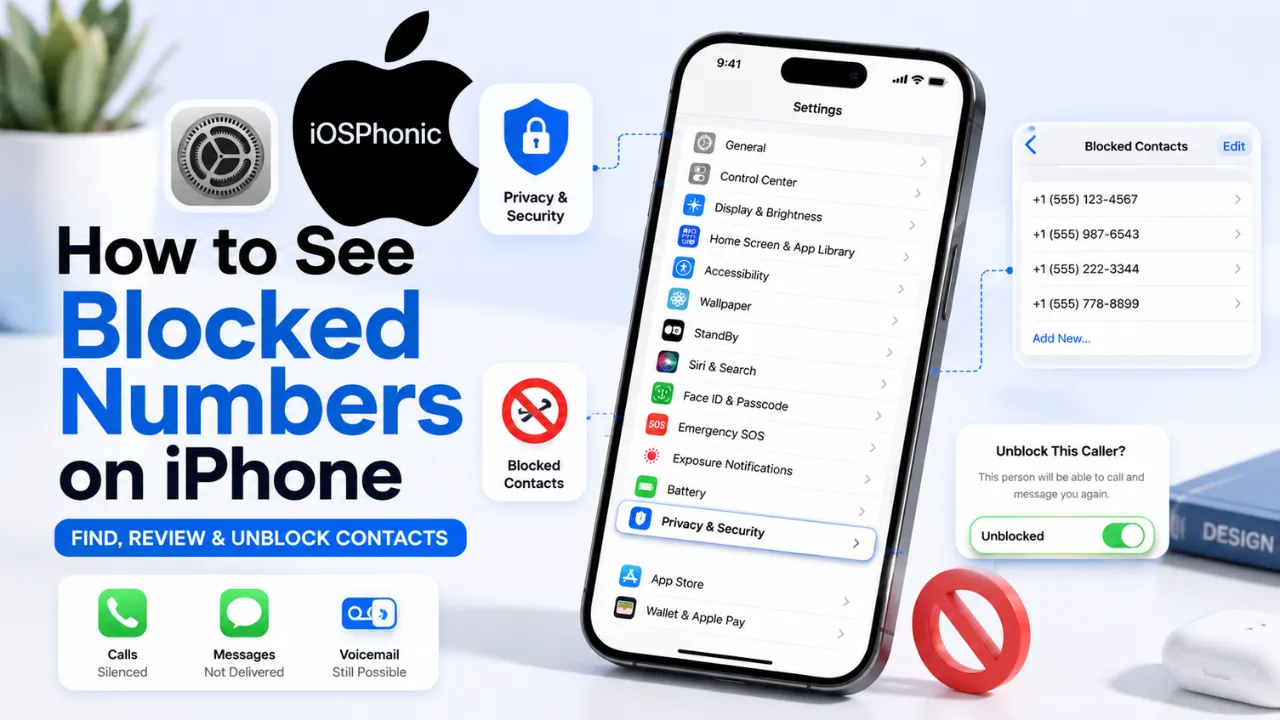
To see blocked numbers on iPhone, open the Settings app and look for the blocked contacts list.
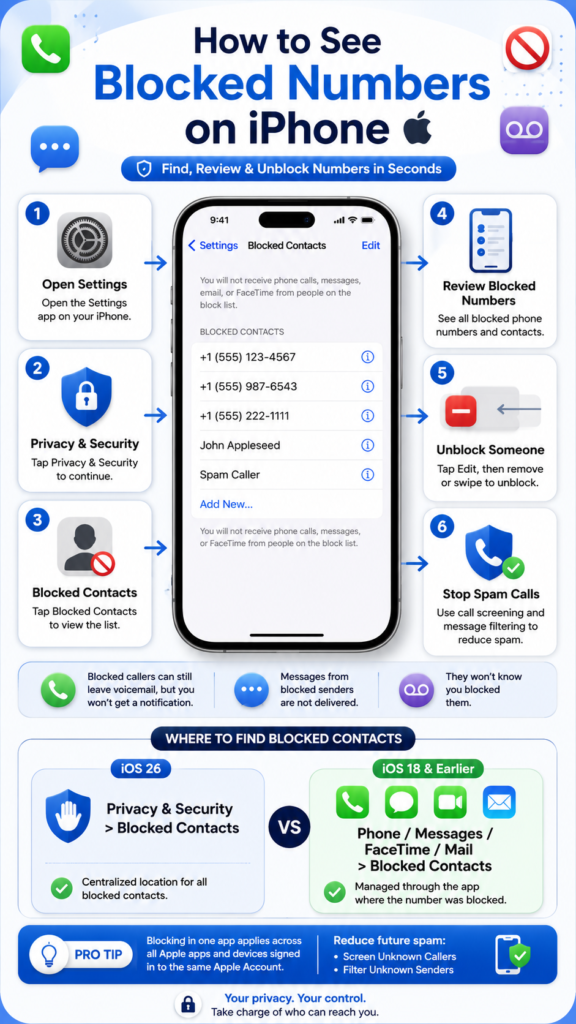
- On iOS 26, go to Settings > Privacy & Security > Blocked Contacts.
- On iOS 18 and earlier, Apple still lets you manage blocked contacts through Phone, FaceTime, Messages, or Mail.
- Once you open the blocked list, you can review the numbers, tap Edit, and remove anyone you want to unblock.
How to See Blocked Numbers on iPhone in iOS 26
Apple’s current layout makes the blocked list easier to find in one place. If your iPhone is on iOS 26, follow these steps:
- Open Settings.
- Tap Privacy & Security.
- Tap Blocked Contacts.
- Review the list of blocked numbers, emails, and contacts.
- Tap Edit if you want to remove someone.
- Tap the delete button next to the contact.
- Tap Unblock to confirm.
Why is this path the best
This is the cleanest version of the feature because it centralizes your blocked list in one section. That means you do not need to search through multiple app settings just to check who is blocked.
When to use this method
Use this method if:
- Your iPhone is updated to iOS 26
- You want a central blocked list
- You blocked someone recently and want to confirm it worked
- You need to unblock a contact quickly
Pro tip
If the list looks longer than expected, scroll carefully. Many users forget they blocked a spam caller months ago and only remember after a missed call or message issue appears.
How to See Blocked Numbers on iPhone in iOS 18 and Earlier
If your iPhone is on an older version, Apple keeps blocked contacts inside the app where they were managed. That means the path may be slightly different depending on whether the block came from Phone, FaceTime, Messages, or Mail.
Check the blocked list in each app
Phone
- Open Settings.
- Tap Phone.
- Tap Blocked Contacts.
- Review the list.
- Tap Edit to remove a number.
FaceTime
- Open Settings.
- Tap FaceTime.
- Tap Blocked Contacts.
- Review the list.
- Remove any entry you no longer want blocked.
Messages
- Open Settings.
- Tap Messages.
- Tap Blocked Contacts.
- Check the list of blocked senders.
- Remove a sender if needed.
- Open Settings.
- Tap Mail.
- Tap Blocked.
- Review blocked email addresses.
- Remove an address if you want to receive mail again.
Which app should you check first?
Start with the app that matches the problem:
- missed call issue → Phone
- FaceTime issue → FaceTime
- missing text messages → Messages
- unwanted email → Mail
If you are not sure where the block happened, check all four.
iPhone Blocked Numbers: iOS 26 vs iOS 18 and Earlier
| iPhone Version | Where to Find Blocked Contacts | Best Use Case |
| iOS 26 | Settings > Privacy & Security > Blocked Contacts | Best for a central blocked list |
| iOS 18 and earlier | Settings > Phone / FaceTime / Messages / Mail | Best when you want to check the app used to block the contact |
This small difference matters because many users follow old guides and get lost when the menu has moved.
How to Unblock a Number on iPhone
Once you find the blocked list, unblocking is simple.
- Open the blocked contacts list.
- Tap Edit if the option appears.
- Tap the remove icon or swipe left on the contact.
- Tap Unblock.
- Go back and check that the contact has disappeared from the list.
What happens after unblocking?
After you unblock a contact, they can contact you again through the services that were blocked. That is useful if the block was accidental or if the person should not be allowed to reach you again.
When to use this fix
Use this if:
- You blocked the wrong person
- A number was blocked during a misunderstanding
- You want to restore normal communication
- You are cleaning up old spam blocks
What Happens When You Block Someone on iPhone?
Blocking is more than just hiding one call.
When you block a phone number or contact, the calls and messages from that person do not come through normally. The person can still leave a voicemail, but you will not get a notification. Messages are not delivered to you, and the blocked person does not get a notification that they were blocked.
If you block an email address in Mail, the message goes to the trash or bin folder instead of your inbox.
This is important because many users think blocked contacts disappear completely. In reality, Apple is filtering communication, not erasing the sender from existence.
Why a Blocked Number May Still Seem Visible
Sometimes people think a blocked number is still getting through, but the real issue is something else.
Common reasons this happens
- The person has another number or email address.
- You blocked only one contact detail, not every version of the contact.
- The number appears in a group conversation, even though their messages are filtered.
- The call is being silenced by Spam Settings, not blocked.
- The sender is in your Recents list, but the communication itself is not reaching you.
- You are checking the wrong Apple app.
What to do
Open the contact card and inspect every phone number and email address tied to that person. If the contact has multiple ways to reach you, one blocked detail may not be enough.
The Fastest Fix Checklist
If you just want the shortest path, do this:
- Open Settings
- Check Privacy & Security > Blocked Contacts on iOS 26
- Check Phone, FaceTime, Messages, and Mail on iOS 18 or earlier
- Tap Edit
- Remove any contact you want to unblock
- Check the contact card for extra numbers or emails
- Review unknown caller and spam settings
- Restart the iPhone if the list seems outdated
Best Step-by-Step Fixes for Blocked Numbers on iPhone
Fix 1: Check the main blocked list first
This is the simplest and most important step.
Open the blocked contacts list and look for the number you are trying to confirm. On newer iPhones, that means the central blocked list inside Privacy & Security. On older iPhones, it may be inside Phone, FaceTime, Messages, or Mail.
Why this works
A lot of users never actually lost the blocked number. They were just looking in the wrong menu.
Use this fix when
- You cannot remember where the number was blocked
- Your iPhone was updated recently
- The menu looks different from the tutorial you followed earlier
Fix 2: Check every app that can block contacts
If you still cannot find the number, do not stop at one app.
Check all the places Apple uses for blocking:
- Phone
- FaceTime
- Messages
Why this works
A person might be blocked in Messages but not in Mail, or blocked by email address but not by phone number.
Use this fix when
- The person can still reach you in another app
- You only checked one settings menu
- The blocked list seems incomplete
Fix 3: Open the contact and compare every phone number and email
Sometimes the issue is not the blocked list. The issue is the contact itself.
Open the person’s contact card and check whether they have:
- More than one phone number
- A work number and a personal number
- More than one email address
- An old number that still appears in the Contacts app
Why this works
If you blocked one number but the person uses a second number, the second one may still get through.
Use this fix when
- The same person still appears to contact you
- You blocked them, but calls still seem familiar
- The contact has many phone numbers or emails
Fix 4: Unblock and block again if the wrong entry was selected
If you find the wrong contact or the wrong number, remove it and block the correct one.
- Unblock the incorrect entry.
- Find the correct contact detail.
- Block the right number or email address.
- Test it with a call or message.
Why this works
Many mistakes happen when a user blocks a name that looks similar to the right person.
Use this fix when
- the wrong number was selected,
- the same person has duplicate contact cards
- , or you want a clean, accurate block list
Fix 5: Check unknown caller and spam filtering settings
Sometimes a call is not blocked. It is just being screened or silenced.
Apple’s call filtering tools can move unknown or spam calls out of the way, so they behave differently from a classic blocked contact.
What to check
- Unknown caller filtering
- Spam call filtering
- Message filtering for unknown senders
Why this matters
A user may think a number is blocked because the call did not ring normally, but the phone may actually be using a spam or unknown caller rule.
Use this fix when
- Calls go straight to voicemail
- Unknown callers are not showing normally
- You want to tell the difference between blocking and filtering
Fix 6: Review Screen Time communication limits
If a child’s iPhone or a managed device is involved, Screen Time may be limiting communication.
Check whether communication limits are turned on. Those limits can affect who can call or message, which sometimes looks like a block, even when it is actually a restriction.
Why this works
Communication limits can prevent calls or messages from going through, so the behavior may look similar to blocking.
Use this fix when
- The iPhone is used by a child
- Screen Time is active
- The issue only happens during certain hours
Fix 7: Restart the iPhone
A simple restart can help when the settings screen seems stale, or a recent change does not appear right away.
- Turn the iPhone off.
- Wait a few seconds.
- Turn it back on.
- Recheck the blocked list.
Why this works
A restart refreshes system settings and can clear temporary display glitches.
Use this fix when
- The list did not update after unblocking
- The menu looks stuck
- The iPhone has been running for a long time without a restart
Fix 8: Update iOS
If the menu layout or settings path looks different from what you expected, the device may be on an older version of iOS.
Update the iPhone to the latest available version for your model if possible.
Why this works
Apple has changed the blocked contacts layout in Newer Versions, so an update can make the menu clearer and more consistent.
Use this fix when
- Your settings app looks outdated
- A tutorial does not match your iPhone
- You want the newest menu structure
Fix 9: Check for duplicate contacts
Duplicate contacts can make a block list seem confusing.
For example, you may have:
- One contact saved with a mobile number
- One duplicate contact saved with an email address
- Another version saved from a group chat
Why this works
Removing duplicates makes it easier to tell exactly who is blocked and who is not.
Use this fix when
- The same person appears more than once
- Your contact list is messy
- Blocking and unblocking feel inconsistent
Fix 10: Use Apple Support or your carrier if spam keeps coming back
If the unwanted contact is a spammer or automated caller, blocking one number may not solve the whole problem.
In that case, use Apple’s spam tools and contact your carrier if needed.
Why this works
Spam callers often change numbers. A single block can help, but screening tools often work better for repeated spam.
Use this fix when
- The same type of spam keeps coming from new numbers
- The unwanted calls are constant
- You need a stronger long-term approach
Advanced Fixes for Persistent Problems
1. Clear out old blocked entries
If you have a very long list, remove old entries you no longer need. A smaller list is easier to manage and less likely to confuse you later.
2. Re-check all contact details
Open the contact and confirm every phone number and email address. Many users only block one detail and forget about the others.
3. Review message filtering
Unknown sender filters can hide texts and make it seem like blocking is broken. Review your message filtering settings so you know whether a message is blocked, filtered, or simply moved away from your main inbox.
4. Review call filtering
Check whether your Phone settings are screening unknown or spam callers. That can change how calls appear in your call history.
5. Test with a trusted contact
If you are unsure whether blocking works, test the flow with a trusted person or your own alternate number. That helps separate a true block issue from a contact problem.
Pro Tips and Hidden Tricks
- Keep one clean contact card for important people so you do not block the wrong entry.
- Check the Mail blocked senders if the problem is email-related, not just phone-related.
- Use message filtering for spam instead of blocking every single unknown sender.
- Review blocked contacts after a big iOS update, because the settings path may move.
- If you use multiple Apple devices, check the device where you usually manage communication settings.
- For family devices, review Screen Time before assuming the contact is blocked.
- Save a trusted contact card for support numbers so you can quickly recognize official calls.
Common Mistakes to Avoid
Checking only one app
Many people only look in Phone and forget that the block may have been added in Messages or Mail.
Confusing spam filtering with blocking
A silenced spam call is not always the same thing as a blocked number.
Forgetting extra contact details
A person can have two numbers or multiple emails. Blocking one does not always stop the rest.
Looking at Recents instead of Blocked Contacts
The call history is not the same thing as the blocked list.
Ignoring duplicate contacts
Duplicate cards can make it look like the wrong number is blocked.
Privacy and Data Safety Notes
Blocking is meant to protect your privacy and reduce unwanted communication. It does not warn the other person that they were blocked. Calls may still go to voicemail, but you will not receive a notification. Messages are not delivered to you. If you block an email address in Mail, those messages go to the trash or bin instead.
Apple also says blocked communications can be managed across the Apple apps that use the block list, and if you block someone on one device, that block can apply across your Apple devices signed in to the same Apple Account. That is helpful, but it also means you should be careful before unblocking or removing an entry.
FAQs
On iOS 26, go to Settings > Privacy & Security > Blocked Contacts. On iOS 18 and earlier, check the blocked list inside Phone, FaceTime, Messages, or Mail.
They may still leave a voicemail, but the call will not ring normally, and you will not get a notification.
No. Apple does not notify the caller that they were blocked.
In Apple’s communication system, the block list is shared across the apps that use it, so removing the contact from the blocked list restores communication across those apps.
Because Apple has changed the settings layout in newer iOS versions. That is why older tutorials may not match your screen.
Conclusion
Now you know exactly how to see blocked numbers on iPhone, whether your device is running iOS 26 or an older version. The main thing to remember is that the menu path changed, but the goal stayed the same: open the blocked list, review the contacts, and remove anyone you no longer want blocked.