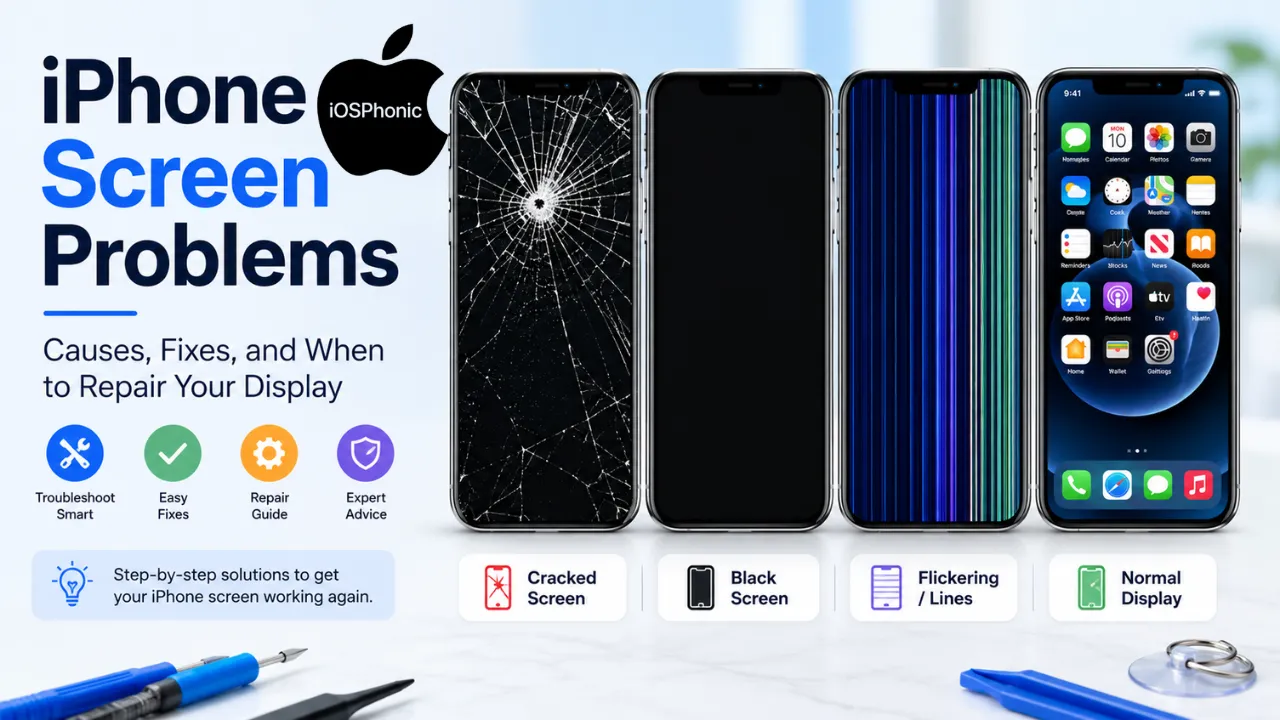
Introduction About iPhone screen issues
iPhone Screen Problems can be confusing because the same “bad screen” feeling may come from very different issues. Sometimes the glass is cracked. The display is on, but touch does nothing. Sometimes the iPhone is working in the background while the screen stays black. And sometimes the phone shows flickering, lines, or ghost touch that keeps opening apps by itself.
The good news is that many iPhone screen issues can be narrowed down quickly if you diagnose the symptom instead of guessing. Apple’s current guidance starts with simple checks like restarting the iPhone, cleaning the screen, disconnecting accessories, and removing cases or screen protectors. For black-screen problems, Apple recommends a force restart and charging first. For restore-screen issues, the fix may involve a computer and reinstalling iOS.
In this guide, you will learn the most common causes of iPhone screen problems, the exact fixes to try in order, how to tell software issues from hardware damage, and when it is smarter to stop troubleshooting and book a repair.
What Are iPhone Screen Problems?
“iPhone screen problems” is a broad phrase that usually covers five main symptom groups:
- Touch problems: the screen looks normal, but taps and swipes do not work well.
- Display problems: the screen shows black, dim, flickering lines, color shifts, or dead areas.
- Physical damage: cracked glass, shattered display, or pressure damage.
- Ghost touch: the phone behaves as if you are touching it when you are not.
- System-state problems: the device is stuck on a restore screen, recovery screen, or frozen startup state. Apple separates these issues into different troubleshooting paths because the right fix depends on the exact symptom.
Why does this problem happen
Most iPhone screen problems come from one of these causes:
- Temporary software glitch
- Dirty, wet, or contaminated screen
- Accessory interference from a cable, charger, or adapter
- Case or screen protector interference
- Physical impact or pressure damage
- Display connector or internal hardware failure
- Restore/recovery state issue
- Part replacement or calibration issue after repair
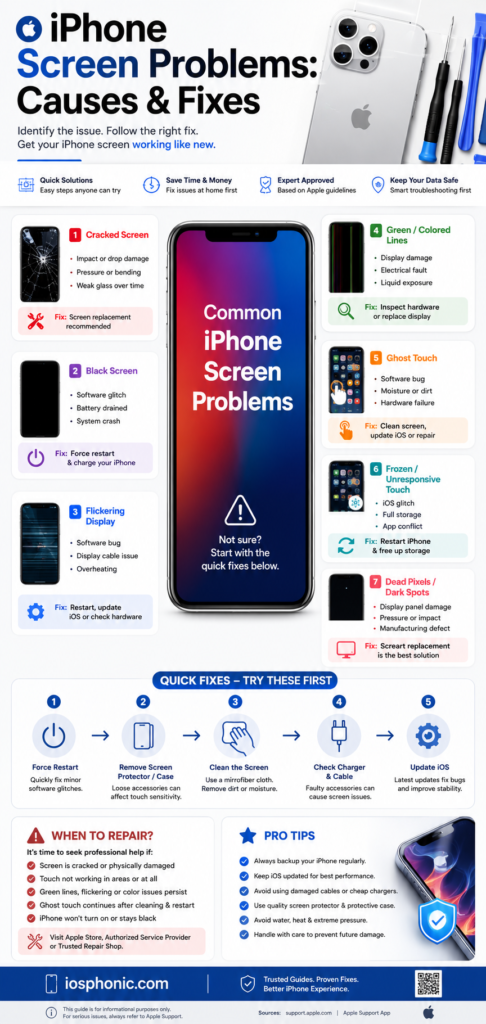
Symptom vs. Likely Cause vs. Best First Fix
| Symptom | Likely Cause | Best First Fix |
| The screen does not respond to touch | Glitch, dirty screen, accessory issue | Restart, clean screen, remove accessories |
| The screen is black, but the phone may still be on | Power issue, frozen state, display failure | Force restart, charge the device |
| Flickering or unstable display | Hardware or display connection issue | Restart first, then test for service |
| Green or purple lines | Display hardware issue | Stop guessing and inspect for repair |
| Ghost touch | Hardware issue, accessory interference, or damage | Remove accessories, restart, then service if it continues |
| The restore screen appears | iOS restore/update problem | Connect to a computer and follow Apple’s update steps |
How to Fix iPhone Screen Problems Step by Step
Fix 1: Restart the iPhone
This is the safest first step for almost every touch-related issue.
Do this:
- Press the buttons normally to restart the iPhone.
- If the screen is not responding, use a force restart.
- After the phone turns back on, test the screen again.
Use this fix when: touch is lagging, the screen freezes, or taps are inconsistent.
Apple recommends restarting first when the screen is too sensitive or responds intermittently.
Fix 2: Clean the Screen Carefully
A dirty, wet, or greasy screen can interfere with touch.
Do this:
- Power off the iPhone if possible.
- Wipe the screen with a clean, dry, soft cloth.
- Check for moisture, lint, oil, or grime.
- Make sure the screen is fully dry before testing again.
Use this fix when the screen feels inaccurate, sticky, or responds strangely after use.
Apple specifically tells users to make sure the screen is clean and free of debris or water.
Fix 3: Disconnect Accessories and Remove the Case or Screen Protector
Chargers, cables, adapters, cases, and protectors can sometimes trigger screen behavior that looks like a hardware failure.
Do this:
- Unplug Lightning or USB-C accessories.
- Remove the case.
- Remove the screen protector.
- Test the iPhone again without anything attached.
- If it improves, try a different outlet, cable, or charger.
Use this fix when: the problem started while charging or after adding a new accessory.
Apple’s support guidance explicitly recommends removing accessories and testing with a different outlet, cable, or charger if the issue improves.
Fix 4: Force Restart the iPhone
If the screen is black or frozen, a force restart can wake the device without erasing data.
For iPhone 8 and later:
- Press and quickly release Volume Up.
- Press and quickly release Volume Down.
- Press and hold the Side button.
- Release when the Apple logo appears.
Use this fix when: the screen is black, frozen, or the phone seems stuck.
Apple says this is the correct approach when an iPhone is not responding and you cannot turn it off normally.
Fix 5: Charge the iPhone for a While
A black screen is not always a broken screen. Sometimes the battery is simply too low for the phone to start normally.
Do this:
- Plug the iPhone into a trusted charger.
- Leave it charging for a period of time.
- Try a force restart again.
- If possible, swap to a different cable or power source.
Use this fix when the iPhone shows nothing, especially after being unused or drained.
Apple’s black-screen guidance says the device may need to be charged or forced to restart before it will turn on properly.
Fix 6: Check for iOS Problems or a Bad App
A screen problem can sometimes be caused by software, not the display itself.
Do this:
- Restart the iPhone.
- Check whether the issue happens in every app or only one app.
- Update iOS if the phone is usable.
- Remove or update a suspicious app if the issue started after installing one.
Use this fix when: the phone works in some situations but not others.
Apple notes that updating iOS can resolve some issues, and its restore/update instructions exist because the software state can stop the iPhone from starting or displaying normally.
Fix 7: Use a Computer to Update or Reinstall iOS
If the iPhone shows the Restore screen, normal on-phone troubleshooting is not enough.
Do this:
- Connect the iPhone to a computer using the cable that came with it.
- Follow Apple’s update instructions.
- If needed, reinstall iOS or put the device in recovery mode.
- Do not disconnect the device unless Apple tells you to.
Use this fix when the Restore screen appears, or the iPhone will not start normally.
Apple says the Restore screen usually means you should connect to a computer and may need to reinstall iOS or iPadOS. Apple also says that if updating fails, recovery mode and a computer-based setup may be needed.
Fix 8: Look for Hardware Damage Signs
Some symptoms are too consistent to ignore.
Watch for:
- Cracks in the glass
- Dark spots
- Dead Zones
- Persistent lines
- Flicker that returns after a restart
- Touch is working only in one area
- Ghost touch that keeps coming back
Use this fix when: the screen is visibly damaged, or the problem survives the basic fixes.
At this stage, the issue is more likely to be the display assembly, connectors, or another internal hardware fault than a temporary software glitch. Apple’s repair pages route persistent screen problems toward service rather than endless DIY troubleshooting.
Fix 9: Stop Using the Device the Normal Way if Ghost Touch Continues
Ghost touch is one of the clearest signs that the problem may be hardware-related.
Do this:
- Remove accessories.
- Restart the iPhone.
- Test again.
- If the screen still acts on its own, back up the phone and prepare for repair.
Use this fix when: apps open by themselves, typing goes wild, or the screen taps random places.
A persistent ghost-touch pattern usually points beyond a simple temporary glitch, especially when the behavior continues after cleanup and restart.
Fix 10: Book Apple Service or an Apple-Certified Repair
If the screen still does not behave after the steps above, repair is the right move.
Do this:
- Check Apple’s repair options.
- Choose Apple, an Apple Authorized Service Provider, mail-in repair, or another approved service option in your region.
- Ask for a screen diagnosis before replacement if the issue is unclear.
Use this fix when: the display is cracked, black, flickering, line-filled, or unresponsive after all basic troubleshooting.
Apple says screen service is available through Apple and Apple Authorized Service Providers, and it uses genuine Apple parts in Apple-certified repairs.
Quick Fix Checklist
Try these in order:
- Restart the iPhone
- Clean the screen
- Remove the case
- Remove the screen protector
- Unplug chargers and accessories
- Try a different cable or outlet
- Force restart the phone
- Charge it for a while
- Update iOS
- Connect to a computer if the Restore screen appears
- Book a service if the problem stays
What Each Major Symptom Usually Means
1) iPhone Screen Not Responding to Touch
This usually starts with a software or interference check. Apple’s first steps are restarting, cleaning, unplugging accessories, and removing cases or screen protectors. If those do not help, the issue may be hardware.
2) iPhone Black Screen
A black screen does not always mean the phone is dead. Apple says to force restart and charge first. If it still stays black, service may be needed.
3) Flickering Screen
If flickering continues after restarting and cleaning, the problem often points to the display itself or the connection to it. If the flicker is severe or comes with lines, repair is usually the next move.
4) Green or Purple Lines
iFixit’s troubleshooting guidance says green or purple lines on newer iPhone displays are commonly tied to an electrical issue within the screen. If lines persist after a restart, the display should be checked for repair.
5) Ghost Touch
Ghost touch can happen when the phone is being affected by accessories, contamination, or deeper display damage. If it keeps happening after the basic fixes, treat it as a likely repair issue.
6) Restore Screen
If the Restore screen appears, Apple says to connect the iPhone to a computer and follow the update/reinstall process rather than assuming the display is broken.
Advanced Fixes
Use these only after the quick fixes above.
Advanced Fix 1: Recovery Mode Update
If your iPhone will not start normally, Apple may direct you to recovery mode and a computer-based update. This is especially useful when the device is stuck or keeps showing restore-related screens.
Advanced Fix 2: Reinstall iOS Instead of Restoring Right Away
When possible, try an update before a full restore. Updating can fix system issues without wiping everything, while a full restore is more disruptive. Apple’s restore guidance separates the two steps for a reason.
Advanced Fix 3: Repair Assistant After a Part Replacement
If the display or another part has already been replaced on a supported device, Apple’s Repair Assistant may finish Calibration after the repair. On supported iPhone models, you may also see status messages like Finish Repair in Parts and Service History until the process is completed.
Repair Options: Which One Makes Sense?
| Option | Best For | Good Points | Tradeoff |
| Apple Store | Users who want official service | Genuine parts, Apple support flow | May cost more than some third-party shops |
| Apple Authorized Service Provider | Users who want an Apple-certified repair near them | Genuine parts, certified repair standards | Availability varies |
| Mail-in repair | Users who cannot visit a store | Convenient | Takes longer |
| Self-Service Repair | Experienced users doing out-of-warranty work | Genuine parts, tools, manuals | Advanced, not beginner-friendly |
| DIY from a generic parts seller | Skilled repair hobbyists | Can be cheaper | Higher risk, quality varies, calibration may be an issue |
Pro Tips & Hidden Tricks
- Test without the charger first if the screen acts up while plugged in. Apple specifically tells users to swap accessories and test with a different cable or outlet if removing one changes behavior.
- Do not rush to restore when the Restore screen appears. Apple says to connect to a computer and follow the update path first.
- Check whether the issue is whole-screen or area-specific. Area-specific dead zones often suggest hardware damage.
- Back up before repair. If the screen still works well enough, save your data before service.
- Use genuine service for display replacements when possible. Apple-certified repairs use genuine Apple parts.
- Watch for post-repair prompts. On supported iPhones, Repair Assistant may be needed to finish calibration after replacement.
- Treat lines, flicker, and ghost touch as warning signs. If they survive restart and cleanup, the problem is usually deeper than software.
Common Mistakes to Avoid
- Replacing the screen before trying a restart
- Ignoring moisture or dirt
- Using the same damaged cable repeatedly
- Assuming a black screen always means a dead phone
- Restoring the device before trying Apple’s update path
- Keeping a cracked or pressure-damaged screen in heavy use
- Using random repair parts without understanding calibration or compatibility
Privacy / Data Safety Notes
If you move into computer-based update, recovery, or restore steps, keep data safety in mind. A full restore can erase content, so it is better to try the least disruptive fix first. If the device still responds enough to back up, do that before repair or restoration. Apple’s restore and repair guidance is designed to help you solve the issue without losing more than necessary.
FAQs
A1: Apple says to restart the iPhone, clean the screen, disconnect accessories, and remove the case or screen protector first. If the problem continues, it may be hardware-related.
A2: Apple recommends a force restart and charging the device before assuming the display has failed. If it still stays black, repair may be needed.
A3: ifixit says these lines on newer iPhone displays are commonly linked to an electrical issue in the screen. If they keep appearing, the display should be inspected.
A4: Yes. If the cause is software, moisture, dirt, or accessory interference, the phone may recover without display replacement. Apple’s troubleshooting steps start there.
A5: Apple-certified repairs use genuine Apple parts, and Apple also offers authorized repair options and mail-in service. Self-Service Repair is intended for experienced users handling out-of-warranty repairs.
Conclusion
Most iPhone screen problems are easier to solve when you stop guessing and match the fix to the symptom. A touch issue often starts with a restart, cleaning, and accessory removal. A black screen often needs a force restart and charging. A Restore screen points you toward a computer-based update. Cracks, lines, Flicker, and ghost touch that survive basic troubleshooting usually mean it is time for repair. Apple’s current support flow and repair options make that path clear.