Introduction
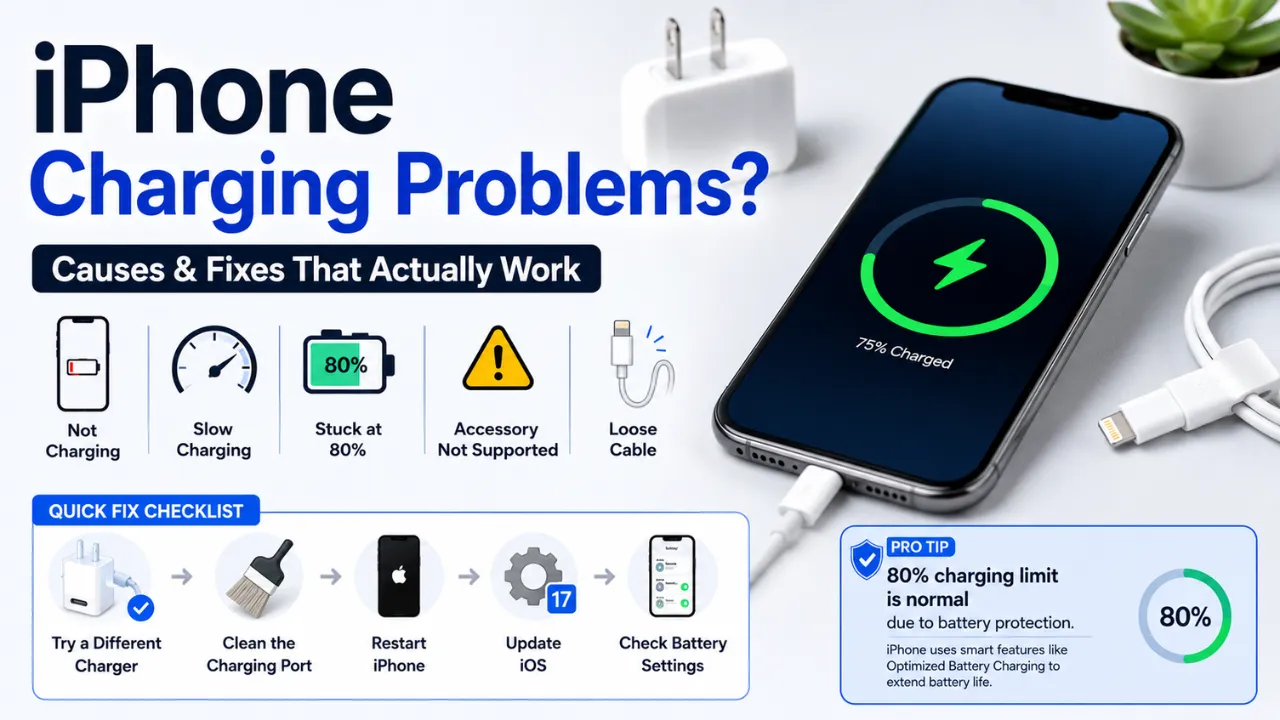
iPhone Charging Problems can be stressful, especially when your battery is low, and your phone suddenly stops charging, charges slowly, or gets stuck at 80%. The good news is that many charging issues are caused by simple things like a faulty cable, a dirty port, a weak adapter, a software glitch, or a normal iPhone charging feature. Apple’s own troubleshooting starts with the basics: check the power source, inspect the cable and adapter, clean the port, let the device charge for 30 minutes, and restart or force restart if needed. Apple also explains that some charging behavior, like stopping near 80%, may be completely normal because of battery protection features.
If your iPhone is plugged in but still not charging, this guide will help you find the exact cause fast. You will learn how to diagnose the issue, which fixes to try first, when the problem is normal, and when it is time for service. The goal is simple: save you time, avoid guesswork, and get your iPhone charging again with the fewest steps possible.
Why Is My iPhone Not Charging?
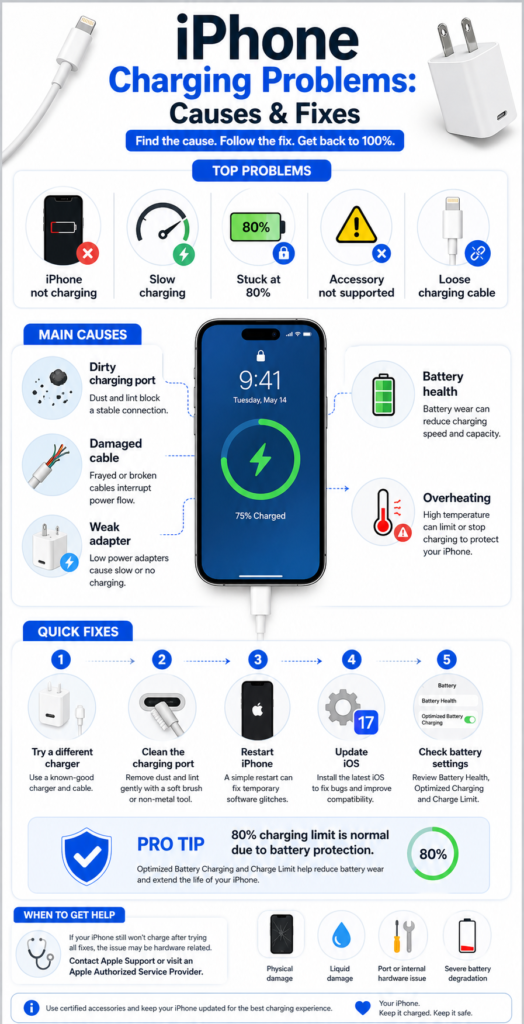
Most iPhone charging problems come from one of these causes:
A bad cable, a loose or damaged adapter, a blocked charging port, unsupported accessories, software glitches, battery aging, liquid exposure, or a normal charging limit, such as Optimized Battery Charging or a configured charge limit. Apple’s guidance confirms that charging problems should be diagnosed from the power source upward, starting with the cable, adapter, outlet, and port before moving to the restart steps and service.
What Is an iPhone Charging Problem?
An iPhone charging problem is any situation where the phone:
- Does not charge at all,
- Charges very slowly,
- Stops charging before reaching 100%,
- Charges only in certain positions,
- Shows an accessory warning,
- Or appears to charge, but the battery percentage does not rise normally.
For beginners, the key thing to know is this: the problem is not always the iPhone itself. In many cases, the issue is external, such as the cable, outlet, charger, or debris in the port. Apple also notes that charging features can deliberately slow or pause charging to protect battery lifespan.
Why does this problem happen
Here are the most common real causes behind iPhone charging problems:
| Cause | What it usually looks like | What it means |
| Bad cable or adapter | Charges intermittently or not at all | The accessory may be damaged or incompatible |
| Dirty charging port | The port or connector may be damaged or detect liquid | Lint or debris is blocking contact |
| Weak power source | Charges from one outlet but not another | The outlet, USB port, or adapter may be the issue |
| Unsupported accessory | A warning appears on the screen | The accessory may be damaged, uncertified, or not supported |
| Software glitch | Charging worked before, then suddenly stopped | iOS may need a restart or update |
| Battery aging | Slow charging, faster drain, heat | Battery capacity may have declined |
| Heat or temperature protection | Charging pauses or slows | iPhone is protecting itself from overheating |
| Liquid exposure | Charging stops after moisture contact | The port or connector may be damaged or detecting liquid |
Apple’s official support articles specifically call out damaged accessories, dirty ports, charge-limiting behavior, temperature-related protection, and battery aging as common reasons charging becomes unreliable.
How to Fix iPhone Charging Problems Step by Step
Check the power source first
Before assuming the iPhone is broken, test the outlet, USB port, or power strip.
Do this:
- Plug the charger into a different wall outlet.
- Try a different power source.
- If you are charging from a computer, switch to a wall outlet.
- Make sure the charger is fully inserted into the outlet.
Apple recommends starting with the power source and checking firm connections between the cable, wall adapter, and outlet.
Use this fix when:
Your iPhone shows no charging sign, charges only sometimes, or works in one place but not another.
Inspect the cable and adapter closely
A damaged cable is one of the most common reasons for iPhone won’t charge complaints.
Do this:
- Look for fraying, kinks, bent connectors, or burn marks.
- Check the USB end and the iPhone end.
- Try a known-good cable and adapter.
- Avoid using damaged accessories.
Apple explicitly advises checking the cable and USB adapter for signs of damage, such as breakage or bent Prongs, and not using damaged accessories.
Use this fix when:
The iPhone charges with one cable but not another, or charging cuts in and out when the cable moves.
Clean the charging port safely
Lint, dust, and pocket debris can block the connector from making contact.
Do this carefully:
- Turn off the iPhone if possible.
- Shine a light into the port.
- Check for lint or compacted dirt.
- Use a soft, dry brush or gentle air only if appropriate.
- Do not use sharp metal objects or liquid cleaners.
Apple advises removing debris from the charging port before trying again. It also notes that a dirty port can trigger accessory-related warnings.
Use this fix when:
The charger feels loose, the phone charges only if held at an angle, or you see an accessory warning.
Restart the iPhone
A simple restart can clear temporary software problems that affect charging.
Do this:
- Restart the iPhone normally.
- If the screen is frozen or the phone is unresponsive, force restart it.
Apple says to restart the iPhone during charging troubleshooting, and if that does not help, force restart it.
Use this fix when:
Charging stopped suddenly after an iOS glitch, app crash, or system freeze.
Force restart if the iPhone still will not charge
A force restart is different from a normal restart. It is often the next best step when the phone does not respond.
For iPhone 8 and later:
- Press and quickly release Volume Up.
- Press and quickly release Volume Down.
- Press and hold the Side button.
- Release when the Apple logo appears.
Use this fix when:
The iPhone is frozen, black, or seems to be on but not responding to charging.
Let it charge for at least 30 minutes
A deeply drained battery may not show immediate signs of life.
Do this:
- Connect to a reliable wall charger.
- Leave it plugged in for 30 minutes.
- Do not keep unplugging it to check the battery.
- After 30 minutes, check whether the battery icon appears.
Apple recommends letting the device charge for half an hour before moving to the next step.
Use this fix when:
The battery is fully drained, or the phone has been off for a long time.
Check for accessory warnings or iOS alerts
If your iPhone says Accessory Not Supported or a similar message, the charger or cable may be the issue.
Do this:
- Read the alert carefully.
- Unplug the accessory.
- Try another Apple-certified or compatible accessory.
- Update to the latest version of iOS.
Apple says this alert may appear when the accessory is damaged, not Apple-certified, or when the port is dirty or damaged. Apple also notes that some accessories require the latest iOS version.
Use this fix when:
Your iPhone charges only with certain accessories or shows warnings when connected.
Check whether the 80% stop is normal
Many users think the iPhone is broken when it stops at 80%. Often, it is not.
What may be happening:
- Optimized Battery Charging may pause charging at 80% and finish later.
- Charge Limit may be set below 100%.
- Temperature protection may slow charging when the device is too hot.
Apple explains that Optimized Battery Charging reduces time spent fully charged and may delay charging past 80% in some situations. On iPhone 15 models and later, Apple also allows a charge limit between 80% and 100% in 5% increments.
Use this fix when:
Your iPhone seems stuck at 80%, especially overnight or during the heat.
Check battery health and aging
Battery wear can cause slower charging, unreliable percentages, and shorter battery life.
Do this:
- Open Settings.
- Tap Battery.
- Check Battery Health or Battery Health & Charging, depending on model.
- Look for service recommendations or reduced maximum capacity.
Apple notes that rechargeable batteries have a limited Lifespan and eventually need replacement. Apple also explains that battery health information is available in Settings and that the service may be recommended when battery health declines.
Use this fix when:
Your iPhone is older, drains quickly, charges slowly, or gets hot during charging.
Try wireless charging if your model supports it
If cable charging fails but wireless charging works, the likely problem is the port, cable, or adapter, not the battery.
Do this:
- Place the iPhone on a compatible Qi or MagSafe charger.
- Check whether charging begins.
- Compare wireless charging to cable charging.
Why this matters:
If wireless charging works, you have narrowed the issue to the wired charging path.
Use this fix when:
Your iPhone supports wireless charging, and the cable setup keeps failing.
Watch for liquid exposure or moisture alerts
Liquid in the connector can stop charging and may protect the device from damage.
Do this:
- Disconnect the cable immediately.
- Let the port dry fully.
- Do not force charging.
- Wait before trying again.
Apple warns that liquid detection alerts can appear when moisture is present in the connector.
Use this fix when:
Charging problems started after rain, spills, bathroom steam, or other liquid exposure.
Update iOS
Software updates can fix charging-related accessory behavior and system bugs.
Do this:
- Open Settings.
- Tap General.
- Tap Software Update.
- Install the latest iOS version.
Apple says some accessories may require the latest version of iOS, and battery/charging behavior can also improve with updates.
Use this fix when:
Charging alerts appear, accessories fail unexpectedly, or the issue started after an update or app change.
Fast Symptom-to-Fix Table
| Symptom | Most likely cause | Best first fix |
| Not charging at all | Cable, adapter, port, or outlet issue | Try a new cable and wall outlet |
| Charges only when moved | Loose port or damaged cable | Clean port and test another cable |
| Stops at 80% | Battery protection feature or charge limit | Check Optimized Battery Charging |
| Accessory warning appears | Unsupported, damaged, or dirty accessory/port | Cool device and test a stronger charger |
| Charges slowly | Heat, weak adapter, battery aging | Replace the cable or inspect port |
| Charges wirelessly but not by cable | Port or cable fault | Replace the cable or inspect the port |
Quick Fix Checklist
Use this checklist before moving to deeper troubleshooting:
- Try a different wall outlet.
- Use a different cable and adapter.
- Clean the charging port gently.
- Restart the iPhone.
- Force restart if frozen.
- Leave it charging for 30 minutes.
- Check for accessory warnings.
- Check battery health.
- Test wireless charging.
- Look for liquid exposure.
- Update iOS.
Apple’s troubleshooting flow supports this order: power source, cable, adapter, port, charge time, restart, and then service if needed.
Advanced Fixes
Check charging settings
On newer iPhones, charging behavior can be affected by battery settings.
What to look for:
- Optimized Battery Charging
- Charge Limit
- Clean Energy Charging, where available
Apple explains that iPhone 15 models and later can use a charge limit between 80% and 100% in 5% increments, and that Optimized Battery Charging is available when the charge limit is set to 100%.
Test with a different certified charger
Sometimes the charger works for another device but not for the iPhone.
Why this matters:
Weak adapters can still provide some power, but not enough for proper charging. Testing with a known-good, compatible charger is the fastest way to isolate the issue.
Apple recommends using compatible power adapters and not using damaged accessories.
Check whether the iPhone is overheating
Heat can slow or pause charging.
What to do:
- Remove the phone from direct sunlight.
- Take off thick cases if necessary.
- Stop charging in very hot rooms or cars.
- Let the device cool before trying again.
Apple says iPhone is designed to regulate temperature, and very hot conditions can change behavior and permanently shorten battery life.
Restore only when needed
A restore is a deeper step and should come after basic fixes fail.
Use this only if:
- Charging issues continue after trying multiple known-good accessories,
- The iPhone keeps freezing,
- Or software corruption is suspected.
This is an advanced step, not the first thing to try.
Comparison Table: Normal Behavior vs Real Problem
| Situation | Normal or Problem? | What to do |
| Stops at 80% overnight | Often normal | Check Optimized Battery Charging |
| Charges slowly in a hot room | Often normal | Check the port or hardware |
| No charging with every cable | Problem | Change the cable/adapter and inspect port |
| Accessory warning shown | Problem | Inspect the wired charging path |
| Charges on wireless but not cable | Problem | Inspect wired charging path |
| Battery health shows service | Problem | Consider battery replacement |
Apple’s support pages make clear that some charging behavior is intentional, while persistent failure, damaged accessories, or service recommendations point to a real fault.
Pro Tips and Hidden Tricks
- Always test one change at a time.
If you change the cable, adapter, and outlet all at once, you will not know which one fixed it. - Use a wall outlet first.
Computer USB ports can be weaker than a proper power adapter. - Do not ignore an accessory warning.
It often points directly to the real issue. - Heat is a silent charging killer.
A hot iPhone may charge more slowly or pause charging. - Battery health matters more on older phones.
Older batteries can charge less reliably, even when they still “work.” - A dirty port can look like a dead phone.
Small lint buildup can block contact completely. - 80% is not always failure.
Check battery settings before assuming the battery is bad.
Common Mistakes to Avoid
- Using a damaged or low-quality cable.
- Pushing metal tools into the charging port.
- Trying too many fixes at once.
- Ignoring temperature warnings.
- Assuming 80% charging always means battery failure.
- Forgetting to update iOS.
- Waiting too little time after a deep battery drain.
Privacy / Data Safety Notes
Charging troubleshooting is usually safe and does not require sharing personal data. Still, if you need repair service, back up your iPhone first so your photos, messages, and app data are protected. Apple’s repair and battery support pages direct users toward service options when the issue cannot be fixed through normal troubleshooting.
FAQs
A1: The most common causes are a bad cable, a dirty port, a weak power source, an unsupported accessory, a software glitch, or a battery issue. Apple recommends checking the outlet, cable, adapter, and port first.
A2: That is often normal. Apple says Optimized Battery Charging can pause charging at 80%, and newer iPhones can also use a set charge limit.
A3: Start with the power source, then test the cable and adapter, clean the port, restart the phone, and let it charge for 30 minutes. Apple recommends that exact order.
Yes. Dust and lint can block contact, making the cable seem loose or causing no charge at all. Apple specifically recommends removing debris from the port.
A5: Yes. If wireless charging works but cable charging does not, the likely problem is the port, cable, or adapter rather than the battery itself.
Conclusion
Most iPhone charging problems are fixable once you identify the real cause. In many cases, the issue is not the phone itself but the cable, Adapter, port debris, accessory compatibility, heat, battery aging, or a charging feature like Optimized Battery Charging. The smartest approach is to diagnose the symptom first, then try fixes in the same order Apple recommends: power source, cable, adapter, port, restart, charge time, battery settings, and service if needed.