Introduction
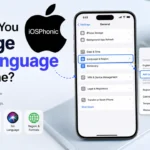
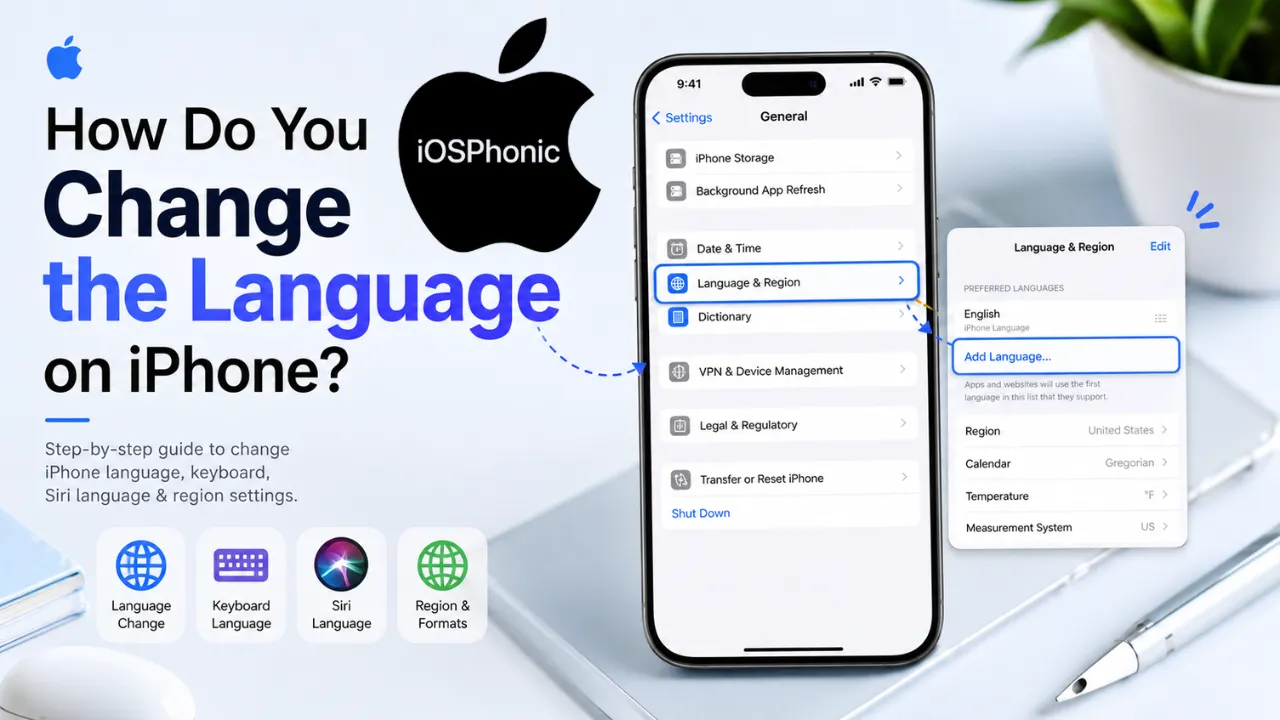
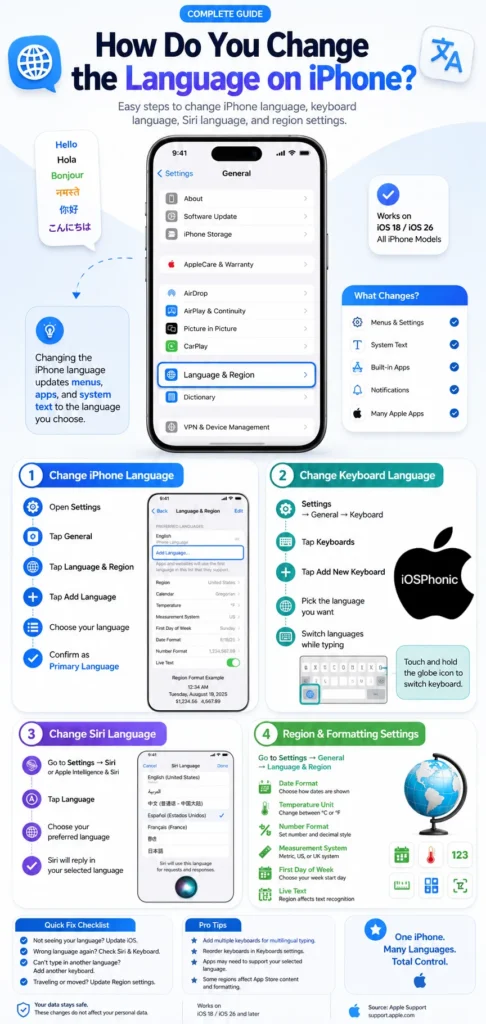
Start at the Settings app if Switching Languages on an iPhone feels unclear. Inside General, tap Language & Region to find what you need. Pick a new language there, then set it as the default using the menu options shown. This one spot adjusts more than words – calendar style shifts too, along with how dates appear. Temperature displays switch between Celsius and Fahrenheit based on your choice. The week starts on different days depending on the region selection. Number formatting changes in apps across the system. Even Live Text adapts when the language updates.
Most people tweak just one option, thinking it fixes all. Actually, the phone’s display tongue, typing layout, voice helper speech, and location rules each have their own spot. Menus showing up strangely? That comes from the main interface dialect choice. Keys producing odd characters? The keyboard setup controls that piece. Hearing replies in a different way of speaking? That part hides somewhere else entirely.
Start here if your phone acts up when switching languages. Most folks miss a few things the first time around, so we cover those, too. New users will find their way easily, yet nothing gets left out that could trip someone up later. Every step shows exactly what to do next.
What does changing the iPhone language actually do?
When you change the system language, the iPhone updates its menus, labels, and many built-in prompts to the language you choose. Apple says that after you confirm the new primary language, the device automatically displays the selected language.
Here is the simplest way to understand it:
| Setting | What it changes | Where to change it |
| iPhone language | Menus, labels, system prompts | Settings > General > Language & Region |
| Keyboard language | The language layout used while typing | Settings > General > Keyboard > Keyboards |
| Siri language | The language Siri uses for requests and responses | Settings > Siri or Apple Intelligence & Siri |
| Region | Formats for date, number, calendar, temperature, and more | Settings > General > Language & Region |
Apple’s own support pages separate those controls, which is why a complete fix often needs more than one menu.
Why does this problem happen
Most people run into iPhone language problems for one of these reasons:
- They bought a used iPhone that was set up in another language.
- They changed the language by accident.
- They only changed the keyboard and not the system language.
- Siri is still using a different language from the iPhone.
- The region is causing dates, numbers, or units to look unfamiliar.
- A family member or previous owner changed the device settings.
- The phone was restored or transferred from another country.
- They added a language but did not set it as the primary language.
Apple specifically notes that you can change the language if it is incorrect or if you accidentally changed it to a language you do not understand.
How to change the language on an iPhone
1) Open the correct menu
Go to Settings > General > Language & Region. That is the main path for changing the iPhone’s language. Apple lists this exact route in its current support documentation.
2) Tap Add Language
Inside Language & Region, tap Add Language. Apple’s support article uses this exact step for changing the language on the iPhone.
3) Choose the language you want
Pick the language from the list.
4) Confirm it as the primary language
Apple says an alert will ask which language you want to use as your primary language. After you choose it, the iPhone updates and automatically displays the selected language.
5) Wait for the interface to refresh
After confirmation, the menus may briefly reload. Once the change finishes, your iPhone interface should appear in the new language. Apple’s documentation shows the device updating after the selection is confirmed.
When this method is the right fix
Use this when you want to change the main phone language for the whole device, not just typing or Siri.
How to change the language if your iPhone is already in another language
This is the situation many people worry about most. The good news is that the path is still the same.
Apple says the language can be changed even if it is wrong or accidentally switched to one you do not understand. The menu path is still Settings > General > Language & Region > Add Language.
Use this fallback path
- Open Settings.
- Tap General.
- Tap Language & Region.
- Tap Add Language.
- Select the language you want.
- Confirm it as the primary language.
Useful tip
If you are staring at a screen in an unfamiliar language, focus on the icons and menu positions rather than trying to read everything. The structure usually stays in the same place even when the labels change.
How to add a second language without changing the main one
You do not need to replace your main system language just to type in another language. Apple supports adding extra keyboards for different languages. The keyboard menu is separate from the main language menu.
Add another keyboard language
Go to Settings > General > Keyboard > Keyboards. Apple’s keyboard guide shows that this is where keyboard languages are managed.
Then:
- Tap Add New Keyboard.
- Choose the language you want.
- Pick the keyboard layout if needed.
- Save the change.
When this is useful
Use this when you want to:
- Yype in two languages,
- Send bilingual messages,
- Use another script,
- Or keep the iPhone interface in one language while typing in another.
How to switch keyboard language while typing
When you are typing, Apple lets you switch keyboards without leaving the app. You can touch and hold the Emoji button or the keyboard-switch key, then pick the keyboard you want. Apple also says you can cycle through added keyboards from the keyboard controls.
Expert tip
If you type in multiple languages often, keep your most-used keyboard layouts near the top of the list so switching feels smoother.
How to change Siri’s language on iPhone
Many users expect Siri to change automatically when they change the iPhone’s language. That does not always happen. Apple treats Siri language as a separate setting.
Go to Settings > Siri or Settings > Apple Intelligence & Siri, then tap Language and choose the language Siri should use for requests and responses. Apple’s support page explicitly says that Siri’s language has been changed there.
Why this matters
If your iPhone menus are in one language but Siri responds in another, the fix is usually in Siri settings, not in Language & Region. Apple also notes that Siri availability and features vary by language and country or region.
How to change the region on iPhone
The region is not the same thing as the iPhone language. Apple’s Language & Region page lets you adjust region-related formats like calendar, temperature, measurement system, first day of week, date format, number format, and Live Text behavior.
Change region-related formatting
Go to Settings > General > Language & Region and review the available options. Apple lists the following items there:
- Language for iPhone
- Region
- Calendar format
- Temperature unit
- Measurement system
- First day of the week
- Date format
- Number format
- Live Text
Important distinction
If you mean your Apple Account country or region, that is a different process from the device’s Language & Region menu. Apple handles Apple Account region changes in Settings > your name > Media & Purchases > View Account > Country/Region.
Comparison table: what to change for each problem
| Problem you see | Best fix |
| Menus are in the wrong language | Change system language in Language & Region |
| You want to type in another language | Add a keyboard |
| Siri replies in the wrong language | Change Siri language |
| Dates, units, or numbers look odd | Check Region and formatting |
| You changed the wrong setting | Review all four areas: language, keyboard, Siri, region |
This table is the fastest way to avoid the most common iPhone language mistake: selecting the wrong menu.
8 real fixes for iPhone language problems
Fix 1: Change the main system language correctly
This is the core fix for most users.
Steps
- Open Settings.
- Tap General.
- Tap Language & Region.
- Tap Add Language.
- Choose the language.
- Confirm it as the primary language.
Use this fix when
- The whole iPhone should be in another language,
- The current language is wrong,
- Or you bought a phone from another region.
Fix 2: Add a second language instead of replacing the first one
If you only need another language for typing, do not change the main system language.
Steps
- Go to Settings > General > Keyboard > Keyboards.
- Tap Add New Keyboard.
- Select the language.
- Keep your current system language unchanged.
Use this fix when
- you write bilingual messages,
- you work in multiple languages,
- or you need a different keyboard layout.
Fix 3: Change Siri separately
This is one of the most misunderstood parts of iPhone language setup.
Steps
- Open Settings.
- Tap Siri or Apple Intelligence & Siri.
- Tap Language.
- Choose the Siri language you want.
Use this fix when
- Siri answers in the wrong language,
- Siri cannot understand your request,
- Or you want Siri to match your speaking language.
Fix 4: Adjust region and formatting
Sometimes the language is fine, but the phone still feels “wrong” because the region is off.
Steps
- Open Settings > General > Language & Region.
- Review region-related settings.
- Change calendar, temperature, measurement, date format, and number format as needed.
Use this fix when
- Dates look unfamiliar,
- Temperature units are wrong,
- Or you recently moved to another country.
Fix 5: Restart the iPhone after changing the language
A simple restart can help the interface settle after a major settings change.
Apple’s support pages explain the normal restart process and also show how to force restart if the phone is frozen or unresponsive.
Steps
For most modern iPhones:
- Press and hold a volume button and the side button until the power slider appears.
- Drag the slider.
- Wait about 30 seconds.
- Turn the phone back on.
Use this fix when
- The language seems stuck,
- Menus Lag after the switch,
- Or the phone does not visually refresh right away.
Fix 6: Update iOS
If menus behave strangely, an iOS update can help.
Apple says you can update from Settings > General > Software Update, and it notes that updates can improve iPhone features and security.
Steps
- Open Settings.
- Tap General.
- Tap Software Update.
- Install any available update.
Use this fix when
- Your language screen looks different from expected.
- Some items do not match Apple’s latest layout,
- Or your iPhone is running older software.
Fix 7: Reset all settings without erasing data
If the language setup is still acting strange, Apple allows you to reset settings to defaults without deleting your content.
Steps
- Go to Settings.
- Tap General.
- Tap Transfer or Reset iPhone.
- Tap Reset.
- Choose the appropriate reset option.
Use this fix when
- Settings are conflicting,
- Keyboard or language preferences keep reverting,
- Or you want a clean settings refresh without wiping data.
Fix 8: Restore the iPhone only as a last resort
This is the heavy-duty option and should be used only when simpler fixes fail.
Apple explains that restoring or erasing the device removes content and settings. It also documents the path for erasing the phone through Settings > General > Transfer or Reset iPhone > Erase All Content and Settings.
Use this fix when
- The phone is badly misconfigured,
- The setup is corrupted,
- Or you are preparing the device for a new owner.
Important
Back up your data first. A restore or erase can remove everything from the device.
Quick fix checklist
If you only have one minute, do this:
- Change the main language in Settings > General > Language & Region.
- Add a keyboard in Settings > General > Keyboard > Keyboards.
- Change Siri language in Settings > Siri or Apple Intelligence & Siri.
- Check region formats in Language & Region.
- Restart the iPhone.
- Update iOS.
Advanced fixes and deeper troubleshooting
1) Check whether you changed the right language
Sometimes users change keyboard language and assume the whole iPhone has changed. The keyboard menu and system language menu are separate.
2) Check Siri after the language switch
Siri can keep its own language settings, so verify it after changing the main device language.
3) Review the region if formats look odd
If the date format, number format, or temperature units look wrong, revisit Language & Region. Apple lists those settings on the same page as iPhone language.
4) Be careful with the Apple Account region
Changing the device language does not change your Apple Account country or region. Apple handles that separately under account settings.
Pro tips and hidden tricks
- Keep your primary language and keyboard language Separate if you are bilingual. Apple supports both workflows.
- Use Siri language only when Siri itself is the problem.
- Review region settings after traveling or moving countries. Apple specifically says Language & Region can be changed if you travel or move.
- Check Live Text behavior if you use image text copying often. Apple includes Live Text in the Language & Region menu.
- If the phone is in a language you do not understand, rely on menu position and icons instead of reading every label. Apple’s step-by-step guidance is designed for exactly that situation.
- After major language changes, a restart can make the interface feel more stable.
- Keep iOS updated so your settings layout matches current Apple guidance.
Common mistakes to avoid
- Changing the keyboard and expecting the whole phone to change.
- Changing Siri and expecting the main interface to update.
- Ignoring region settings when the problem is really formats, not language.
- Resetting the whole device too early.
- Mixing up the Apple Account country/region with the iPhone device region.
Privacy and data safety notes
Changing language, keyboard, Siri, or region settings does not usually delete your personal files. A normal language change is a settings change, not a wipe. But a reset or restore is different, and Apple warns that erasing or restoring a device removes content and settings. Always back up first before using destructive options.
FAQs
Yes. Apple’s support guide shows that the language is changed directly in Settings > General > Language & Region, not through a factory reset.
Not always. Siri has its own language setting in Settings > Siri or Settings > Apple Intelligence & Siri.
Yes. Apple lets you add keyboards for other languages, so you can type in more than one language without changing the whole phone.
Apple says the same path still works: open Settings, go to General, then Language & Region, tap Add Language, and select the language you want.
Because region settings are separate from the main language. Apple includes calendar format, temperature, measurement system, date format, number format, and Live Text in the Language & Region menu.
Conclusion
Got it. Here’s your device’s language sorted properly. Head into Settings, then pick General before Tapping Language & Region – this sets what you see across the screen. Type differently? Adjust keyboards separately so letters match how you write. Voice responses need their own setup; tell Siri what tongue to speak. Formats like dates or measurements shift when the region changes. Each setting lives apart, Apple says. That explains why folks tweak one piece yet still hit snags later.
Most people fix the problem just by switching their main language first. After that, they look at Siri, keyboard, and location settings one after another. Doing it this way works quicker, avoids risks, yet proves steadier than guessing step by step. When running a help website such as iosphonic.com, weaving links here makes sense since so many iPhone fixes trace back to this single point.